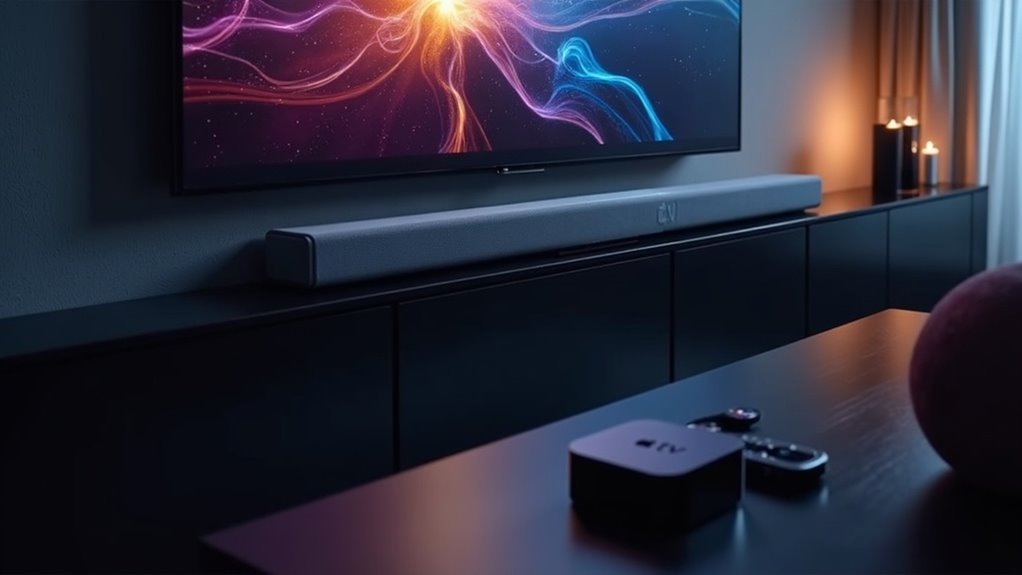
To verify Dolby Vision passthrough with your soundbar and Apple TV, begin by connecting the Apple TV 4K directly to your soundbar’s HDMI input using a high-speed HDMI cable rated for at least 18 Gbps. Ensure that your soundbar supports Dolby Vision and enable Dolby Atmos in the audio settings of the Apple TV. It’s important to regularly update the firmware for both the soundbar and Apple TV to prevent compatibility issues and enhance overall performance. Additionally, there are further steps to ensure seamless playback, which will be beneficial for your setup.
Key Takeaways
- Ensure your soundbar and TV support Dolby Vision and are connected properly using high-speed HDMI cables rated for at least 18 Gbps.
- Connect the Apple TV 4K directly to the soundbar’s HDMI input for optimal Dolby Vision passthrough.
- Navigate to the Apple TV’s Settings > Video and Audio to confirm that Dolby Vision and Dolby Atmos are enabled.
- Regularly check and update your soundbar’s firmware to maintain compatibility and enhance performance with HDR formats.
- Test video output by playing Dolby Vision content on streaming services like Netflix or Disney+ and verify the picture quality on your TV through the soundbar.
Understanding Dolby Vision and Its Importance
Dolby Vision represents a significant advancement in high dynamic range (HDR) video technology, offering an unparalleled viewing experience that can be enhanced through the use of soundbars.
While Dolby Vision enhances color and contrast using dynamic metadata for picture quality, soundbars can complement this by providing an immersive audio experience.
With support for up to 12-bit color depth, Dolby Vision displays over 68 billion colors, far surpassing standard HDR10. When paired with a high-quality soundbar, the overall viewing experience is elevated.
Dolby Vision’s 12-bit color depth showcases over 68 billion colors, creating an unmatched viewing experience, especially with a quality soundbar.
To fully enjoy Dolby Vision and its accompanying audio enhancements, proper hardware is essential, including HDMI 2.0 or higher, and devices that support Dolby Vision, such as the Apple TV 4K.
You’ll find a wealth of supported content on platforms like Netflix and Disney+, making it a must-have for anyone seeking an immersive audio-visual experience on their 4K TVs.
Setting Up Your Apple TV and Soundbar
To set up your soundbar with Apple TV, begin by connecting the Apple TV 4K directly to the soundbar’s HDMI input to enable Dolby Vision and Dolby Atmos passthrough.
Ensure you use a high-speed HDMI cable rated for at least 18 Gbps to support 4K HDR formats.
Finally, adjust the audio settings in the Apple TV’s menu to ensure Dolby Vision is activated for optimal playback quality through your soundbar.
HDMI Connections Explained
When setting up your soundbar with your Apple TV, it’s essential to connect them correctly to ensure optimal audio and video performance.
For Dolby Vision passthrough, connect your Apple TV directly to the soundbar’s HDMI input. Utilize a high-speed HDMI cable rated for 18 Gbps or better to link the soundbar’s HDMI output to your TV.
Verify that your soundbar supports Dolby Vision compatibility, as some models may only support 4K HDR.
If you encounter any issues, you can connect the Apple TV directly to the TV and use the soundbar’s HDMI ARC port for audio routing, which will help optimize both video quality and overall performance.
Configuring Audio Settings
Configuring the audio settings on your soundbar is essential for achieving the best sound experience when using it with an Apple TV.
Start by connecting your Apple TV to the soundbar’s HDMI input, ensuring the soundbar supports Dolby Vision and 4K HDR formats.
Navigate to Settings > Video and Audio on your Apple TV and enable Dolby Atmos under Audio Format for peak performance.
Confirm that your soundbar’s HDMI ports support Dolby Vision passthrough.
Use high-speed HDMI cables rated for 18 Gbps or higher to maintain bandwidth.
Finally, check that your TV’s HDMI Deep Colour settings are enabled for proper video output with Dolby Vision, enhancing the overall audio-visual experience.
Checking Firmware Updates for All Devices
Keeping your soundbar updated is essential for ensuring seamless Dolby Vision passthrough.
Regularly check for firmware updates on your soundbar, as outdated software can lead to compatibility issues with your Apple TV and TV.
Importance of Firmware Updates
To guarantee peak performance and compatibility with features like Dolby Vision passthrough, regularly checking firmware updates for your soundbar is essential.
Keeping your soundbar updated can resolve compatibility issues and enhance audio performance. Updated soundbar firmware can support HDR and Dolby formats, reducing the chances of flickering screens or audio dropouts when paired with devices like Apple TV and televisions.
Checking Device Compatibility
Verifying all your devices are compatible is key to achieving Dolby Vision passthrough with your soundbar.
First, ensure your soundbar, Apple TV, and television are updated to the latest firmware for optimal performance. Check that your soundbar supports Dolby Vision passthrough and has the necessary HDMI version, ideally HDMI 2.0 or 2.1.
Next, navigate to Settings > Video and Audio on your Apple TV to confirm the correct output format is selected for Dolby Vision.
Lastly, use high-speed HDMI cables rated for 18 Gbps or higher to effectively manage the bandwidth required for 4K HDR and Dolby Vision signals.
Connecting Apple TV Directly to the Soundbar
When you connect your Apple TV directly to the HDMI input on your soundbar, you can easily check if it supports Dolby Vision passthrough.
Follow these steps to ensure optimal performance:
- Ensure that your HDMI cables are rated for at least 18 Gbps to support high-quality video and audio.
- Go to Settings > Video and Audio on your Apple TV and confirm that the video output is set to 4K and that Dolby Vision is enabled.
- Make sure the soundbar’s HDMI output is connected to a TV HDMI port that supports ARC/eARC for seamless audio transmission.
- Review the specifications of your soundbar to confirm that it explicitly supports Dolby Vision passthrough.
You may need to make adjustments if you encounter any compatibility issues.
Configuring Soundbar Settings for Dolby Vision
Configuring your soundbar settings for Dolby Vision is essential for optimizing your audio-visual experience.
Start by navigating to the soundbar’s settings menu to ensure that the HDMI ports are capable of supporting Dolby Vision passthrough. It’s important to use high-speed HDMI cables rated for 18 Gbps or higher.
Connect your Apple TV directly to the soundbar’s HDMI input, then link the soundbar’s HDMI output to the TV’s HDMI port labeled “ARC” or “eARC.”
To ensure that you have full Dolby Vision functionality, check and update your soundbar’s firmware to the latest version.
Lastly, make sure that your TV’s HDMI Deep Color setting is enabled for optimal performance when utilizing the soundbar.
Testing Dolby Vision Playback on Apple TV
Testing Dolby Vision playback on your soundbar setup with Apple TV is a straightforward process that ensures you receive the best visual and audio experience.
Follow these steps:
- Connect your Apple TV directly to the soundbar’s HDMI input.
- Link the soundbar to the TV’s HDMI ARC port for optimal audio passthrough.
- Navigate to Settings > Video and Audio on your Apple TV and enable Dolby Vision in the video output settings.
- Play compatible content on Apple TV+ and check for the Dolby Vision icon in the audio info section.
Make sure to use HDMI cables rated for 18 Gbps and ensure that both your soundbar and Apple TV have the latest firmware updates for seamless playback.
Troubleshooting Common Issues With Dolby Vision
After confirming that your soundbar is capable of delivering Dolby Vision playback, it’s important to troubleshoot common issues that may arise with Dolby Vision passthrough.
First, check that both your soundbar and TV support Dolby Vision; some soundbars may only support 4K HDR.
For optimal output, connect your soundbar directly to the TV’s HDMI input. Ensure you’re using high-speed HDMI cables certified for at least 18 Gbps.
Review the HDMI port settings on both devices, enabling any “enhanced” modes.
If problems persist, a factory reset of your soundbar or TV might resolve compatibility issues, improving Dolby Vision performance.







