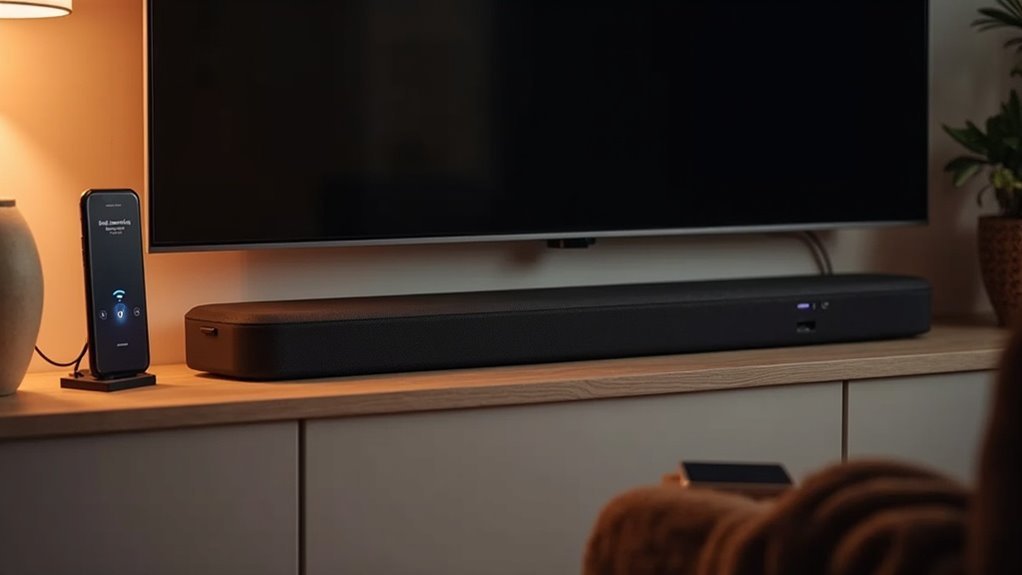
To set up your soundbar with voice assistants, first decide between Amazon Alexa or Google Assistant during the setup process. Power on your soundbar and connect it to your Wi-Fi. Download the Bose Music app and follow the on-screen instructions to link your voice assistant account. Program your universal remote for seamless control, and troubleshoot any issues by checking connections and app settings. Keep exploring to discover more tips for enhancing your soundbar audio experience!
Key Takeaways
- Power on the Soundbar and connect it to your home Wi-Fi network for seamless operation.
- Download and open the Bose Music app to initiate the setup process for your soundbar.
- During the setup, select your preferred voice assistant (Amazon Alexa or Google Assistant) to enhance your soundbar experience.
- Link your account within the app to enable voice control features for your soundbar.
- Regularly update both the Soundbar and the voice assistant app to ensure optimal performance and access to the latest features.
Selecting Your Voice Assistant
When setting up your Soundbar 700, selecting the right voice assistant can significantly enhance your audio experience and simplify your smart home integration.
During the setup process, you have the option to choose either Amazon Alexa or Google Assistant. Follow the app instructions closely to connect your chosen voice assistant for optimal voice control functionality.
Ensure your Soundbar has a stable internet connection, as this is crucial for the voice assistant to respond effectively. If you prefer, you can skip this step during the initial setup and add a voice assistant later.
Additionally, you can modify your choice at any time through the app to suit your preferences.
Connecting Your Soundbar
To connect your Soundbar 700, first ensure it’s powered on and connected to your home Wi-Fi network.
Download the Bose Music app, then open it and follow the on-screen instructions to set up your voice assistant. You’ll have options like Amazon Alexa or Google Assistant—choose your preferred one.
Download the Bose Music app and follow the on-screen instructions to easily set up your preferred voice assistant.
Once selected, link your account by following the prompts to enable voice control functionality.
If you’re using Alexa or Google Assistant, make sure the SmartThings app is updated for proper integration with your Soundbar.
This will allow you to enjoy seamless voice command capabilities and enhance your audio experience.
Programming the Universal Remote
Setting up your universal remote for the Soundbar 700 is a straightforward process that can significantly enhance your audio experience with soundbars.
To begin programming, select “Set Up Now” during the initial setup. If you prefer to program later, choose “Do It Later” and access the “Programming your remote” section in the app.
Make certain all components are properly connected before starting. Follow the on-screen instructions in the app to effectively control your Soundbar.
For additional assistance, refer to articles within the app that provide detailed instructions on programming your remote, ensuring a seamless setup and optimal performance of your soundbar.
Troubleshooting Common Setup Issues
Are you experiencing issues while setting up your Soundbar?
First, ensure that your Soundbar is properly connected to your TV and Wi-Fi for a stable connection.
Update the SmartThings app to the latest version, as outdated software can lead to setup problems.
Don’t forget to enable the SmartThings skill in the Alexa or Google Home app for voice command functionality.
If your voice assistant isn’t responding, check the microphone settings on the Soundbar to make sure they’re enabled.
Finally, restart both your Soundbar and router to resolve any connectivity issues that might be affecting your voice assistant’s performance.
Happy troubleshooting!
Enhancing Your Audio Experience
Enhancing your audio experience with soundbars starts with leveraging their capabilities along with voice assistants, creating a seamless and intuitive environment for enjoying your favorite media.
Here’s how to elevate your soundbar setup:
- Connect your soundbar to Wi-Fi for a stable connection.
- Integrate Amazon Alexa or Google Assistant for hands-free control.
- Use voice commands for playback and volume adjustments.
- Regularly update your soundbar and voice assistant app for improved performance.







