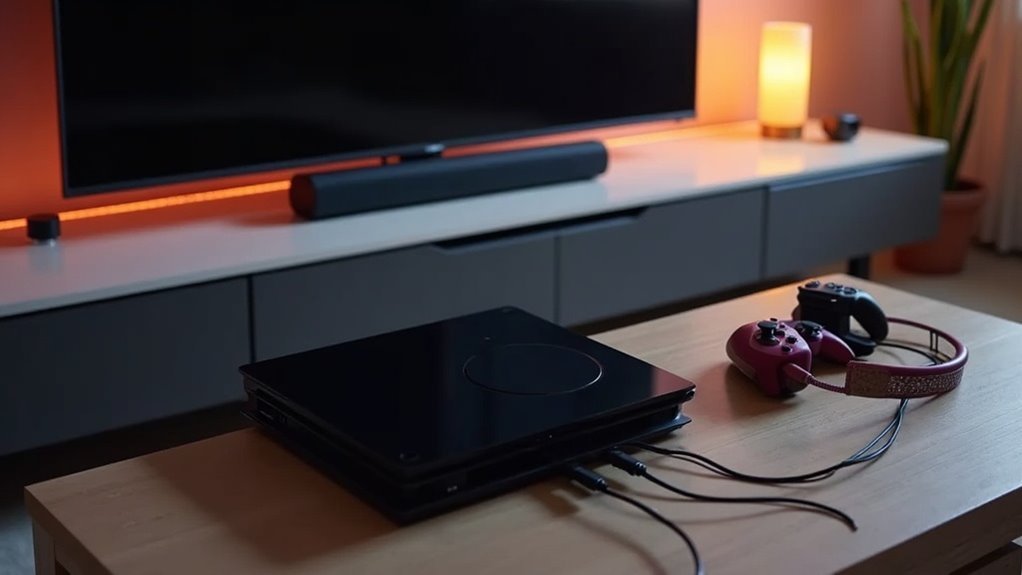
To set up your soundbar with a PS5, start by connecting the PS5 directly to the soundbar using an HDMI cable. Next, connect the soundbar’s HDMI ARC port to your TV’s HDMI ARC port for optimal audio performance. If your setup lacks HDMI ARC support, connect the PS5 to the TV and use an optical cable to transmit audio to the soundbar. Afterward, navigate to the PS5 audio settings and select “AV Amplifier” to achieve the best surround sound experience. If you encounter any issues, ensure that all connections are secure and the settings are correctly configured for the best audio output. Enjoy exploring the full potential of your soundbar!
Key Takeaways
- For optimal audio quality, connect your PS5 directly to the soundbar using an HDMI cable.
- Make sure the soundbar is connected to your TV through the HDMI ARC port to enable seamless audio output.
- To ensure surround sound compatibility, adjust the PS5 audio settings by setting the HDMI Device Type to “AV Amplifier.”
- If the HDMI ARC port is unavailable, you can use an optical cable to connect from the TV to the soundbar.
- Double-check that all connections are secure and that both devices have the latest firmware updates applied.
Initial Setup Steps for Connecting PS5 to Soundbar
To get started with connecting your PS5 to a soundbar, ensure that both devices support HDMI ARC (Audio Return Channel) for an optimal audio experience.
Connect the PS5 directly to the soundbar using an HDMI cable, then link another HDMI cable from the soundbar’s HDMI ARC port to your TV’s HDMI ARC port.
Connect your PS5 to the soundbar via HDMI, then link the soundbar’s HDMI ARC to your TV’s HDMI ARC.
If your setup lacks HDMI ARC, connect the PS5 to the TV using HDMI and use an optical cable to connect the TV to the soundbar for audio output.
Make sure your TV’s sound output setting matches the connection type to ensure seamless audio from the PS5 through the soundbar.
Configuring PS5 Audio Settings
After connecting your PS5 to the soundbar, it’s time to fine-tune your audio settings for the best experience. Navigate to the Sound settings menu and select Audio Output. Set the HDMI Device Type to “AV Amplifier” for optimal surround sound compatibility with your soundbar. Adjust the audio channels to match the specifications of your soundbar, typically selecting either 5.1 or 7.1 for the best performance. For peak playback quality, choose “Dolby” or “DTS” under Audio Format (Priority). Don’t forget to enable audio passthrough to ensure effective surround sound processing.
| Setting | Recommended Option | Purpose |
|---|---|---|
| HDMI Device Type | AV Amplifier | Ensures compatibility for surround sound |
| Audio Channels | 5.1 or 7.1 | Matches soundbar capabilities |
| Audio Format (Priority) | Dolby or DTS | Provides optimal audio playback |
| Audio Passthrough | Enabled | Processes surround sound formats |
| Configure | According to setup | Personalizes audio settings based on your soundbar |
Setting Up Your TV for Sound Output
Setting up your TV for sound output is essential for maximizing your soundbar experience.
First, ensure your TV supports HDMI ARC or eARC for optimal audio quality. Connect your PS5 to the TV using an HDMI cable, then use another HDMI cable to connect your soundbar to the TV’s HDMI ARC port.
If HDMI ARC isn’t available, an optical cable can be used to link the TV’s audio output to the soundbar.
Next, navigate to the audio settings on your TV and select HDMI ARC or optical as the primary output for sound.
Finally, make sure your soundbar is set to the correct input and adjust the TV volume to achieve the best sound experience.
Troubleshooting Common Audio Issues
Even with everything set up correctly, you might encounter some audio issues while using your soundbar with the PS5.
Start troubleshooting by checking all connections; ensure that your HDMI and optical cables are securely connected. Confirm that your soundbar is powered on and set to the correct input.
If no audio output is detected, try restarting both the PS5 and the soundbar.
Next, verify your PS5 audio settings: set the HDMI Device Type to “AV Amplifier” and select the appropriate audio channels for your soundbar.
Lastly, ensure that the firmware for both devices is up to date to prevent compatibility issues that could affect your audio experience.
Exploring Additional Connection Options
How can you enhance your audio experience when connecting your soundbar to a PS5? Here are some additional connection options to consider:
- HDMI ARC: If your soundbar and TV support HDMI ARC, connect the PS5 directly to the soundbar, then connect the soundbar to the TV’s HDMI ARC port for seamless audio output. This setup allows for easy control and high-quality sound transmission.
- Optical Cable: If HDMI ARC isn’t available, you can connect the PS5 to the TV via HDMI and then use an optical cable from the TV’s audio output to the soundbar. This method provides a reliable audio connection without compromising sound quality.
- eARC: For those looking to enjoy advanced audio formats, ensure that both your soundbar and TV are connected through eARC-enabled ports. Additionally, check for any firmware updates in the audio settings menu to maximize your soundbar’s performance and compatibility.







