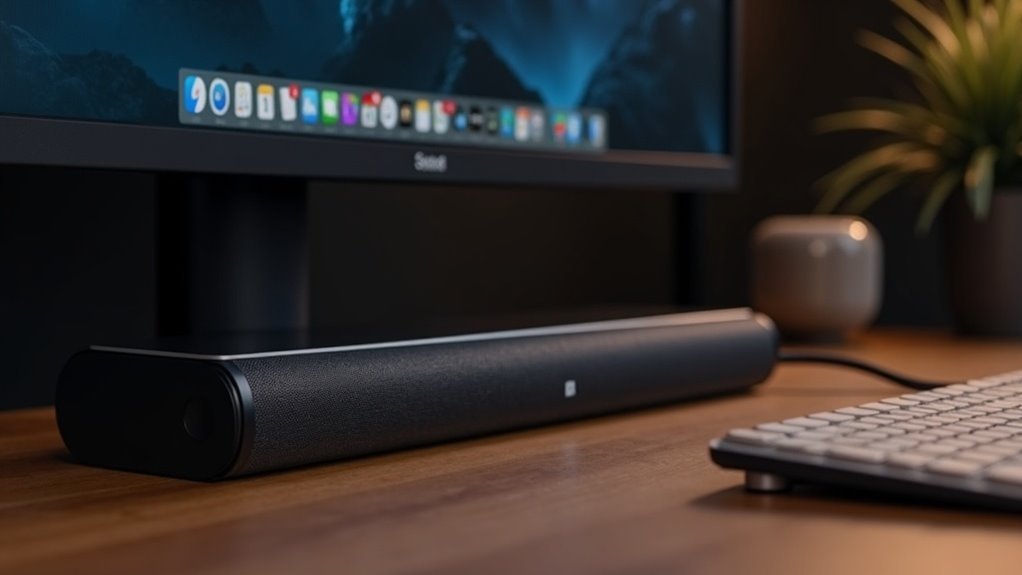
To set up a soundbar with your PC, first, verify compatibility and gather the necessary cables. Connect the soundbar using Bluetooth, AUX, or Optical Audio. Once connected, power on the soundbar and set it as your default audio device in the playback settings of your PC. To ensure a successful setup, test the connection by playing audio and adjusting the volume as needed. If you encounter any issues, double-check the connections and settings. Continue exploring our website for tips on enhancing your audio experience and alternative connection methods for soundbars.
Key Takeaways
- Ensure your soundbar is compatible with your PC and gather the necessary cables for connection (Bluetooth, AUX, Optical, or USB).
- For wireless connections, enable pairing mode on the soundbar and connect through your PC’s Bluetooth settings.
- For wired connections, utilize an AUX or Optical Audio cable to link the soundbar to your PC.
- Set the soundbar as the default audio output device in your PC’s audio settings to achieve optimal sound performance.
- Position the soundbar correctly and adjust the bass and treble settings to enhance your overall listening experience.
Understanding Your Soundbar Options
When choosing a soundbar for your PC, it’s crucial to explore the various options available to find the ideal match for your audio needs.
Dell soundbars offer a range of choices, including USB-powered models like the Slim Conferencing Soundbar SB522A, which helps streamline your setup by minimizing cable clutter.
On the other hand, AC-powered models such as the AX510 deliver powerful audio performance. Each soundbar is designed for compatibility with select Dell monitors, ensuring optimal audio quality.
Be sure to consider connection methods, including Bluetooth for wireless use, or AUX and Optical Audio cables for wired setups, to ensure compatibility with your computer’s ports and the features of the soundbar.
Preparing Your Setup
To prepare your setup, start by ensuring your soundbar is compatible with your PC through the available connection options, such as Bluetooth, AUX, or Optical Audio ports.
Gather all necessary cables and equipment, including the power adapter and your chosen connection cable.
Next, choose a suitable location for your soundbar, ideally positioned just above or below your monitor for optimal audio performance.
Power on the soundbar and set it to the desired connection mode, whether wired or wireless.
Finally, familiarize yourself with your PC’s audio settings to ensure the soundbar is selected as the default audio output device, allowing you to enjoy an enhanced sound experience.
Connecting Your Soundbar
Connecting your soundbar to your PC can greatly enhance your audio experience.
To connect wirelessly, power on the soundbar and enable pairing mode, then access your PC’s Bluetooth settings to pair.
Power on your soundbar, enable pairing mode, and connect via your PC’s Bluetooth settings for a seamless wireless experience.
For a wired connection, use an AUX cable—plug one end into your PC’s headphone jack and the other into the soundbar’s AUX port to route audio through the soundbar.
Alternatively, use an Optical Audio cable if your PC supports it, connecting the Toslink cable to both devices.
If you have a USB-powered soundbar, simply plug it into a USB port for power and audio.
Don’t forget to set it as the default output for the best sound experience.
Configuring Sound Settings on Your PC
Configuring sound settings on your PC is essential for ensuring your soundbar delivers the best audio experience.
Begin by right-clicking the sound icon in the taskbar and selecting “Playback devices” to view available audio outputs. Make sure to connect your soundbar and set it as the default playback device by right-clicking on it and choosing “Set as Default Device.”
If you’re using a Bluetooth soundbar, check under “Settings” > “Devices” to confirm its connection.
For optimal audio quality, access the soundbar properties and adjust enhancements in the “Properties” menu, ensuring the audio format settings under the “Advanced” tab are compatible with your soundbar’s specifications.
Troubleshooting Common Issues
If you’re experiencing problems with your soundbar, you’re not alone.
Common issues such as no sound, connectivity problems, or audio quality concerns can often be resolved with a few straightforward checks.
Let’s delve into effective troubleshooting methods to get your soundbar performing at its best.
No Sound Issues
Wondering why there’s no sound from your soundbar? First, verify that it’s properly connected and set as the default output device in your computer’s sound settings.
Here are a few checks to perform:
- Ensure the soundbar is powered on and connected via Bluetooth, AUX, or Optical Audio.
- Inspect all connections for any loose cables, and try different USB ports if the soundbar isn’t turning on.
- Adjust the volume settings on both your computer and the soundbar, confirming that it’s not muted.
If sound issues persist, consider consulting the user manual or the manufacturer’s website for troubleshooting tips specific to your soundbar model.
Connection Problems
Connection problems with soundbars can be frustrating, but they’re often easy to troubleshoot.
If your soundbar doesn’t turn on, check the power cable and try different USB ports.
For no sound, verify that your soundbar is selected as the default output device in your audio settings.
If you hear static or distortion, inspect the optical cable and all connections for looseness, and consider updating your audio drivers.
If the soundbar’s volume is low, adjust both your computer and soundbar volume controls.
If it randomly turns off, test a different power source or check for faulty power adapters.
Audio Quality Concerns
Audio quality can significantly influence your experience with a soundbar when connected to your PC. If you’re encountering issues, consider these troubleshooting tips to enhance your audio:
- Ensure the soundbar is connected properly; check your audio cable and set it as the default output device on your PC.
- If you experience static or distorted audio, try tightening connections and updating your audio drivers for better performance.
- Adjust both your computer’s sound settings and the soundbar’s volume control to resolve any low volume issues.
Enhancing Your Audio Experience
When you connect a soundbar to your PC, you instantly elevate your audio experience, transforming how you enjoy music, movies, and games. A soundbar significantly enhances audio clarity and depth compared to built-in speakers, immersing you in rich soundscapes.
You can connect your soundbar via Bluetooth, AUX cables, or Optical Audio, providing flexibility for your setup. Models like the Dell Slim Conferencing Soundbar SB522A, which are USB-powered, simplify installation without the need for additional power sources.
Plus, a soundbar helps reduce cable clutter, giving your workspace a sleek and organized look. Just ensure compatibility with your PC’s ports for optimal sound performance. Enjoy the upgrade to an immersive audio experience!
Additional Connection Methods
When it comes to connecting your soundbar to a PC, you’ve got several options beyond the standard methods.
You can use Bluetooth for a wireless setup, an AUX cable for a straightforward wired connection, or an optical audio connection for superior sound quality.
Each method features its own setup process, so let’s delve into how to achieve the best audio experience with your soundbar.
Bluetooth Connection Process
Setting up your soundbar with a PC via Bluetooth is a straightforward process that enhances your audio experience.
Follow these steps for a seamless connection:
- Power on your soundbar and enable pairing mode (check the manual for instructions).
- On your Windows PC, navigate to Settings and ensure Bluetooth is turned on. Click “Add Bluetooth or other device.”
- Select your soundbar from the list and wait for confirmation messages like “Done.”
Finally, ensure your soundbar is set as the default audio output device in your PC’s sound settings for optimal sound quality.
Enjoy your enhanced audio experience with your soundbar!
AUX Cable Setup
Using an AUX cable to connect your soundbar to a PC is a straightforward and effective method that ensures reliable audio quality.
Begin by powering on your soundbar and confirming that the indicator light is lit. Next, plug one end of the AUX cable into your computer’s headphone port, typically marked with a headphone icon.
Insert the other end into the AUX port on the soundbar to establish the audio connection. Once connected, Windows should automatically route audio through the soundbar, enhancing your listening experience.
If you encounter any issues with sound quality, inspect the AUX cable for dust and ensure both connections are secure to achieve optimal performance from your soundbar.
Optical Audio Connection
One effective way to connect your soundbar to a PC is through an optical audio connection, commonly known as a Toslink connection. This method allows for high-quality digital audio transmission, enhancing your listening experience with your soundbar.
Here’s how to set it up:
- Ensure your soundbar is powered on and its indicator light is activated.
- Insert one end of the Toslink cable into the soundbar’s optical audio port and the other end into your computer’s optical output, which may be labeled as TOSLINK, OPTICAL, or DIGITAL AUDIO OUT.
- Adjust your computer’s audio output settings to ensure audio is directed through the soundbar for optimal sound quality.
If your laptop lacks a Toslink port, consider exploring alternative connection methods to enjoy the full capabilities of your soundbar.







