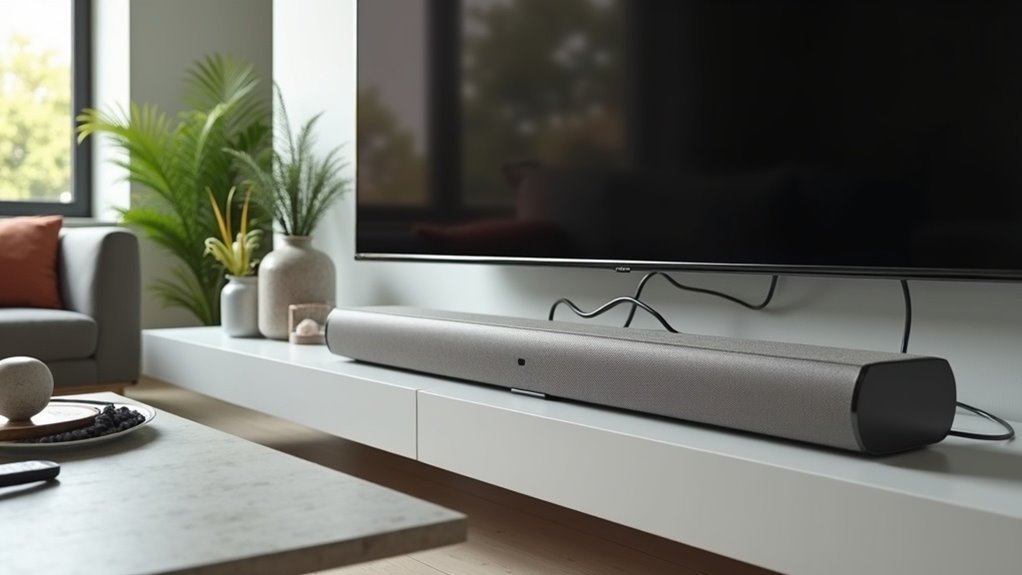
To set up your soundbar with an optical cable, begin by removing the protective caps from the cable. Connect one end to the DIGITAL AUDIO OUT port on your TV and the other to the optical input on your soundbar, ensuring proper alignment. Next, navigate to your TV’s audio settings to select ‘Audio Out/Optical’ and disable the internal speakers for optimal sound quality. Make sure the soundbar is powered on and set to the optical input to achieve the best performance. For additional tips on ensuring seamless connectivity, explore our comprehensive guide on soundbar setups.
Key Takeaways
- Remove protective covers from the optical cable before connecting it to your soundbar and TV.
- Locate the optical input on your soundbar and connect the cable securely.
- Connect one end of the optical cable to the DIGITAL AUDIO OUT port on your TV.
- Adjust your TV audio settings to select ‘Audio Out/Optical’ for proper sound output to your soundbar.
- Ensure your soundbar is powered on and set to the correct optical input for optimal playback.
What Is an Optical Cable?
An optical cable is a specialized connector that transfers audio digital signals using light, which greatly reduces transmission loss compared to traditional metal cables. This makes it ideal for connecting soundbars to various audio sources over long distances.
The light pulses sent through the cable convert into electrical pulses that carry audio information, which soundbars then transform into analog signals for playback. While optical cables can transmit high-quality formats like 5.1 Dolby Digital and DTS, they’re typically fragile and require careful handling.
Most come with protective covers, which you must remove before use to ensure proper connectivity in your soundbar setup.
Steps to Connect Your Optical Cable
Now that you understand the importance of optical cables for audio transmission with soundbars, it’s time to connect yours properly.
Begin by removing the protective cover from the optical cable to prevent damage.
Locate the optical input on your soundbar, making sure to remove any plastic plug before inserting the cable.
Connect one end of the optical audio cable to the DIGITAL AUDIO OUT port on your TV, ensuring the connector fits correctly.
Insert the other end into the optical input on the soundbar, securing the connection.
Finally, turn on both the TV and soundbar, selecting ‘optical out’ in the audio menu of your TV for optimal sound performance.
Locating Optical Input on Your Devices
To locate the optical input on your soundbar, check for a clearly labeled port, often situated on the back or side of the device.
If you see a plastic cover over the optical input, remove it before proceeding with the connection.
Make certain that your optical cable fits properly; aligning the U-shaped connector with the port will prevent damage during installation.
Identifying Optical Input Ports
How can you easily identify the optical input ports on your soundbar? Look for ports labeled “DIGITAL AUDIO IN” on your soundbar.
Most modern soundbars have a corresponding “DIGITAL AUDIO OUT” port, essential for connecting to TVs or other audio sources. The optical connector features a distinctive U-shape, ensuring compatibility with these ports.
Check that the optical inputs are easily accessible, often located near HDMI or RCA connections.
Remember to handle optical cables with care, as they’re more fragile than traditional copper cables and can be easily damaged if not properly stored or connected.
Removing Plastic Covers
Before connecting your optical cable to your soundbar, it’s essential to locate and remove any plastic covers that may obstruct the input ports.
Follow these steps to ensure a smooth connection:
- Examine your soundbar for the optical input connection.
- Remove any plastic plug covering the input port.
- Check the shape of the optical cable’s connector for proper alignment.
- Connect the optical cable securely to your TV’s audio output and your soundbar’s optical input.
- Verify both ends are firmly seated for optimal audio transmission.
Connecting Optical Cable to TV and Soundbar
Before connecting your soundbar, prepare the optical cable by removing any protective covers, as they can be easily damaged.
Locate the DIGITAL AUDIO OUT port on your TV and securely connect one end of the cable, ensuring proper alignment.
Then, connect the other end to the DIGITAL AUDIO IN port on your soundbar, making sure to clear any plastic plugs for optimal sound performance.
Enjoy your enhanced audio experience with your new soundbar!
Optical Cable Preparation Steps
To ensure a seamless connection for your soundbar, it’s important to handle the optical cable with care, as these fibers are more delicate than traditional copper cables.
Follow these steps to connect your soundbar effectively:
- Identify the optical input connection on your soundbar and remove any protective plastic plug.
- Insert one end of the optical cable into the TV’s optical output, ensuring it’s aligned properly.
- Connect the other end of the cable to the optical audio input on your soundbar, making sure it fits securely.
- Power on both the TV and the soundbar.
- Navigate to the TV’s audio settings menu and select the ‘optical out’ option to ensure optimal sound output.
Following these steps will enhance your audio experience with your soundbar.
Secure Connections for Soundbar
Establishing secure connections for your soundbar is crucial for achieving the best audio performance.
Begin by carefully removing the optical cable cover to avoid any damage. Next, locate the optical input on your soundbar and ensure that any plastic plug obstructing it’s removed.
Connect one end of the optical audio cable to the TV’s DIGITAL AUDIO OUT, making sure it’s aligned properly to prevent any damage. Insert the other end into the soundbar’s DIGITAL AUDIO IN port, ensuring it fits securely.
Finally, navigate to your TV’s audio menu and select the optical output option, confirming that the correct audio source is set on the soundbar for optimal sound quality.
Adjusting TV Settings for Optimal Sound
How can you ensure your soundbar delivers the best audio experience? Start by adjusting your TV settings for optimal sound output through the optical connection. Follow these steps:
Ensure your soundbar delivers top-notch audio by optimizing your TV’s settings for the best sound output.
- Press the Home button on your TV remote, navigate to Settings, and select the audio menu.
- Choose ‘Audio Out/Optical’ to direct audio to your soundbar.
- Disable the internal TV speakers to prevent echo and enhance clarity.
- Confirm that your soundbar is set to the correct optical input (e.g., AV1, AV4).
- Make sure the optical cable is securely connected and that your soundbar is powered on.
With these adjustments, you’ll enjoy superior sound quality from your soundbar, elevating your overall audio experience.
Troubleshooting Common Connection Issues
What should you do when your soundbar isn’t delivering sound despite being properly connected?
First, ensure that both the optical cable and the ports on your TV and soundbar are free of dust and correctly aligned. Make sure the optical cable is securely connected to the TV’s DIGITAL AUDIO OUT and the soundbar’s DIGITAL AUDIO IN ports.
Next, check the TV’s audio settings; set the audio output to ‘Optical’ or ‘Audio Out/Optical’. Confirm that the soundbar is set to the correct input source for the optical connection.
Finally, inspect the optical cable for any damage that could affect audio transmission. Following these troubleshooting steps can help resolve issues efficiently.
Additional Resources for Support
If you encounter difficulties while setting up your soundbar, various resources are available to provide support. Here are some options to consider:
If you’re having trouble with your soundbar setup, numerous support options are ready to assist you.
- Live Chat: Get immediate assistance online with soundbar setup.
- WhatsApp: Contact support through messaging for quick responses regarding your soundbar.
- Email Support: Send inquiries for detailed expert advice on soundbar issues.
- Service Centers: Visit locations like Causeway Point or Plaza Singapura for in-person help with your soundbar.
- Support Hotline: Call 1800-7267864 (1800 SAMSUNG) for guidance on soundbar setups and troubleshooting.
These resources ensure you can effectively manage your soundbar and any related connections, especially when using your remote control.







