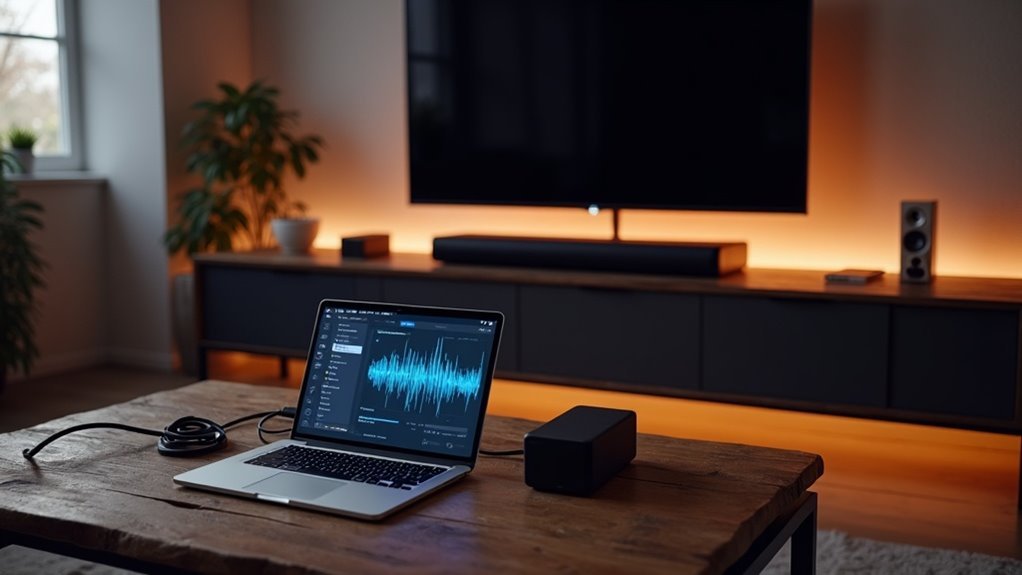
To set up your soundbar with a Mac, start by selecting the appropriate connection method, such as HDMI or optical audio. For optimal sound quality, connect using an optical digital audio cable or HDMI. Next, navigate to System Preferences > Sound and choose the soundbar as your output device. Make sure to adjust the volume levels on both your Mac and soundbar for the best audio experience. If you encounter any issues, there are additional tips available to enhance your soundbar setup.
Key Takeaways
- Connect the soundbar to your Mac using an HDMI or optical digital audio cable for the best audio quality.
- Go to System Preferences > Sound on your Mac to select the soundbar as the output device.
- Adjust the volume settings on both your Mac and the soundbar to ensure an optimal playback experience.
- If you prefer a wireless connection, make sure the soundbar is in pairing mode and choose it from your Mac’s Bluetooth settings.
- Test the audio output with high-quality files to verify surround sound functionality and troubleshoot any issues as necessary.
Choosing the Right Connection Method
When it comes to connecting your soundbar to a Mac, what’s the best method? The HDMI connection method is your top choice, offering high-quality audio output and support for 5.1 channel surround sound.
If HDMI isn’t an option, consider using an optical digital audio connection with a mini-jack to optical cable for superior sound quality.
Although analog connections via 3.5mm stereo plugs are available, they limit audio output to 2.1 channels, making them less ideal for soundbars.
You can also explore Bluetooth connections, but verify compatibility between your soundbar and Mac to avoid potential connectivity issues.
Test various methods for optimal performance and enjoy an enhanced audio experience with your soundbar.
Connecting via Optical Digital Audio
Connecting your soundbar to a Mac via optical digital audio can significantly elevate your audio experience, especially when seeking high-quality sound.
To achieve this, utilize a mini-TOSLINK to TOSLINK optical cable, linking the 3.5mm output on your Mac to the optical input of your soundbar.
Ensure that your Mac recognizes the optical connection by navigating to System Preferences > Sound > Output and selecting the optical output option.
This digital audio setup enhances sound clarity and supports advanced formats like Dolby Digital.
Once connected, adjust the volume on both your Mac and soundbar for optimal playback and immerse yourself in superior audio quality.
Configuring Sound Settings on Mac
To configure sound settings on your Mac for optimal soundbar performance, start by navigating to the Apple menu and selecting System Settings.
Then click on Sound. Here, you can select your soundbar as the output device and adjust the volume levels to your preference.
Be sure to test the audio to ensure your soundbar is functioning correctly and providing the best listening experience.
Accessing Sound Settings
Accessing the Sound settings on your Mac is essential for directing audio to your soundbar effectively. To get started, click the Apple menu, select System Settings, and go to the Sound section. In the Output tab, you can choose your soundbar as the desired audio device. If you’re using a microphone, remember to check the Input tab as well. Adjust the volume and balance settings to your liking. If you’re connecting a Bluetooth soundbar, ensure it’s powered on and successfully paired with your Mac.
| Step | Action |
|---|---|
| 1 | Open System Settings |
| 2 | Navigate to Sound |
| 3 | Select Your Soundbar as Output Device |
Selecting Output Device
When setting up your soundbar for optimal audio performance with a Mac, selecting the right output device is crucial.
To configure your audio output, start by navigating to the Apple menu and selecting “System Settings.” Next, click on “Sound.”
In the Sound settings, head to the “Output” tab where you’ll find a list of available audio devices. Ensure your soundbar is powered on and properly connected to your Mac via HDMI, optical, or analog cable.
Once it appears in the list, select your soundbar as the primary audio output. This ensures that all sound from your Mac is directed through the soundbar, delivering an enhanced listening experience tailored to your audio preferences.
Adjusting Volume Levels
Adjusting the volume levels on your Mac is essential for achieving the best audio experience through your soundbar.
To get started, navigate to the Apple menu, select System Settings, and then click on Sound. Under the Output tab, make sure to select your connected soundbar to direct audio to it.
Use the Volume slider to set the overall audio level, ensuring it’s balanced with other sources. Additionally, check the volume settings of individual applications, as they may override the main system volume.
If you experience any audio issues, it’s a good idea to test your soundbar’s settings directly to ensure it’s properly configured and not muted.
Enjoy enhanced sound quality and immersive audio experiences with your soundbar!
Exploring Additional Connection Options
While you may already be familiar with basic connection methods, exploring additional options can greatly enhance your soundbar experience with your Mac.
If your soundbar features an optical input, consider using an optical digital audio cable; this connection maintains high-quality audio and video.
For full surround sound capabilities, connect your Mac via HDMI to a compatible TV, then link the TV to the soundbar using an optical cable.
If you prefer a wireless option, Bluetooth allows for convenient streaming, though it may come with some limitations in audio quality.
Lastly, be sure to check your audio output settings in System Settings to ensure optimal performance with your selected connection method.
Enhancing Audio Quality With Wired Connections
To truly enhance your soundbar experience, consider using wired connections like optical or HDMI.
An optical connection supports higher fidelity sound, while HDMI can deliver impressive surround sound if your setup allows for it.
Both options outperform analog connections, ensuring you get the best audio quality without the interference that often comes with Bluetooth.
Optical Connection Advantages
When you connect your Mac to a soundbar using an optical connection, you’re opting for a method that significantly enhances audio quality.
This connection transmits digital audio signals through fiber optic cable, minimizing interference and preserving sound fidelity. It supports advanced formats like 5.1 surround sound, which standard analog connections often can’t achieve.
Additionally, optical cables maintain audio quality over longer distances, making them ideal for setups with your soundbar positioned further away.
Compared to Bluetooth, an optical connection provides a stable, high-quality audio experience, eliminating latency and compression issues, ensuring you enjoy the best sound from your soundbar setup.
HDMI Versus Analog
How do you choose between HDMI and analog connections for your soundbar?
HDMI provides superior audio quality, supporting high-definition digital audio formats like 5.1 surround sound, which enhances your overall soundbar experience. Additionally, HDMI ARC (Audio Return Channel) allows for seamless communication between your soundbar and TV, enabling automatic power and input switching for convenience.
In contrast, analog connections are limited to 2.1 channels and can suffer from signal degradation, making them less ideal for modern soundbars.
For the best audio performance and compatibility with contemporary formats, especially when integrating with devices like your Mac, HDMI is undoubtedly the preferred choice for an elevated listening experience.
Troubleshooting Common Audio Issues
Although setting up a soundbar with your Mac can significantly enhance your audio experience, you may encounter some common issues along the way.
First, ensure that your Mac’s audio output settings are configured correctly by navigating to System Settings > Sound and selecting your soundbar as the output device.
Ensure your Mac’s audio output is set correctly by going to System Settings > Sound and choosing your soundbar as the output device.
If you hear no sound, check the volume settings on both your Mac and the soundbar, and confirm that all connections are secure.
For surround sound issues, test with a high-quality audio file to verify the functionality of each channel.
Keep in mind that macOS might limit Audio Return Channel output to stereo, so for superior sound quality, consider using a wired optical connection.
Tips for Optimal Soundbar Performance
To achieve the best soundbar performance with your Mac, start by ensuring a solid connection through HDMI or optical cables, as these provide superior audio quality.
Follow these tips for ideal sound:
- Navigate to System Preferences > Sound to adjust your audio output settings, selecting your soundbar as the output device.
- Upgrade or use a soundbar that supports surround sound formats for an immersive audio experience.
- If using Bluetooth, put your soundbar in pairing mode and check your Mac’s Bluetooth settings for a seamless connection.
- Regularly check for firmware updates for your soundbar to maintain compatibility and enhance performance.







