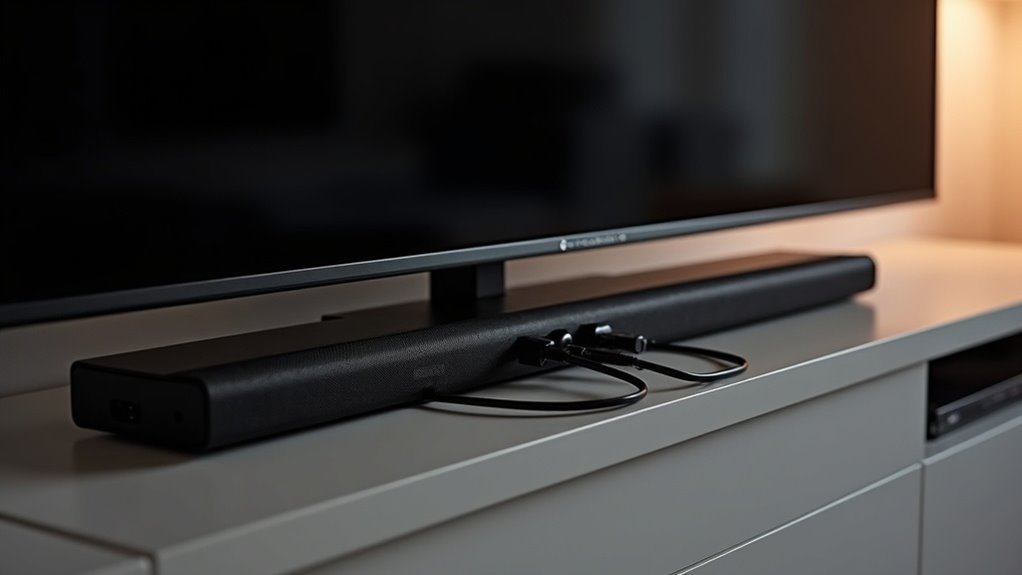
To set up your soundbar with a cable box, start by connecting an HDMI cable from the cable box’s HDMI OUT to the soundbar. If HDMI isn’t available, you can use an optical audio cable as an alternative. Next, connect the soundbar to your TV using the HDMI ARC port or another optical connection. Ensure that both the soundbar and TV are powered on, and adjust the TV settings to output audio through the soundbar for optimal sound quality. For more tips on enhancing your soundbar experience, continue exploring!
Key Takeaways
- Connect the cable box’s HDMI OUT to the soundbar using an HDMI cable or optical audio cable if HDMI is unavailable.
- Power on the soundbar and select the correct input source (HDMI or optical) using the remote control.
- To connect the soundbar to the TV, utilize the HDMI ARC port or an optical cable from the TV’s OPTICAL OUT.
- Adjust the TV audio settings to ensure sound is output through the external speakers, and configure the soundbar volume settings accordingly.
- Test the audio by playing content to verify that the setup is functioning correctly.
Connect Your Soundbar Using Wi-Fi
Connecting your soundbar using Wi-Fi can elevate your audio experience without the inconvenience of wires.
Begin by downloading the SmartThings app on your mobile device to simplify the connection process. Ensure that your soundbar is set to Wi-Fi mode, which can be activated using the remote or the soundbar itself.
Wi-Fi connections provide a wider range than Bluetooth and allow multiple devices to connect at once. Follow the step-by-step instructions in the SmartThings app to link your soundbar to your home Wi-Fi network.
Once connected, you can relish seamless audio streaming from various devices, all while keeping your space free from cable clutter.
Connect Your Soundbar Using HDMI
Connecting your soundbar using HDMI is one of the best ways to achieve superior audio quality while keeping your setup simple.
By utilizing HDMI ARC, you can guarantee seamless integration between your soundbar and TV, making control effortless.
Let’s explore how to make this connection for an excellent audio experience with your soundbar.
Best Audio Quality
When you’re seeking the best audio quality from your soundbar, utilizing HDMI is the optimal choice. An HDMI cable ensures digital sound transmission, facilitating lossless audio formats such as Dolby TrueHD and Atmos. To set up your soundbar for maximum performance, connect your Blu-ray player to the soundbar’s HDMI input, and then link the soundbar’s HDMI OUT to your TV’s HDMI-ARC input. Be sure to select the correct TV input for your cable box, ensuring it aligns with the soundbar input for the best audio output.
| Connection Type | Benefit |
|---|---|
| HDMI to Soundbar | Supports lossless audio formats |
| HDMI OUT to TV | Provides seamless high-definition audio |
| Anynet+ Enabled | Allows for single remote control |
| HDMI-CEC Activated | Enhances device integration |
| Proper Input Set | Optimizes your listening experience |
Seamless Device Integration
To enjoy a truly immersive audio experience with your soundbar, seamlessly integrating it with other devices is vital.
Start by connecting your Blu-ray player to the soundbar using HDMI cables, then link the soundbar’s HDMI OUT to your TV’s HDMI-ARC input.
Ensure that Anynet+ is enabled on the soundbar and HDMI-CEC is activated on your TV for smooth operation.
Connect your cable box to a non-ARC HDMI input on the TV, which allows the soundbar to manage audio from multiple devices effectively.
Selecting the correct input source on both the soundbar and TV is essential for optimal audio playback and enjoyment.
Simplified Connection Process
Setting up your soundbar with HDMI can enhance your audio experience in just a few simple steps. Begin by connecting your cable box to a non-ARC HDMI port on your TV. Then, connect your Blu-Ray player directly to your soundbar using an HDMI cable for optimal audio quality. Next, link the soundbar’s HDMI OUT to the HDMI-ARC input on your TV. Ensure that Anynet+ is enabled on your soundbar and that HDMI-CEC settings are turned on for your TV. Finally, select the appropriate input source on both the soundbar and the TV.
| Connection | Device |
|---|---|
| HDMI Cable | Cable Box |
| HDMI Cable | Blu-Ray Player |
| HDMI OUT | Soundbar |
| HDMI-ARC Input | TV |
| Input Source | Soundbar & TV |
Connect Your Soundbar Using an Optical Cable
Connecting your soundbar with an optical cable is a straightforward process that enhances your audio experience.
To get started, plug one end of the optical cable into your TV’s OPTICAL OUT port and the other end into the soundbar’s DIGITAL AUDIO IN port.
After establishing this connection, be sure to adjust your TV’s audio settings and switch your soundbar to D.IN mode for optimal sound quality.
This setup will significantly improve your overall soundbar performance, allowing you to enjoy a richer audio experience.
Optical Cable Connection Steps
One effective way to enhance your audio experience with a soundbar is by connecting it to your TV using an optical cable.
Start by plugging one end of the optical cable into the OPTICAL OUT port on your TV and the other end into the DIGITAL AUDIO IN port on your soundbar.
Next, use your TV remote to change the audio output settings to external speakers, ensuring that sound routes through the soundbar.
Set your soundbar to D.IN. mode to recognize the optical input.
Finally, make sure the optical cable is securely connected and free from obstructions for optimal audio performance.
If you encounter any issues, consult the user manuals for troubleshooting assistance.
Sound Quality Considerations
When you connect your soundbar using an optical cable, you’re opting for a method that delivers superior audio quality. This digital connection ensures crisp sound, significantly enhancing your overall audio playback experience.
To set it up, plug one end into the OPTICAL OUT port on your TV and the other into the DIGITAL AUDIO IN port on the soundbar. Don’t forget to switch your soundbar to D.IN. mode using the remote.
Additionally, make sure your TV’s speaker output is set to external speakers, allowing the soundbar to perform at its best. If you encounter any issues, check your connections and consult your manuals for troubleshooting guidance specific to soundbars.
Connect Your Soundbar Using an Aux Cable or Bluetooth
To enjoy your soundbar’s audio capabilities, you can easily connect it using either an Aux cable or Bluetooth.
For the Aux connection, plug one end into the AUX IN port on your soundbar and the other into the AUDIO OUT port on your cable box. Then, switch your soundbar to AUX mode using the remote.
Bluetooth connectivity offers a wireless option, allowing you to pair your soundbar from the Bluetooth settings on your device.
However, keep in mind that using an Aux cable typically results in lower sound quality compared to digital connections, so choose based on your priorities!
Whether you prefer the simplicity of a wired connection or the convenience of wireless, your soundbar is designed to enhance your audio experience.
Troubleshooting Sound Issues After Connecting
Are you experiencing sound issues after connecting your soundbar? First, check if the soundbar is set to the correct input source, such as HDMI or optical.
Confirm that all connections are secure, as loose cables can block audio output. Next, verify your TV settings to ensure they’re configured to use external speakers instead of the built-in ones.
Restart both the soundbar and your devices, like the TV or cable box, to refresh their settings. If problems persist, consult the user manuals for detailed troubleshooting steps related to audio output for both the soundbar and the connected devices.
Recommended Connection Setup for Optimal Audio
After addressing those pesky sound issues, it’s time to set up the connections for excellent audio performance from your soundbar. For optimal results, follow these steps:
- Connect your Blu-ray player directly to the soundbar’s HDMI input for the best audio quality.
- Use the HDMI OUT port on the soundbar to link to the HDMI-ARC input on your Samsung TV, ensuring seamless audio transmission.
- Connect your Spectrum cable box to a non-ARC HDMI input on the TV to maintain audio quality.
Make sure your soundbar input corresponds to the selected device for proper audio output.
Avoid connecting directly to the cable box, as this can complicate audio routing from other devices through the soundbar, diminishing your overall sound experience.







