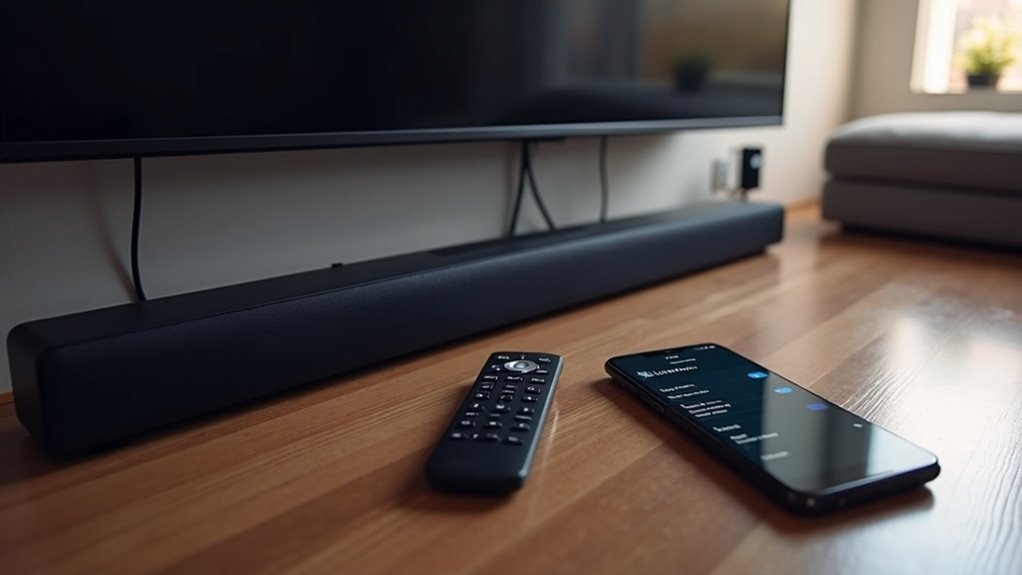
To set up your Bluetooth soundbar, first activate pairing mode by pressing the Bluetooth PAIR button on the remote until “BT PAIRING” appears. Ensure that your soundbar is powered on and within range. Next, on your device, navigate to Bluetooth settings and search for the soundbar in the device list. Select it to initiate pairing. Once connected, you can adjust the audio output settings for optimal sound quality. Explore additional tips to enhance your soundbar setup.
Key Takeaways
- Begin by powering on your soundbar and activating Bluetooth pairing mode using either the remote or the buttons on the soundbar itself.
- Make sure that Bluetooth is enabled on your device, then search for available Bluetooth devices.
- From the list of available devices, select your soundbar to start the pairing process.
- Once paired, verify the connection by ensuring the soundbar is set as the primary audio output in your device’s settings.
- Finally, adjust the audio settings as needed to enhance the sound quality from your soundbar.
What Is a Soundbar?
A soundbar is a sleek audio solution that significantly enhances your TV’s sound quality. This compact device features multiple built-in speakers and often includes subwoofers, which improve clarity and bass response for a more immersive viewing experience.
With Bluetooth compatibility, connecting your soundbar wirelessly to your TV or other devices is easy, allowing for convenient streaming. Setting up a soundbar is straightforward and typically requires minimal wiring, making it an attractive alternative to traditional home theater systems.
Additionally, many soundbars support various input options like HDMI, optical, RCA, and 3.5mm audio connections, ensuring compatibility with a wide range of setups.
Activating Pairing Mode on Bluetooth Soundbar
To connect your Bluetooth soundbar to other devices, activating pairing mode is crucial. Press the Bluetooth PAIR button on your remote control until the display shows “BT PAIRING.” If you don’t have the remote, hold the Source button on the soundbar until it reads “BT READY,” then press and hold Source again until it switches to “BT PAIRING.” Ensure the soundbar is powered on and within range of your device. Once in pairing mode, the soundbar becomes discoverable, allowing you to select it from your Bluetooth settings.
| Action | Description |
|---|---|
| Press Bluetooth PAIR | Activates pairing mode using the remote |
| Hold Source | Activates pairing mode without the remote |
| Discoverable | Soundbar can be found by Bluetooth devices |
| Connect | Select the soundbar from your device’s settings |
Setting up a Bluetooth Soundbar to a Device
Once you’ve activated pairing mode on your Bluetooth soundbar, it’s time to connect it to your device. First, ensure your device has Bluetooth capability and is powered on.
Then, navigate to the Bluetooth settings on your device and search for your soundbar in the device list. Select the soundbar to initiate pairing. You’ll typically see a connection status on both displays once paired.
For optimal audio quality, keep the soundbar and device close together, away from potential interference from other electronics. This minimizes disruption and ensures reliable Bluetooth connectivity for an enhanced listening experience with your soundbar.
Find Audio Settings
How can you easily access the audio settings for your Bluetooth soundbar?
Start by clicking the gear icon in the Start Menu to open Windows Settings. Next, select System, then navigate to the Sound section to find your output settings for audio devices.
In the Output section, use the drop-down menu to select your soundbar as the primary audio output device.
- Ensure your soundbar is powered on.
- Verify it’s connected via Bluetooth.
- Adjust the output settings as needed to optimize sound quality.
- Troubleshoot the connection if you encounter any audio issues.
This ensures you get the best performance from your soundbar’s Bluetooth audio capabilities.
Send Audio From the Soundbar to Other Devices
If you want to send audio from your soundbar to other devices, start by ensuring the soundbar is in Transmitter mode within the Bluetooth Settings menu.
Once activated, your soundbar will search for available Bluetooth devices that can receive audio. Select the desired device from the Device List to initiate audio streaming.
This feature is particularly useful for transmitting TV audio to different speakers or rooms, enhancing your listening experience.
Just make sure the receiving device is compatible with Bluetooth audio streaming to successfully connect and enjoy seamless audio playback from your soundbar.







