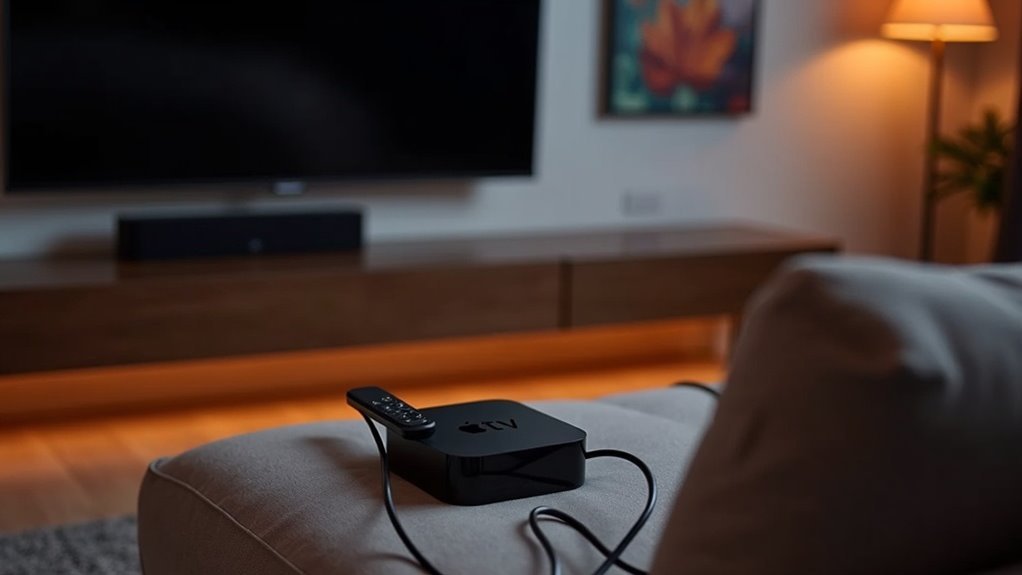
To set up your soundbar with Apple TV, begin by connecting the Apple TV directly to the soundbar’s HDMI input. Next, connect the soundbar’s output to your TV’s HDMI input, ideally using the ARC (Audio Return Channel) feature for optimal sound quality. After powering on all devices, ensure you select the correct input on your soundbar.
To enhance your audio experience, navigate to the Settings on your Apple TV to configure audio formats, enabling Dolby Atmos if your soundbar supports it. If you encounter any issues, check that all connections are secure and that your settings are properly adjusted. There are additional tips available to further improve your soundbar’s performance with Apple TV.
Key Takeaways
- Connect your Apple TV 4K to the soundbar using the soundbar’s HDMI input, and then connect the soundbar’s HDMI output to the TV’s HDMI input that supports ARC or eARC.
- Make sure all devices are powered on and set to support HDMI-CEC for easy control.
- On your Apple TV, go to Settings > Video and Audio to choose the audio format and enable Dolby Atmos if your soundbar supports it.
- Test the audio output by playing different types of content to ensure the soundbar is set to the right HDMI input.
- Regularly check for firmware updates for your soundbar and tweak settings for the best audio experience.
Equipment Setup
Setting up your soundbar with Apple TV is straightforward and can significantly enhance your audio experience.
Begin by connecting the Apple TV 4K directly to the HDMI input on your soundbar using an HDMI cable.
Then, connect the soundbar’s HDMI output to an HDMI input on your TV, preferably one that supports ARC or eARC for optimal audio quality.
Ensure that your soundbar is set to the correct HDMI source to receive audio from the Apple TV.
Lastly, confirm that all devices are powered on and configured to support CEC for seamless control over audio and video signals.
Enjoy your enhanced soundbar setup!
Connection Methods
When connecting your soundbar to an Apple TV, you have a couple of effective options.
For the best audio quality, a direct HDMI connection is recommended.
However, if HDMI isn’t available, using an optical cable is a reliable alternative.
Each method has its advantages, so choose the one that best suits your soundbar and setup for optimal performance.
Direct HDMI Connection
A direct HDMI connection between your soundbar and Apple TV is essential for achieving high-quality audio and video. Connect the Apple TV’s HDMI OUT to the soundbar’s HDMI IN, then use the soundbar’s HDMI OUT to link to your TV’s HDMI port, preferably one that supports ARC for better audio return. Confirm both devices support CEC for seamless control with the Apple TV remote. Check that the soundbar is on the correct HDMI input to avoid defaulting sound to the TV speakers.
| Connection Step | Description |
|---|---|
| HDMI OUT (Apple TV) | Connect to soundbar’s HDMI IN |
| HDMI OUT (Soundbar) | Connect to TV’s HDMI port |
| CEC Support | Enables unified control |
| Correct Input | Confirm soundbar is set properly |
Optical Cable Setup
Using an optical cable to connect your soundbar with Apple TV can provide excellent audio quality, especially if you prefer a straightforward setup.
First, connect the optical output on your Apple TV to the optical input on the soundbar for ideal optical audio transmission. If your TV lacks an optical port, connect the Apple TV to the HDMI IN on the soundbar, then link the soundbar’s HDMI OUT to the TV’s HDMI port.
Make sure the soundbar is set to the correct input source and supports audio formats like Dolby Digital for the best experience. For optimal performance, use a high-speed optical cable to ensure secure connections.
Enjoy the enhanced audio experience that a soundbar brings to your home entertainment setup!
Configuring Audio Settings
To ensure your soundbar provides the best audio experience with Apple TV, begin by navigating to Settings > Video and Audio on your Apple TV to select the ideal Audio Format. Make sure Dolby Atmos is enabled, provided your soundbar supports it. While playing content, use your Apple TV remote to swipe down and check for the Dolby Atmos icon, which confirms compatibility. If you encounter audio issues, double-check the connections between your Apple TV, soundbar, and TV, ensuring that all cables are high-speed HDMI. Additionally, enable HDMI-CEC on all devices for effortless control.
| Setting | Purpose | Notes |
|---|---|---|
| Audio Format | Choose the best audio experience | Select Dolby Atmos if available |
| HDMI Connections | Ensure clear audio | Utilize high-speed HDMI cables |
| HDMI-CEC | Manage multiple devices easily | Facilitates seamless audio routing |
Testing Audio Output
Now that you’ve set up your soundbar with Apple TV, it’s time to test the audio output specifically for your soundbar experience.
Start by verifying that all connections are secure and that you’ve selected the optimal audio settings for your soundbar.
Then, try playing different content to ensure that your soundbar delivers the best sound quality possible.
Verifying Connection Integrity
Verifying the connection integrity of your soundbar is essential for an optimal audio experience, especially when paired with devices like Apple TV.
First, ensure your soundbar is connected to your Apple TV via HDMI or optical cable, and that you’ve selected the correct input source.
To verify the audio output, go to Settings > Video and Audio > Audio Output on your Apple TV and confirm that your soundbar is the chosen output device.
Test the audio by playing content that supports surround sound, paying attention to any discrepancies.
If you’re using HDMI, make sure both your soundbar and Apple TV support HDMI ARC or eARC for the best performance.
If you encounter any issues, consider performing a soft reset to resolve temporary connectivity problems.
Adjusting Audio Settings
Once you’ve confirmed your soundbar is properly connected to your Apple TV, it’s time to optimize the audio settings for the best listening experience.
Follow these steps:
- Navigate to Settings > Video and Audio > Audio Output to select your soundbar as the primary audio output device.
- Go to Audio Format and select Dolby Atmos if your soundbar supports it for enhanced sound immersion.
- Play content that’s known to support your desired audio format and check for the Dolby Atmos icon to ensure it’s working correctly.
- If you encounter any issues, verify that all connections are secure, and consider restarting both your Apple TV and soundbar to achieve peak performance.
With these adjustments, you can maximize your soundbar’s capabilities and enjoy an exceptional audio experience.
Testing Different Content
Testing your soundbar’s audio output with Apple TV is crucial for ensuring you receive the optimal sound experience. Begin by confirming that your soundbar is set to the appropriate HDMI input. Seek out content that supports Dolby Atmos and look for the Dolby Atmos icon. Utilize your Apple TV remote to navigate to audio settings by swiping down while content is playing. If you encounter any audio issues, restart both devices and check your HDMI connections. It’s beneficial to explore a variety of apps to ensure consistent playback quality across different platforms.
| Content Type | Audio Performance |
|---|---|
| Apple TV+ | Exceptional Dolby Atmos |
| iTunes Movies | Clear Surround Sound |
| Netflix | Good but inconsistent |
| Disney+ | Engaging Audio |
| YouTube | Varied Quality |
Troubleshooting Common Issues
When you encounter sound issues with your soundbar setup, it’s crucial to check the basics first. Follow these troubleshooting steps:
- Verify all HDMI connections between your soundbar, TV, and any other devices are secure and configured correctly.
- Confirm your soundbar is set to the correct input source, typically HDMI.
- Check that HDMI-CEC is enabled on all devices for synchronized power and volume control.
- Restart both your soundbar and any connected devices if sound issues persist; this often resolves temporary connectivity problems.
Consult your soundbar’s user manual for specific audio settings and compatibility troubleshooting as needed.
Additional Tips and Considerations
After addressing any sound issues, you can further enhance your soundbar experience with a few additional tips and considerations.
First, ensure that your soundbar is connected to your TV via the HDMI ARC or eARC port to achieve optimal audio quality and enable two-way communication. Use high-speed HDMI cables to prevent signal degradation and to support advanced formats like Dolby Atmos.
Activate HDMI-CEC settings on your devices for seamless control and integration. Regularly check for firmware updates on your soundbar to access the latest features and improvements.
If you encounter any issues with HDMI connections, consider using the optical audio output as a reliable alternative for quality audio without complications.







