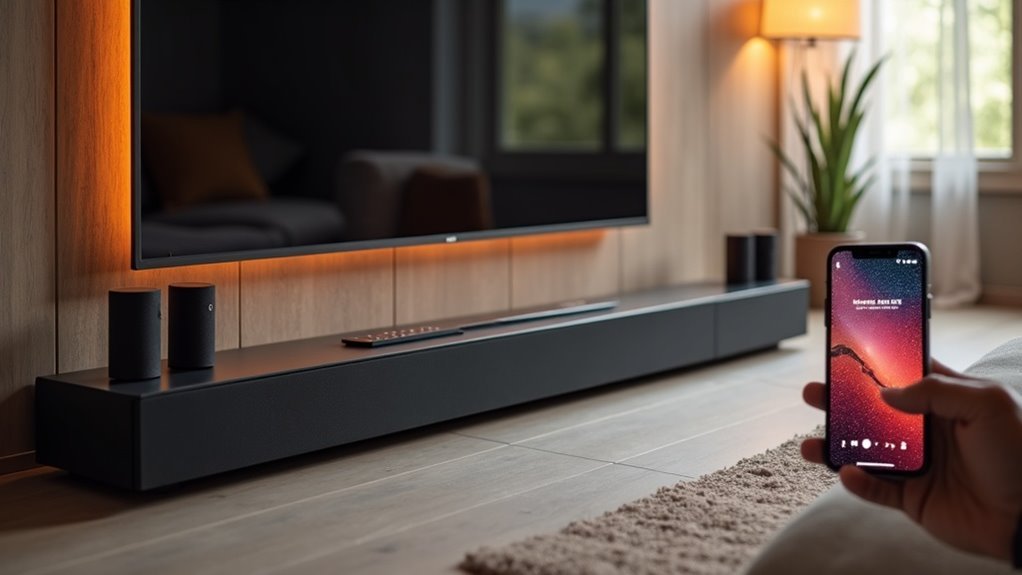
To set up a soundbar multiroom system, first ensure your soundbar is compatible with multiroom technology and has Wi-Fi connectivity. Connect the soundbar to your home network through the settings menu, and download the appropriate control app, such as Samsung Multiroom. Use the app to link your soundbar, then add additional speakers by following the same process outlined in the app’s setup section. Enhance your audio experience by adjusting playback settings, and explore additional features available to optimize your soundbar system.
Key Takeaways
- Before starting the setup process, check your soundbar’s compatibility with the multiroom system you want to use.
- Connect your soundbar to your Wi-Fi network by navigating to the settings menu using the remote control or the buttons on the soundbar itself.
- Download the relevant multiroom control app and follow the on-screen instructions to connect your soundbar to the Wi-Fi network.
- To add extra speakers, simply plug them in within the Wi-Fi range and use the app to finish the setup process.
- Finally, adjust the playback settings and group your speakers as necessary to create a synchronized audio experience throughout your home.
Understanding Soundbar Multiroom Systems
When considering enhancements to your home audio experience, understanding soundbars is essential. Soundbars provide a compact solution for high-quality audio, often featuring multiple drivers for immersive sound.
Many soundbars now support multiroom systems, allowing you to connect them with other speakers or soundbars in different rooms for synchronized playback. This setup creates a seamless audio experience throughout your home.
Operating via Wi-Fi, soundbars enable you to control music through dedicated apps, simplifying the management of audio sources and speaker groups. Compatibility with popular technologies like Sonos and Alexa allows for easy integration with existing equipment.
Selecting the Right Soundbar for Multiroom Setup
When selecting a soundbar for a multiroom setup, compatibility is essential for seamless integration with your existing audio systems.
It’s also crucial to consider audio quality, as this significantly impacts your overall listening experience in various spaces.
Compatibility With Multiroom Systems
Selecting the right soundbar for a multiroom setup is essential to achieving a seamless audio experience throughout your home.
First, verify the soundbar’s compatibility with your chosen multiroom system, as not all models support this feature. Look for soundbars with Wi-Fi connectivity to connect effortlessly to your network and work with apps like Samsung Multiroom or Sonos.
Additionally, consider soundbars that support audio protocols like AirPlay or Google Cast to enhance compatibility with various wireless speakers.
Finally, choose models that integrate with existing smart home devices, allowing for streamlined control and automation of your multiroom audio experience.
Audio Quality Considerations
Ensuring high audio quality is essential for optimizing your soundbar experience. When choosing a soundbar for your setup, prioritize models that support high-resolution audio formats such as Dolby Atmos and DTS:X. Look for features like built-in wireless connectivity, adequate power output, and a well-designed speaker configuration.
| Feature | Importance | Examples |
|---|---|---|
| High-Resolution Audio | Immersive sound experience | Dolby Atmos, DTS:X |
| Wireless Connectivity | Seamless integration | Wi-Fi, Bluetooth |
| Power Output | Enhanced clarity in larger spaces | 200 watts, multiple drivers |
Don’t forget to research user reviews to assess sound clarity and bass response, which are crucial for a satisfying audio experience with your soundbar.
Connecting Your Soundbar to Wi-Fi
To connect your soundbar to Wi-Fi, first ensure that it’s compatible with your network.
Then, use your remote or the buttons on your soundbar to access the Wi-Fi settings, and select your desired network.
If your soundbar supports it, you can also utilize the Samsung Multiroom app for a more efficient setup process.
Check Soundbar Compatibility
Before diving into the setup process, it’s essential to confirm that your soundbar is compatible with your home network and any multiroom audio systems you plan to use.
Check the manufacturer specifications for supported features, focusing on Wi-Fi and app compatibility. Make sure your soundbar can connect seamlessly to the multiroom app on your smartphone or tablet, as this is vital for managing audio playback.
Additionally, confirm that your soundbar is within range of your Wi-Fi router for a stable connection.
Once verified, you’ll be ready to enjoy an integrated multiroom audio experience with your soundbar.
Access Wi-Fi Settings
Once your soundbar’s compatibility is verified, connecting it to Wi-Fi is the next essential step for enhancing your audio experience.
Begin by accessing the settings menu on your soundbar using the remote control or on-device buttons. Look for the network or Wi-Fi settings option.
Here, you’ll see a list of available Wi-Fi networks. Select your desired network and input the correct password to connect.
Ensure your soundbar is within range of your Wi-Fi router for a stable connection.
Finally, check the connection status by looking at the network status indicator on the soundbar or through the associated app, if available, to confirm successful connectivity.
Connect via App
Connecting your soundbar to Wi-Fi through an app simplifies the setup process and enhances your control over audio settings.
Start by downloading the Samsung Multiroom app on your smartphone or tablet. Ensure that your soundbar is plugged into a power socket and is within range of your Wi-Fi network.
Open the app and tap on “NEW SETUP,” then select your soundbar from the list of available devices. Follow the on-screen prompts to connect your soundbar to your home Wi-Fi, entering your password when prompted.
Once connected, you can effortlessly manage and control your soundbar’s audio settings and playback through the Multiroom app, allowing you to enhance your home audio experience.
Downloading and Setting Up the Control App
To begin enjoying your soundbar’s features, you’ll need to download the Samsung Multiroom app, which is essential for managing your soundbar and any multiroom speakers you may have.
You can find the app on the App Store or Google Play for mobile devices, or download it from the official Samsung website for Windows and Mac OS.
Once installed, open the app and tap on “NEW SETUP” to link your soundbar to your home Wi-Fi network.
Make sure your soundbar is powered on and within range for a successful setup.
Follow the on-screen prompts to complete your configuration efficiently, ensuring you get the best performance from your soundbar.
Adding Additional Speakers to Your Multiroom System
Adding additional speakers to your soundbar multiroom system enhances your audio experience, allowing you to enjoy synchronized sound throughout your home.
Enhance your audio experience by adding speakers to your soundbar multiroom system for synchronized sound throughout your home.
To add a new speaker to your setup, follow these steps:
- Plug in the new speaker and ensure it’s within Wi-Fi range of your soundbar.
- Open the soundbar’s companion app or the app associated with your speaker brand.
- Select “NEW SETUP” to start the connection process.
- Adjust playback settings for each speaker or group them for synchronized audio playback.
Make sure the new speaker is connected to the same network as your soundbar.
If the speaker isn’t recognized, consult the user guide for troubleshooting assistance.
Customizing Your Audio Experience
Customizing Your Soundbar Experience
Enhancing your soundbar experience goes beyond simply adding speakers; it involves fine-tuning how your soundbar interacts with all connected devices.
Start by ensuring your compatible speakers are on the same Wi-Fi network for seamless playback in your multiroom setup. Use the Samsung Multiroom app to manage audio settings, allowing you to play music simultaneously or differently in various rooms.
Consider linking multiple Samsung speakers to your soundbar for a richer sound experience. For larger spaces, integrating a Samsung Wireless Hub can boost stability and connectivity.
Finally, experiment with speaker placement and settings in the app to perfectly tailor your soundbar experience based on your room’s acoustics.







