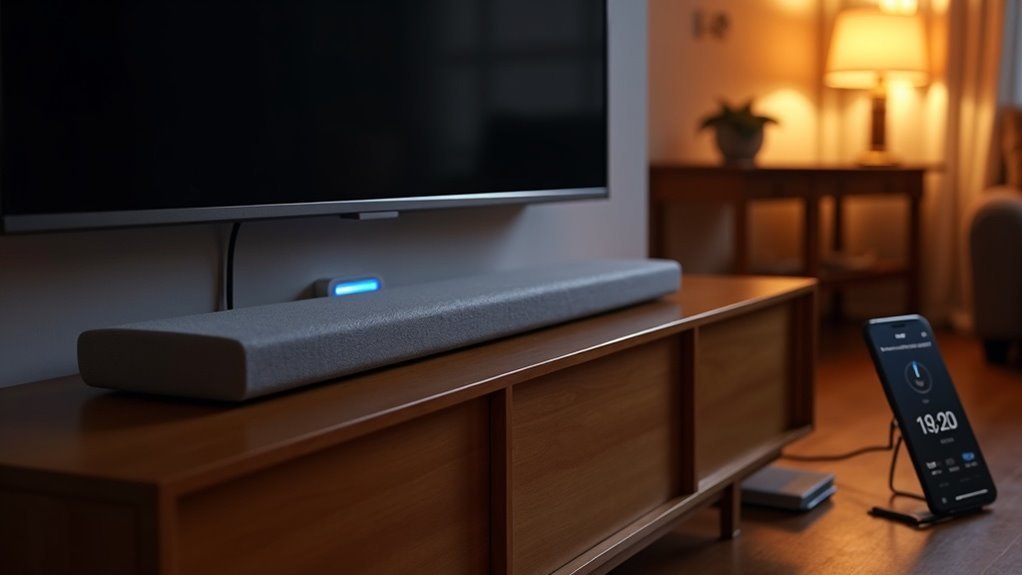
To run your soundbar on a smart plug schedule, first verify that the smart plug supports your soundbar’s power requirements. Use the app associated with your smart plug to set specific on/off times tailored for your soundbar usage. Make sure your soundbar is properly connected and recognized by the app, then create customized schedules to suit your viewing habits. Additionally, consider utilizing the Away Mode feature for enhanced automation when you’re not home. If you encounter any issues, check your Wi-Fi connectivity and settings to ensure a smooth operation. Keep exploring our website for more tips on optimizing your soundbar and overall audio experience in your smart home setup.
Key Takeaways
- Confirm that the smart plug is compatible with your soundbar’s power requirements before setting up the schedule.
- Utilize the smart plug app to create a specific activation schedule for turning your soundbar on and off.
- Test the schedule by monitoring your soundbar’s response to ensure it activates correctly at the designated times.
- Consider using the “Away Mode” feature to simulate presence by randomly turning the soundbar on and off while you are away.
- Regularly check for firmware updates on both the smart plug and your soundbar to ensure optimal performance and troubleshoot any issues.
Understanding Smart Plugs and Their Benefits
While you might think of smart plugs as just another gadget, they actually offer significant advantages for managing soundbars.
Smart plugs connect to standard wall outlets and your home Wi-Fi, allowing you to control your soundbar remotely via an app or voice assistant. This enhances convenience and automation, enabling features like scheduling and timers for efficient operation.
By cutting off power during standby, smart plugs help reduce energy consumption, promoting overall energy efficiency.
Furthermore, they integrate seamlessly with platforms like Google Home and Alexa, making it easy to automate your soundbar’s power schedule for an enhanced home theater experience.
Setting Up Your Smart Plug for the Soundbar
Before setting up your smart plug for your soundbar, ensure its compatibility with the soundbar’s power requirements to avoid any issues.
Once confirmed, use your smart plug app to create a schedule for activating the soundbar, optimizing power management effectively.
This setup not only simplifies operation but also helps you monitor energy consumption efficiently while enjoying your audio experience.
Smart Plug Compatibility Check
To ensure your soundbar operates efficiently with a smart plug, begin by checking the power requirements of your soundbar against the smart plug’s maximum load capacity, which is typically around 15A for most models. Additionally, confirm compatibility with your specific soundbar’s brand and model. Here’s a straightforward table to assist you:
| Aspect | Considerations |
|---|---|
| Power Requirement | Must not exceed 15A |
| Brand Compatibility | Verify that the smart plug supports your brand |
| Energy Monitoring | Ability to track power consumption |
| Wi-Fi Integration | Compatible with home automation systems |
Scheduling Device Activation
After confirming your soundbar’s compatibility with your smart plug, the next step is scheduling its activation.
Use the manufacturer’s app to connect your smart plug to your home Wi-Fi and set it up for control.
Navigate to the scheduling feature, where you can:
- Set specific times for the soundbar to turn on and off
- Explore “Away Mode” for simulated presence while enjoying your soundbar
- Verify the soundbar is properly connected to the smart plug
Once configured, test the schedule to confirm the soundbar powers on and off at the designated times.
This automation enhances your soundbar experience seamlessly.
Power Management Benefits
Using a smart plug for your soundbar not only enhances your entertainment experience but also offers valuable power management benefits.
By scheduling power on and off times, you can eliminate standby power consumption, potentially saving 5-10% on your monthly electricity bill.
With Smart Wi-Fi capabilities, you can automate your soundbar to turn on right before your favorite shows start, adding an extra layer of convenience to your viewing experience.
Moreover, energy monitoring features provide insights into your soundbar’s power usage, allowing you to make informed decisions about consumption.
Implementing timers or auto-off features can also extend your soundbar’s lifespan by preventing excessive power use, thereby reducing wear on its electronic components.
Creating a Schedule in the Tapo App
To create a schedule for your soundbar in the Tapo app, start by accessing the device page and selecting the “Schedule” option.
Here, you can manage your soundbar’s settings and set specific repeat times, ensuring it operates according to your preferences.
Additionally, take advantage of the Away Mode feature to enhance the automation of your soundbar, allowing for a seamless home entertainment experience.
Setting Up Schedules
Creating a schedule for your soundbar in the Tapo app is straightforward and enhances your audio experience.
To set up your schedules, follow these steps:
- Access your soundbar device page by tapping the device card on the Home page.
- Choose the Schedule option and click the + icon to create a new schedule.
- Select Custom Time, Sunrise, or Sunset with an optional offset.
Set specific repeat times during the week for your soundbar’s on/off functionality.
After configuring, save your settings. You can also manually enable or disable the schedule later, ensuring it aligns perfectly with your audio preferences.
Managing Multiple Devices
While managing multiple soundbars might seem intimidating, it becomes a seamless process once you understand the steps.
Start by reviewing your soundbar’s remote control or app interface. Look for the “Settings” or “Audio” section to begin the setup. Tap the “+” icon to add new soundbars to your system.
Choose “Audio Modes” or “Sound Profiles,” then select “Add Preset” to customize the audio settings for different environments. Options may include “Movie Mode,” “Music Mode,” or “Night Mode,” with adjustable levels.
After defining your audio preferences, select the soundbars you wish to control. For easier management, create a group in advance, allowing simultaneous control of multiple soundbars with a single action.
Utilizing Away Mode
Utilizing Away Mode in the Tapo app can enhance the security of your home while effectively managing the energy consumption of your soundbar.
To set it up for your smart plug connected to the soundbar, follow these steps:
- Access the device page and click the Away icon.
- Choose your schedule: Custom Time, Sunrise, or Sunset with an optional offset.
- Click Start to activate the feature, allowing your soundbar to randomly turn on and off during the specified times.
This simulation of activity helps deter potential intruders while ensuring your soundbar operates efficiently.
You can stop Away Mode at any time by returning to the device page and selecting the stop option, giving you complete control over your soundbar’s schedule.
Utilizing Away Mode for Enhanced Automation
To enhance your soundbar experience, the Away Mode feature on a smart plug can effectively simulate your presence by scheduling random on/off times for your soundbar.
By accessing the device page in the smart plug app, you can click the Away icon and set your desired start and end times, including optional offset settings. This feature helps create the illusion that someone is home, increasing security while you’re away.
Access the smart plug app to set Away Mode, creating a home presence for enhanced security while you’re away.
You can customize timing parameters—selecting options like Custom Time, Sunrise, or Sunset—to fit your listening routines.
Activating or stopping Away Mode is flexible, providing you full control over your soundbar setup and home automation.
Troubleshooting Common Scheduling Issues
Even with features like Away Mode enhancing your soundbar experience, you might encounter scheduling issues that can disrupt your automation.
Here’s what to check:
- Confirm your soundbar is connected to Wi-Fi and recognized in the app.
- Verify that your scheduled times are set correctly, with the “on” time before the “off” time.
- Check for firmware updates on your soundbar, as outdated software may cause issues.
If your soundbar doesn’t activate, manually toggle it in the app to test functionality.
For unique troubleshooting steps, consult your soundbar’s user manual or app.
Tips for Optimizing Your Smart Home Experience
While optimizing your soundbar experience, you can greatly enhance its functionality by effectively using smart plugs.
Utilize the scheduling feature to automate power cycles, ensuring your soundbar turns on and off at consistent times for convenience and energy efficiency. Confirm your smart plug’s power usage limits to prevent damage to your soundbar.
Integrate it with platforms like SmartThings or Alexa for voice control, simplifying your home theater experience.
Take advantage of energy monitoring capabilities to track consumption and reduce costs associated with your soundbar.
Finally, use “Away Mode” to simulate presence by randomly powering your soundbar on and off while you’re away, creating the illusion of activity in your home.







