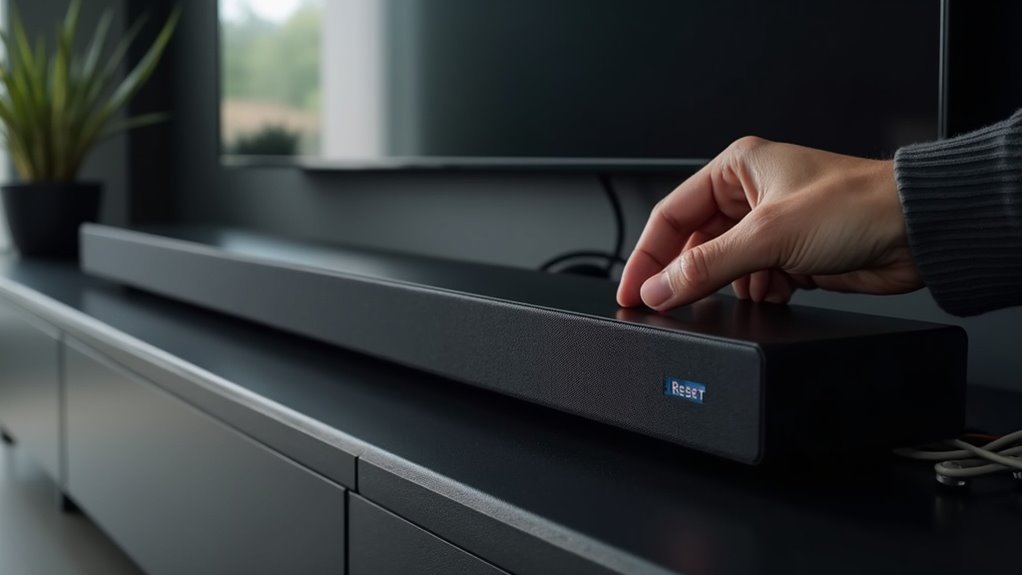
To reset your soundbar, start by ensuring it’s powered on. For many models, like the NB5530, press and hold the [–] button on the soundbar along with the [0] button on the remote for over 5 seconds. After the reset, power off and then back on your soundbar. If issues persist, a hard reset might be required, which involves specific button combinations. You’ll find more detailed instructions and troubleshooting tips on our website to assist you further with your soundbar.
Key Takeaways
- Identify your soundbar model to find specific reset instructions tailored to its design and functions.
- Ensure the soundbar is powered on before attempting any reset procedure.
- Follow the designated button combinations for your model, such as [–] on the soundbar and [0] on the remote for certain models.
- After resetting, power off the soundbar, then turn it back on to check if the reset was successful.
- If issues persist, consider a hard reset to restore factory settings, consulting the manual for detailed steps.
Causes and Symptoms
When your soundbar stops responding or you experience a lack of audio output, it can be quite frustrating, especially when you’re trying to enjoy your favorite media.
Common symptoms include an unresponsive soundbar button and issues with connectivity to apps or devices. If your soundbar remote fails to register commands, that’s another indication that a reset may be necessary.
Common signs of trouble include unresponsive buttons and connectivity issues, signaling that a reset might be needed.
Persistent malfunctions often arise from software glitches or configuration errors that can disrupt performance. Identifying your specific soundbar model is crucial, as reset methods can vary.
Ensure you follow the correct instructions to effectively troubleshoot the issue and restore your soundbar’s functionality.
Resetting the Sound Bar
If your soundbar is unresponsive or not producing audio, resetting it can often resolve the issue.
To reset your soundbar, ensure it’s powered on, then use the appropriate button on the remote. For models like NB5530 or LAP340, press the [–] button on the soundbar and the [0] button on the remote for over 5 seconds.
For models such as NB4530A or NB2430A, press the [■(Stop)] button on the soundbar and the [0] button on the remote.
After the reset, power off the soundbar and turn it back on to verify if the reset was successful.
Model-Specific Reset Instructions
To effectively reset your soundbar, it’s crucial to follow model-specific instructions, as each model has unique reset procedures. Using your TV remote can enhance the process by knowing the correct commands. Below is a table to guide you through the reset process for various soundbar models:
| Model | Soundbar Button | Remote Button |
|---|---|---|
| NB5530 / LAP340 | [–] | [0] |
| NB4530A / NB2430A | [■(Stop)] | [0] |
| NB5540 / NB4540 / NB3540 | [–] | [0] |
| LAS855 / 750 / 550 | [–] | [Sound Effect] |
| LAS260B | [–] | [Voice Up] |
Following these instructions ensures your soundbar resets correctly, allowing you to enjoy optimal performance from your home theater system.
Hard Reset Recommendations
After following the model-specific reset instructions, a hard reset may be necessary for soundbars that remain unresponsive. A hard reset restores factory settings, often resolving persistent issues like connectivity problems or lack of audio output.
To perform a hard reset, consult your soundbar’s manual for specific instructions, as methods differ by model. For many Vizio soundbars, you typically need to press and hold designated buttons on both the soundbar and remote for about 5 seconds.
If the issue persists, try the reset multiple times, as repeated attempts can occasionally yield success and restore your soundbar’s functionality. Make sure to check your soundbar’s user guide for the most accurate reset process tailored to your specific device.
Troubleshooting Connection Issues
How can you effectively troubleshoot connection issues with your soundbar? Follow these steps to resolve common problems:
- Power Check: Confirm your soundbar is powered on and correctly connected to the TV or audio source.
- Power Cycle: If unresponsive, unplug the soundbar for a few seconds to reset the connection.
- Network Settings: For Samsung models, verify that your soundbar is on the same network as your SmartThings app.
- Indicator Light: A solid blue light on the subwoofer indicates it’s powered. However, if it doesn’t connect, reset the soundbar and attempt re-pairing.
If issues persist, consult the troubleshooting guide specific to your soundbar model for further assistance.
User Experiences and Suggestions
Many users have found that sharing their experiences with soundbar resets can greatly aid others facing similar issues. Many report success with hard resets when their soundbars become unresponsive, underscoring the importance of knowing the specific reset method for each model.
Community forums reveal a mix of troubleshooting successes and challenges, with users often recommending multiple hard reset attempts to ensure effectiveness. Additionally, feedback on various soundbar models provides valuable insights into which reset methods work best.
Documenting your reset process and outcomes can also assist others in troubleshooting common soundbar problems more effectively.
Need Further Assistance?
If you’re still facing issues with your soundbar after a reset, it’s time to seek further assistance.
You can contact LG Electronics customer support or utilize the resources available on the Vizio website for direct help.
If necessary, consider scheduling a technician visit for a thorough diagnosis of your soundbar’s problems.
Contact Support Options
When persistent issues arise with your soundbar after a reset, reaching out to VIZIO customer support can provide the necessary assistance.
Here’s how to get help effectively:
- Visit the VIZIO soundbar support portal to access various assistance options specifically for soundbars.
- Email or chat with customer service representatives for immediate help regarding your soundbar.
- Prepare your soundbar model number and details of the issue to streamline the support process.
- Explore the help library on the support site for additional troubleshooting guides tailored to your specific soundbar model.
Utilizing these options guarantees you receive the best support for your soundbar issues.
Schedule Technician Visit
If troubleshooting doesn’t resolve your soundbar issues, scheduling a technician visit can provide the precise diagnosis and expert inspection your soundbar needs.
To arrange this visit, visit the official VIZIO support website and look for the service booking option, or contact customer support directly.
When scheduling, be sure to provide detailed information about the problems you’re experiencing, as this helps the technician prepare effectively.
Keep in mind that technician availability may vary based on your location and soundbar model.
Additionally, it’s advisable to check your warranty coverage beforehand, as it may influence any potential service costs.







