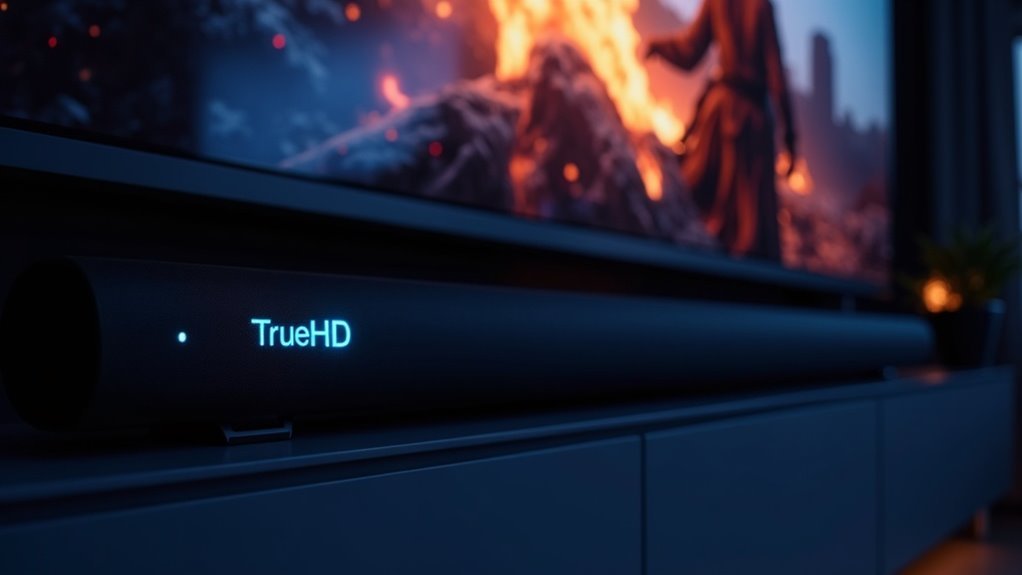
To determine if your soundbar is receiving TrueHD audio, connect it directly to a UHD BluRay player using a high-speed HDMI cable. Check the soundbar’s audio format indicators or display; these will confirm if TrueHD is being received. Ensure that both the soundbar and the BluRay player are configured to output and decode TrueHD audio. If no indicators appear, double-check your settings and connections, as compatibility issues may arise in certain setups. Let’s explore further steps to troubleshoot and enhance your soundbar audio experience.
Key Takeaways
- Check the soundbar’s display or indicator lights for confirmation that it is receiving the TrueHD audio format.
- Ensure your UHD Blu-ray player is configured to output audio in TrueHD format.
- Use a direct HDMI connection between the UHD Blu-ray player and the soundbar to prevent any signal degradation.
- Review the soundbar’s audio settings to confirm that TrueHD decoding is enabled and properly configured.
- Test playback with various UHD Blu-ray discs that feature Dolby TrueHD Atmos audio to verify the soundbar’s capabilities.
Understanding TrueHD Audio Format
TrueHD is a sophisticated audio codec developed by Dolby, engineered to deliver impeccable sound quality for your home entertainment system, including soundbars.
Unlike lossy formats like Dolby Digital+, TrueHD maintains the original audio fidelity, resulting in a richer listening experience. Supporting up to 7.1 channels, it creates multi-dimensional soundscapes that enhance the performance of soundbars in home theater setups.
TrueHD preserves original audio fidelity, delivering rich, multi-dimensional sound for an enhanced home theater experience.
To fully appreciate TrueHD, ensure your soundbar can decode the codec; many models only handle compressed formats. Additionally, TrueHD often pairs with Dolby Atmos, which enhances audio placement and immersion, though compatibility depends on your specific soundbar and connection method.
Understanding these elements is essential for achieving peak audio performance from your soundbar.
Connection Setup for TrueHD Playback
To achieve optimal TrueHD playback through your soundbar, connect your UHD BluRay player directly to the soundbar using a high-speed HDMI cable. This ensures that the audio signal remains uncompressed.
It’s essential that your soundbar supports eARC to manage the bandwidth required for lossless audio formats.
Lastly, check that your BluRay player is set to output audio in TrueHD format to ensure compatibility and maintain audio quality.
Optimal Cable Configuration
Achieving ideal TrueHD playback with your soundbar involves a few critical steps in your cable configuration. Start by connecting your media player directly to the soundbar using a high-speed HDMI cable, specifically HDMI 2.0 or higher, to handle Dolby TrueHD’s bandwidth. Ensure your soundbar supports eARC for superior audio capabilities. Confirm the correct input source and audio settings on your soundbar to decode TrueHD formats effectively. Regular ARC may limit audio formats, so prioritize eARC for enhanced playback quality.
| Cable Type | Purpose |
|---|---|
| HDMI 2.0 or higher | Supports TrueHD bandwidth |
| eARC | Enhances audio capabilities |
| Standard HDMI | May limit to standard outputs |
Audio Format Compatibility
When setting up your soundbar for optimal audio performance, it’s crucial to ensure compatibility with the TrueHD format.
Begin by connecting your media player directly to the soundbar using HDMI, making sure to utilize eARC functionality for the best playback experience. Keep in mind that standard ARC may restrict you to audio formats like Dolby Digital Plus.
Check the settings on your UHD BluRay player to ensure it’s configured to output TrueHD audio, as many integrated TV apps often don’t support this format.
Additionally, review your soundbar’s specifications to verify its TrueHD compatibility, as some models may only support compressed audio formats.
To fully leverage TrueHD’s lossless audio quality, always use a high-speed HDMI cable to provide adequate bandwidth.
Checking Soundbar Compatibility
To ensure your soundbar is compatible with TrueHD audio, begin by examining its supported audio formats and connection types.
Look for any necessary firmware updates that could improve compatibility with lossless audio formats.
This evaluation will help you determine if your soundbar can effectively manage high-bandwidth audio signals.
Supported Audio Formats
When evaluating whether your soundbar supports Dolby TrueHD, it’s crucial to closely examine the manufacturer’s specifications for any mentions of lossless audio format support.
Generally, soundbars with eARC capabilities are more likely to handle TrueHD, as eARC enhances bandwidth for lossless formats. However, be cautious; many models, including those from Samsung, might only offer Atmos via Dolby Digital+, which can lead to confusion regarding TrueHD compatibility.
To confirm the audio format, check the display or indicator lights on your soundbar. Additionally, ensure you’re using compatible media players and UHD BluRay discs, as streaming services typically don’t provide TrueHD support.
Connection Types
Evaluating the connection types of your soundbar is key to ensuring it can handle TrueHD audio. First, check if your soundbar supports eARC; this capability is essential for transmitting higher bandwidth audio signals vital for lossless formats like TrueHD.
To achieve the best performance, connect your media player directly to the soundbar using an HDMI cable that supports eARC. Always use compatible media, such as UHD BluRay discs, since streaming services typically lack TrueHD content.
Lastly, consult your soundbar’s display or audio settings to verify codec information and confirm that TrueHD is being decoded and transmitted correctly.
Firmware Updates
Ensuring your soundbar’s firmware is up to date is essential for detecting TrueHD audio effectively.
Follow these steps to check compatibility with your soundbar:
- Check Specifications: Review your soundbar’s manual to confirm it supports Dolby TrueHD.
- Use Media Players: Opt for media players that display audio codec information to verify TrueHD recognition during playback.
- Reset and Reconnect: If issues arise, reset your soundbar and reconnect to eliminate any temporary connectivity problems.
- Monitor Updates: Keep an eye on community forums and manufacturer channels for firmware updates that might enhance TrueHD support.
Testing With UHD Bluray Discs
To effectively test TrueHD audio on your soundbar using UHD BluRay discs, connect the soundbar via HDMI to utilize the necessary high bandwidth for ideal playback.
Choose a disc that explicitly features Dolby TrueHD Atmos audio to ensure compatibility with your soundbar.
Check the audio settings on both the UHD BluRay player and the soundbar, making sure they’re configured to output TrueHD instead of default formats like Dolby Digital+.
During playback, monitor the soundbar’s display for indicators confirming TrueHD audio reception.
If problems arise, experiment with different UHD BluRay discs and verify that your HDMI cables support high bandwidth for TrueHD transmission, ensuring the best audio experience from your soundbar.
Identifying Audio Format Indicators
Identifying audio format indicators on your soundbar is crucial for confirming TrueHD playback.
Follow these steps to ensure you’re receiving the correct format:
- Check Display: Look at the front panel or on-screen display of your soundbar for indicators showing TrueHD or related formats.
- Verify Connection: Ensure your soundbar is connected via eARC to support high-bandwidth lossless formats.
- Adjust Media Settings: Confirm that your media player’s audio output is set to TrueHD, rather than a compressed format like Dolby Digital+.
- Consult Specifications: Review your soundbar’s manual to understand its supported audio formats, especially if it displays Dolby Atmos.
Troubleshooting TrueHD Playback Issues
While troubleshooting TrueHD playback issues with your soundbar, it’s vital to systematically check each component in your audio setup.
First, confirm that your soundbar displays the TrueHD format; if it doesn’t, examine your connections. Ensure you’re using eARC, as standard ARC may not support TrueHD’s bandwidth.
Next, verify that your media player, such as a UHD Blu-ray player, is configured to output TrueHD instead of a lossy format. Many streaming services default to Dolby Digital+.
Finally, connect the soundbar directly to the media source to eliminate potential problems from intermediaries like AV receivers or HDMI switches that mightn’t handle TrueHD effectively.







