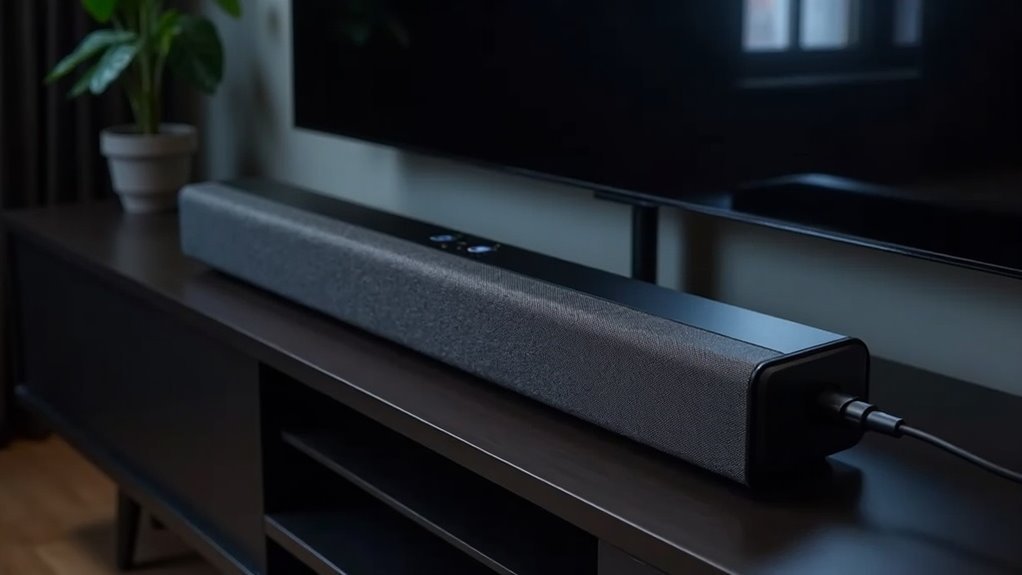
Soundbars utilize USB connections primarily for audio playback, enabling users to access their music libraries directly from USB drives or external hard drives. This method offers a dependable alternative to Bluetooth, often minimizing latency and avoiding compatibility issues. However, it’s important to note that not all soundbars support USB audio playback, so you’ll need to verify the audio format compatibility and ensure your USB device is formatted to FAT32. Explore further insights on how to optimize your USB usage with soundbars on our website.
Key Takeaways
- Soundbars use USB ports primarily for direct audio playback from USB drives, allowing access to music libraries without file transfers.
- USB connections serve as an alternative to Bluetooth streaming for devices that do not support wireless connectivity.
- Some soundbars utilize USB for firmware updates, improving performance and functionality without requiring wireless connections.
- USB playback supports various audio formats, enhancing sound quality and eliminating the need for file conversions.
- USB-C integration in soundbars allows for faster data transfer and simplified connections, often providing power delivery capabilities.
Understanding USB Port Functionality
When you connect a soundbar to an external device via USB, you’re tapping into a versatile functionality that enhances your audio experience.
The USB connection primarily serves as an input, allowing devices like flash drives or external hard drives to facilitate direct audio playback. This feature enables you to access your entire music library, offering a reliable alternative to Bluetooth streaming, particularly for devices lacking Bluetooth capabilities.
However, not all soundbars support USB audio playback, so checking your model’s specifications is essential. Additionally, be aware that some soundbars may restrict compatible file formats, necessitating compatibility checks for seamless playback.
Connecting External Devices via USB
Connecting external devices via USB opens up new avenues for audio playback, enhancing your soundbar’s functionality.
With a USB connection, you can directly access audio files stored on USB flash drives or external hard drives, eliminating the need for file transfers. However, not all soundbars support this feature, so it’s important to check your specific soundbar model’s specifications.
Additionally, some soundbars may have limitations on compatible file formats, which could restrict your playback options. This USB port primarily acts as an input, providing an alternative audio source for devices that lack Bluetooth capabilities, thereby considerably expanding your audio playback options.
Audio Playback and Compatibility Considerations
When considering audio playback through USB on your soundbar, it’s crucial to verify the supported audio formats, as compatibility can vary significantly.
Some soundbars may encounter compatibility issues, which can impede successful playback, so checking your soundbar’s specifications is essential.
Additionally, be mindful of USB playback limitations, as not all soundbars allow for direct audio output from TVs, which can impact your overall audio setup.
Supported Audio Formats
Understanding the supported audio formats is vital for maximizing your soundbar’s USB playback capabilities. Most soundbar models accept formats like MP3, WAV, and WMA, but compatibility can vary considerably.
Always check your specific soundbar model’s user manual for the complete list of supported formats. Some soundbars may restrict certain file types, affecting playback. Additionally, ensure your USB device is formatted to FAT32 for optimal compatibility.
While some soundbars enhance the experience with features like playlist support or folder navigation, others may offer limited functionality. As a result, confirming your soundbar’s specifications before connecting is essential for a seamless audio experience.
Device Compatibility Issues
Compatibility issues can arise when trying to play audio files from a USB device on a soundbar, as not all models support this feature.
Before connecting, it’s crucial to verify your soundbar’s specifications to confirm it allows USB audio playback.
Additionally, some soundbars restrict the file formats they can read, which means you’ll need to check your audio files’ compatibility.
Remember, the USB port on a soundbar typically enhances playback options without Bluetooth, mainly for music and photo playback—not for TV sound.
Therefore, examining device compatibility issues is essential for a seamless audio experience with your soundbar.
USB Playback Limitations
While device compatibility can present challenges, USB playback limitations further complicate the audio experience with soundbars. Many soundbars primarily support playback from external devices, restricting audio output from TVs.
Not all soundbars offer USB audio playback, so it’s crucial to check specifications beforehand. Additionally, some models impose strict file format restrictions, meaning you must verify compatibility with your audio files.
You might also need adapters if the USB input doesn’t match your device’s output. Ultimately, while USB enhances playback from hard drives or flash drives, it doesn’t eliminate the need for alternative connections, like optical or RCA, for optimal sound output.
Benefits of Using USB for Soundbars
Soundbars equipped with USB ports offer a range of advantages that significantly enhance your audio experience. Firstly, these soundbars allow you to directly access and play audio files from USB drives, providing a seamless playback option without the need for wireless connections. This method reduces latency, ensuring immediate audio response compared to Bluetooth options.
Additionally, many soundbars support various audio formats, enabling you to enjoy diverse music libraries without the hassle of file conversion. USB connections also improve sound fidelity by permitting playback of high-quality audio files directly from storage devices.
Lastly, some soundbars utilize USB for firmware updates, ensuring you consistently access the latest features and improvements for optimal performance.
Troubleshooting USB Connection Issues
When troubleshooting USB connection issues with your soundbar, begin by checking compatibility; not all soundbars support USB audio playback or specific file formats.
Next, ensure that your soundbar’s firmware is updated, as outdated software can impede functionality.
Addressing these two factors can significantly enhance your chances of establishing a successful connection.
Compatibility Check Required
How can you guarantee a seamless USB connection with your soundbar? First, check if your specific soundbar model supports USB audio playback, as not all soundbars do.
Next, verify the supported file formats; incompatible audio files may prevent playback. Test the USB port with different devices to ensure it’s functioning properly, since compatibility can vary among soundbar models.
If your soundbar doesn’t recognize the USB device, confirm that it’s correctly formatted and contains compatible audio files.
Finally, consult the user manual or manufacturer support for specific compatibility details and troubleshooting guidelines related to USB connections, ensuring a smooth audio experience with your soundbar.
Firmware Updates Importance
While you mightn’t realize it, keeping your soundbar’s firmware updated plays an essential role in troubleshooting USB connection issues.
Firmware updates enhance compatibility with USB devices and improve performance by fixing bugs related to playback. These updates often support various file formats, ensuring smoother operation with your soundbar.
Regularly checking the manufacturer’s website or user manual for update instructions can prevent connectivity problems. Updating your soundbar’s firmware not only resolves existing issues but also reveals new features and functionalities, maximizing its usability with USB connections.
Fundamentally, neglecting firmware updates can lead to frustrating audio experiences that could easily be avoided.
Future Trends in USB Integration for Soundbars
As soundbar technology continues to advance, the integration of cutting-edge USB features is poised to transform user experience and functionality. Future soundbar models are expected to support a wider range of audio file formats, allowing for enhanced playback directly from USB drives. Manufacturers are likely to embrace USB-C ports for faster data transfer and versatile connections with various devices. Furthermore, USB power delivery may enable soundbars to draw power directly from a source, reducing the need for traditional power adapters. Expect USB audio streaming to become standard, and connections that facilitate seamless firmware updates for optimal performance.
| Feature | Benefits | Future Implications |
|---|---|---|
| USB-C Integration | Faster data transfer | Enhanced compatibility |
| Power Delivery | Reduced reliance on adapters | Simplified setup |
| Audio Streaming | Seamless playback | Broader format support |
| Firmware Updates via USB | Direct improvements | Peak performance enhancements |
| Versatile Connections | Compatibility with smart devices | Expanded use cases |
User Experiences With USB Soundbar Connectivity
What makes USB connectivity a preferred choice for many soundbar users? Connecting external hard drives via USB simplifies access to extensive music libraries, allowing users to bypass the limitations of Bluetooth streaming.
Many soundbar users appreciate the reliability and efficiency of direct playback, often reporting fewer interruptions compared to wireless options. Certain soundbar models enhance this experience by supporting a wider range of audio file formats, although compatibility can vary.







