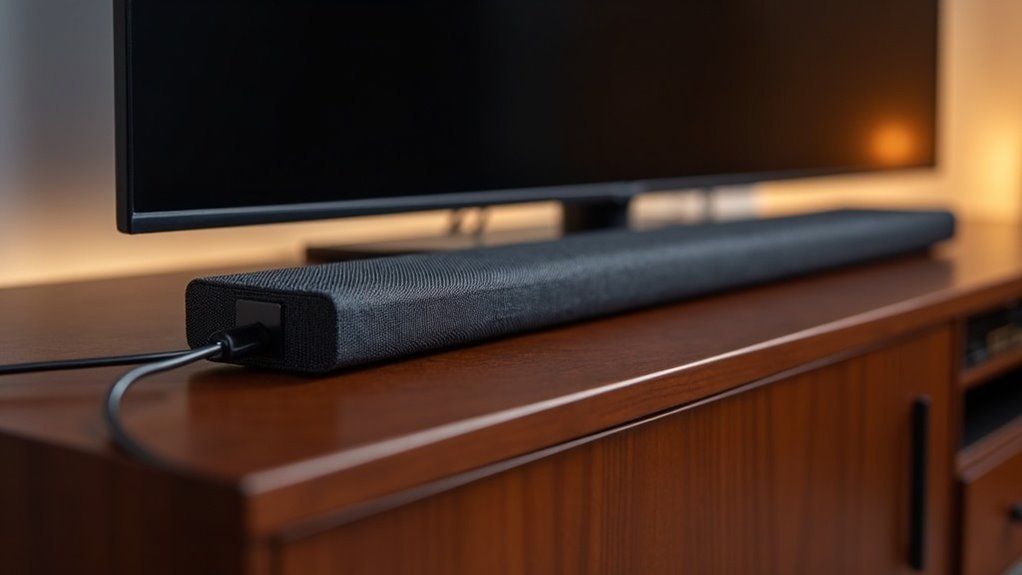
Soundbars utilize optical cables to deliver high-quality audio by converting light pulses into sound signals. This method ensures minimal transmission loss and is resistant to electromagnetic interference, allowing for clear audio delivery without the clutter of multiple cables. To connect your soundbar, simply plug one end of the optical cable into your TV’s DIGITAL AUDIO OUT port and the other end into the soundbar. Once you have everything set up, you can enjoy crisp, immersive sound. For more information on the benefits of using optical connections and troubleshooting tips, please refer to the following sections.
Key Takeaways
- Soundbars utilize optical cables to receive high-quality audio signals transmitted as light pulses from the TV’s optical output.
- The optical connection minimizes electromagnetic interference, ensuring reliable audio transmission without degradation.
- To set up, connect one end of the optical cable to the TV’s DIGITAL AUDIO OUT and the other to the soundbar’s optical input.
- Users must select the ‘optical out’ option in the TV’s audio settings and set the soundbar to the correct input source for optimal sound.
- Optical connections support advanced audio formats like 5.1 Dolby Digital, enhancing the overall listening experience compared to traditional auxiliary connections.
What Is an Optical Cable?
When connecting your soundbar to your television, you might opt for an optical cable, also known as Toslink, which is crucial for delivering high-quality audio.
This cable transmits audio signals using light pulses, converting them into electrical signals for your soundbar and other compatible devices. Unlike traditional metal cables, optical cables exhibit lower transmission loss, making them ideal for long-distance audio transmission in your sound system.
Optical cables transmit audio via light pulses, ensuring minimal loss and ideal long-distance performance for your sound system.
They support advanced audio formats like 5.1 Dolby Digital and DTS, ensuring an immersive sound experience with your soundbar.
However, be cautious, as optical cables can be fragile and require careful handling to maintain their functionality.
How to Connect a Soundbar Using an Optical Cable
Connecting your soundbar using an optical cable is a straightforward process that significantly enhances your audio experience.
Begin by locating the DIGITAL AUDIO OUT port on your TV and plug one end of the optical cable into that port. Make sure to remove any protective cover from the optical cable before inserting the other end into the optical input on your soundbar. Ensure that the connection is secure without applying excessive force.
Next, navigate to your TV’s audio settings and select the ‘optical out’ option to direct the audio output to your soundbar.
Finally, set the soundbar to the correct audio input source to achieve optimal digital audio performance. Enjoy the rich sound quality that your soundbar brings to your home entertainment setup!
Advantages of Optical Connections
Optical connections offer several advantages that significantly enhance the audio performance of soundbars in home entertainment systems. By utilizing optical audio cables, you can achieve superior sound quality with minimal transmission loss, even over long distances. These connections are resistant to electromagnetic interference, ensuring reliable audio delivery in various environments. Additionally, optical connections support high-quality audio formats such as 5.1 Dolby Digital and DTS, which can greatly enrich your listening experience with soundbars. Their design helps reduce cable clutter, making your setup cleaner and more organized. Furthermore, they are compatible with a wide range of audio devices, including older models that lack HDMI ports, providing you with flexible connection options for your soundbar.
| Advantage | Description |
|---|---|
| High Sound Quality | Minimal transmission loss guarantees clarity. |
| Interference Resistance | Less prone to electromagnetic interference. |
| Supports Advanced Formats | Compatible with 5.1 Dolby Digital and DTS. |
| Reduces Cable Clutter | Cleaner setup without extra wires. |
| Broad Compatibility | Works with various audio devices, old and new. |
Comparing Optical Cables and HDMI
When comparing optical cables and HDMI in the context of soundbars, you’ll notice key differences in cable type and functionality.
While optical cables focus solely on audio transmission, HDMI connects both audio and video, providing greater versatility for modern soundbar setups.
Additionally, HDMI’s support for advanced audio formats enhances your sound experience, making it a preferred choice for contemporary home theater systems that include soundbars.
Cable Type Differences
Two major types of audio cables dominate the landscape of soundbar connectivity: optical and HDMI.
Optical cables transmit audio as light pulses, minimizing electromagnetic interference, making them a reliable choice for soundbars. On the other hand, HDMI cables use copper and can transmit both audio and video signals, which is beneficial for soundbars that also connect to other devices.
Although both can deliver high-quality audio, optical typically supports formats like 5.1 Dolby Digital and DTS, while HDMI can handle advanced formats such as Dolby Atmos, enhancing the soundbar experience.
HDMI cables also offer Consumer Electronics Control (CEC), allowing you to control multiple devices with a single remote—something that optical cables lack.
The connectors also differ, with optical’s U-shaped design preventing accidental disconnection, while HDMI’s bulkier design provides versatility for various setups.
Audio Quality Assessment
Choosing between optical cables and HDMI can significantly influence your soundbar’s audio performance.
Optical connections transmit audio signals without quality loss, supporting formats like Dolby Digital and DTS, ensuring reliable sound for a great listening experience. While both options provide high-quality audio, HDMI stands out by accommodating advanced formats like Dolby Atmos and DTS:X, further enhancing your soundbar experience.
Additionally, optical cables resist interference better than copper-based HDMI, maintaining sound quality over longer distances. However, HDMI ARC brings added convenience with CEC features that allow for soundbar volume control directly from your TV remote.
Ultimately, your choice should align with your specific audio needs and device compatibility to achieve superior sound quality with your soundbar.
Compatibility and Versatility
While both optical cables and HDMI offer distinct advantages for soundbar setups, understanding their compatibility and versatility is essential for optimizing your audio experience.
Optical cables excel in connecting soundbars to older TVs that lack HDMI ARC, ensuring compatibility with various devices and supporting audio formats like 5.1 Dolby Digital. However, they’re limited to audio transmission only.
In contrast, HDMI ARC provides a more versatile solution by allowing control over soundbar volume through your TV remote and supporting advanced audio formats like Dolby Atmos.
While optical cables help reduce interference, HDMI ARC simplifies setups, enhancing convenience and reducing cable clutter in modern soundbar systems.
Troubleshooting Common Optical Connection Issues
When troubleshooting common optical connection issues with your soundbar, it’s crucial to ensure that all components are properly connected and configured.
First, verify that the optical cable connection is secure at both the TV’s DIGITAL AUDIO OUT and the soundbar’s DIGITAL AUDIO IN ports. Check for any plastic plug in the soundbar’s optical input and remove it.
Ensure the optical cable is securely connected to both the TV and soundbar, and remove any plastic plug from the soundbar’s input.
Next, navigate to the TV’s audio settings to select ‘optical out’ and disable the internal speakers. If you still hear no sound, make sure the correct input source is selected on the soundbar.
Lastly, inspect the optical cable for any damage, as this can severely impact audio transmission quality.
User Experiences With Optical Audio
Many users find that connecting their soundbars via optical audio significantly enhances sound clarity and reduces interference compared to traditional auxiliary connections. While the optical cable delivers good sound quality, some users experience volume fluctuations, which may require adjustments in settings for stabilization. This connection is particularly advantageous for older home theater systems that lack HDMI ARC support, ensuring broader compatibility with various devices. However, users have expressed concerns regarding the optical connection’s limitations in supporting advanced audio formats typically available in HDMI setups. Overall, feedback indicates satisfactory sound depth from soundbars, but some users are still in search of higher-quality audio options to fully optimize their viewing experience.
| Experience | Feedback |
|---|---|
| Sound Clarity | Enhanced compared to auxiliary |
| Volume Stability | Fluctuations may occur |
| Compatibility | Good for older models |
| Sound Quality | High, but lacks advanced formats |
| Overall Satisfaction | Generally positive, but seeks improvement |
Alternative Connection Options for Soundbars
Optical audio connections provide a reliable option for soundbars, but exploring alternative connection methods reveals even greater versatility and convenience for your audio setup.
HDMI ARC stands out, allowing you to connect both audio and video through a single cable, simplifying your installation process.
Bluetooth offers wireless audio streaming from smartphones or tablets, eliminating the need for physical cables and enhancing user convenience.
For older devices, RCA or 3.5mm auxiliary connections ensure compatibility, making it easy to integrate various equipment.
USB ports enable direct connection to audio files stored on USB drives, allowing for easy playback.
Additionally, Wi-Fi connectivity enhances integration with smart home systems and streaming services, providing a seamless audio experience that can be controlled effortlessly with your remote control.







