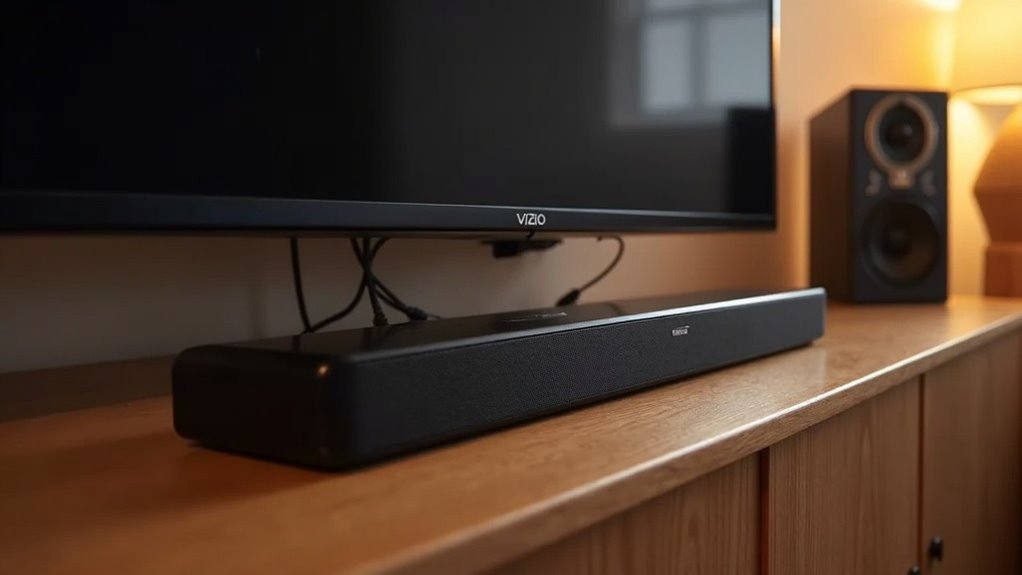
To connect a soundbar to your Vizio TV, use the HDMI ARC feature for the best audio experience. Plug an ARC-compatible HDMI cable from the HDMI ARC port on the TV to the soundbar. Make sure you enable HDMI-CEC in the TV settings and turn off the TV speakers to prevent sound conflicts. Your soundbar should now deliver high-quality audio. If you want to explore alternative connection methods and troubleshooting tips, there’s more to discover on soundbars.
Key Takeaways
- Connect the soundbar to the HDMI ARC port on your Vizio TV using an ARC-compatible HDMI cable for optimal audio and video transfer.
- Make sure to enable HDMI-CEC in the TV settings to enhance the soundbar’s functionality and control.
- Turn off the TV speakers in the settings to avoid audio conflicts with the soundbar.
- If HDMI ARC is not available, you can consider using optical audio cables or Bluetooth for wireless connections.
- Always verify compatibility by checking that both your Vizio TV and soundbar support the chosen connection method before proceeding with the setup.
Understanding HDMI ARC Connections
When enhancing your audio experience with a soundbar for your Vizio TV, understanding HDMI ARC connections is crucial.
HDMI ARC (Audio Return Channel) streamlines your setup by allowing a single HDMI cable to transmit both audio and video between your TV and soundbar.
To utilize HDMI ARC, connect your soundbar to the HDMI ARC port on your Vizio TV, which is typically labeled for easy identification.
Ensure that your HDMI cable is ARC-compatible, as not all cables support this feature.
For a seamless audio experience, enable HDMI-CEC in the TV settings, and remember to turn off the TV speakers to avoid audio conflicts.
Alternative Connection Methods
While HDMI ARC offers a streamlined connection for soundbars and Vizio TVs, there are several alternative methods you can use to connect your soundbar.
Consider the following options for your Vizio smart TV:
- Optical Audio Cables: This method guarantees high-quality audio output when HDMI ARC isn’t available, making it a reliable choice for soundbars.
- Bluetooth Connectivity: Enjoy wireless convenience by connecting your soundbar without cables, allowing for a clutter-free setup.
- USB Audio Connections: If your Vizio smart TV has a compatible USB port, this method allows for easy audio playback directly from USB devices.
These alternatives provide flexibility depending on your setup and preferences for sound quality and convenience, ensuring you can enjoy the best audio experience with your soundbar.
Checking Compatibility With Your Devices
To ensure your soundbar connects seamlessly with your Vizio TV, begin by checking if your TV is equipped with an HDMI ARC or eARC port.
Then, confirm that your soundbar supports this type of connection or has an optical connection available.
Lastly, make sure you have the appropriate high-speed HDMI cables that are compatible with both devices.
Verify HDMI Port Availability
How can you ensure a seamless connection between your soundbar and Vizio TV? Start by verifying HDMI port availability:
- Check for HDMI ARC: Make sure your Vizio TV has an HDMI ARC (Audio Return Channel) port, which is crucial for connecting your soundbar.
- Review User Manual: Consult your TV’s user manual to determine which HDMI ports support ARC, as not all ports may have this capability.
- Confirm Soundbar Compatibility: Ensure your soundbar is equipped with an HDMI port that supports ARC for optimal audio performance.
If HDMI ARC isn’t available, you can explore alternative connections such as optical audio cables or auxiliary inputs.
Don’t forget to activate ARC in the TV’s settings menu if required.
Confirm Soundbar Specifications
Confirming soundbar specifications is essential for guaranteeing compatibility with your Vizio TV.
Start by verifying that your soundbar includes HDMI ARC compatibility, as this simplifies connections.
Next, check your TV’s specifications to confirm it has an HDMI ARC port, typically marked on the back.
Review the soundbar’s manual to see if it supports HDMI, optical, or auxiliary connections, depending on what your Vizio TV offers.
Additionally, verify both devices support CEC settings to enhance interoperability.
Finally, look for compatibility badges on the packaging to confirm they’re designed to work seamlessly together while connecting.
Assess Cable Compatibility
When connecting your soundbar to a Vizio TV, evaluating cable compatibility is essential for ensuring optimal audio performance. Here’s what you need to check:
- HDMI ARC: Ensure that you have an HDMI cable that supports ARC (Audio Return Channel) for the best sound quality. Look for an HDMI port labeled ARC on your Vizio TV.
- Soundbar Ports: Check that your soundbar is equipped with an HDMI port labeled either “TV Out” or “HDMI ARC” to facilitate the connection.
- Alternative Connections: If you prefer using optical or AUX cables, make sure both devices have compatible ports and that you’re using the correct cables.
For specific compatibility and connection instructions, always refer to the user manuals for your soundbar and Vizio TV.
Step-by-Step Setup Guide
To set up your soundbar with a Vizio TV, start by connecting an HDMI cable from the HDMI ARC input on your TV to the TV out port on the soundbar.
Make sure the HDMI cable is ARC compatible and select the designated HDMI ARC port on both devices.
Next, access the settings menu on your Vizio TV and turn off the TV speakers to avoid sound conflicts.
Enable CEC (Consumer Electronics Control) and activate system audio control for optimal soundbar performance.
After setup, test the soundbar by selecting it as the audio source and adjusting the volume to confirm correct audio output.
Enjoy enhanced audio from your soundbar experience!
Troubleshooting Common Connection Issues
When troubleshooting connection issues with your soundbar and Vizio TV, start by checking that the HDMI cable is plugged into the ARC port and that ARC is enabled in the TV settings.
Next, confirm that your soundbar is set to the correct input source, as this can often be a simple oversight.
If you’re still having problems, try different HDMI ports on your TV to ensure compatibility with your soundbar.
Check HDMI ARC Compatibility
Checking HDMI ARC compatibility is essential for ensuring a successful connection between your soundbar and Vizio TV.
To troubleshoot common issues, follow these steps:
- Use an ARC-compatible HDMI cable: Not all cables support ARC, so make sure yours does.
- Enable ARC in TV settings: Navigate to the audio or HDMI settings menu on your Vizio TV to activate ARC.
- Test different HDMI ports: Some Vizio TVs may have specific ports that support ARC; try different ports if you encounter problems.
Verify Soundbar Source Settings
Ensuring your soundbar is set to the correct input source is essential for a seamless audio experience with your Vizio TV.
If you’re troubleshooting connection issues, start by checking the input options like HDMI, Optical, or Bluetooth. For HDMI ARC, make sure the soundbar is on the HDMI input channel.
If using optical, confirm the soundbar is on the optical input and that the TV’s audio output is set accordingly. For Bluetooth, verify the soundbar is paired with the TV and check that the TV’s audio output is configured for Bluetooth.
Additionally, ensure that the volume settings on both devices are appropriately adjusted for optimal sound quality.
Enhancing Your Audio Experience With Vizio Soundbars
To enhance your audio experience, Vizio soundbars provide outstanding sound quality through cutting-edge technologies such as Dolby Atmos and DTS Virtual:X.
Here are three effective ways to optimize your soundbar setup:
- Simplified Connection: Connect your Vizio soundbar to your TV using HDMI ARC. This allows you to control your audio experience with just a single remote.
- QuickFit Mounting: Easily install your soundbar with the QuickFit solution, which minimizes cable clutter and keeps your setup looking clean and stylish.
- Multiple Connectivity Options: Enjoy versatile audio playback by connecting via Bluetooth, optical, or USB from a variety of devices.
Be sure to enable CEC settings on your Vizio TV for seamless automatic device discovery and audio control!







