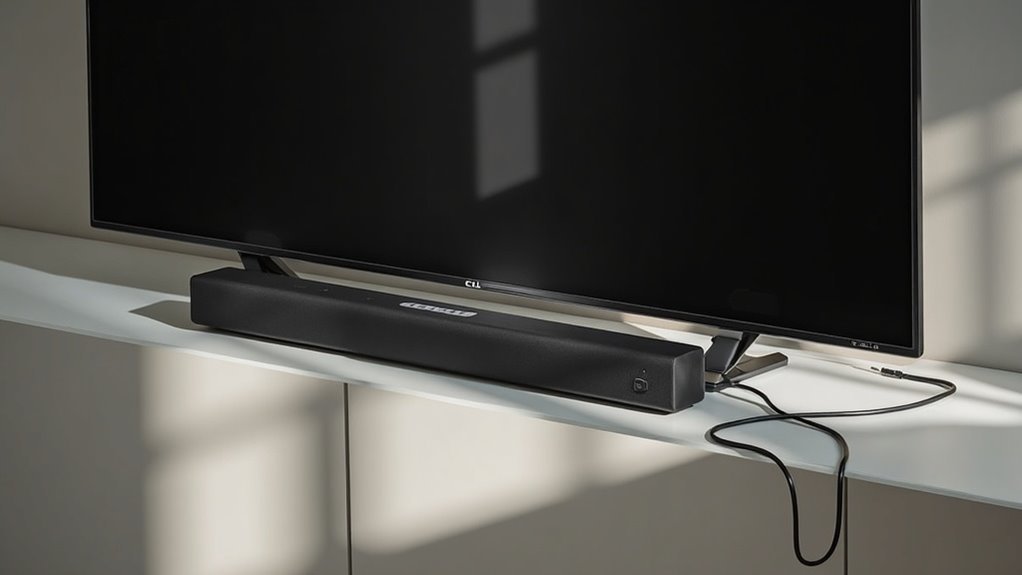
You can connect your soundbar to a TCL TV using HDMI ARC, an optical cable, or Bluetooth. For HDMI ARC, plug one end into the TV’s HDMI ARC port and the other into the soundbar, then adjust the settings. If you prefer a wired option, use an optical cable by connecting it between the soundbar and the TV output. For a wireless setup, activate Bluetooth pairing on both devices. Keep going, and you’ll find tips on troubleshooting any connection issues related to soundbars!
Key Takeaways
- Connect your soundbar to your TCL TV via HDMI ARC for a seamless audio return and control by linking the HDMI ARC ports on both devices.
- Alternatively, use an optical cable by connecting one end to the soundbar and the other to the TV’s optical output for high-quality sound.
- For a wireless audio experience, pair your soundbar with the TCL TV using Bluetooth.
- After connecting, make sure to adjust the audio settings on the TV to achieve optimal sound quality.
- If you encounter any issues, troubleshoot by checking the connections and settings for HDMI, optical, or Bluetooth.
Methods of Connecting Soundbars to TCL TVs
When you’re looking to enhance your audio experience with a soundbar, knowing the various methods to connect it to your TCL TV can make all the difference.
You can use HDMI ARC, which allows for seamless audio return and control features when connecting a high-speed HDMI cable between your TV and soundbar.
Utilize HDMI ARC for effortless audio return and control by connecting your TV and soundbar with a high-speed HDMI cable.
Alternatively, an optical cable offers a reliable connection by plugging into the respective ports, ensuring you select the correct input.
If you prefer a wireless setup, connect via Bluetooth by putting your soundbar in pairing mode.
Understanding these connectivity options is key to optimizing sound quality and resolving any potential issues with your soundbar setup.
HDMI Cable Connection
Connecting your soundbar to a TCL TV via HDMI is a straightforward process that can greatly enhance your audio experience with immersive sound quality.
Follow these steps to ensure a seamless connection:
- Locate the HDMI ARC port on your TCL TV and connect one end of the HDMI cable to it. This port is specifically designed for audio return, allowing for better sound transmission.
- Connect the other end of the HDMI cable to your soundbar. This will allow your soundbar to receive audio signals directly from the TV.
- Power on both devices and navigate to the TV settings to enable the HDMI ARC function. This step is crucial for ensuring that audio signals transmit correctly, allowing you to enjoy the full capabilities of your soundbar.
If you encounter any issues with the HDMI connection, consider using an optical audio cable as an alternative.
Make sure to adjust your audio settings accordingly to achieve the best sound quality possible from your soundbar.
Enjoy an upgraded audio experience with your TCL TV and soundbar setup!
Optical Cable Connection
Optical cable connections provide a dependable method to connect your soundbar to a TCL TV, ensuring superior digital audio quality.
To establish the connection, simply insert one end of the optical cable into the optical input of your soundbar and the other end into the optical output port on your TV.
It’s essential to select the appropriate input source on both the soundbar and the TV to facilitate seamless audio transmission.
To prevent any connection issues, consider turning off other nearby audio equipment that might interfere.
If you encounter any problems, inspect the optical cable for any visible damage and verify that both your soundbar and TCL TV are configured with the correct audio settings.
Bluetooth Connection
For those who prefer a wireless setup, connecting your soundbar to a TCL TV via Bluetooth offers a convenient and clutter-free solution.
Connecting your soundbar to a TCL TV via Bluetooth provides a seamless and tidy audio experience.
Follow these steps for a smooth connection process:
- Activate Pairing Mode: Place your soundbar in pairing mode so your TCL TV can easily discover it.
- Select Bluetooth: Access your TV’s input options and choose Bluetooth to initiate the connection.
- Adjust Settings: Once paired, customize the soundbar settings for optimal audio performance.
Ensure both devices are close and free from interference.
Enjoy enhanced audio from your soundbar without the hassle of wires!
Troubleshooting Connection Issues
Even with a seamless Bluetooth connection, you might encounter some issues when setting up your soundbar with a TCL TV.
First, ensure that the HDMI ARC is securely connected and enabled in your TV settings. If you’re using an optical cable, verify that the connection is secure and inspect it for any damage if sound problems occur.
For Bluetooth connections, make sure both devices are in pairing mode and that there’s no interference.
Don’t forget to check the audio settings to select the appropriate audio output format.
If issues continue, try performing a power cycle by unplugging both devices, then reconnecting them to establish a stable connection.







