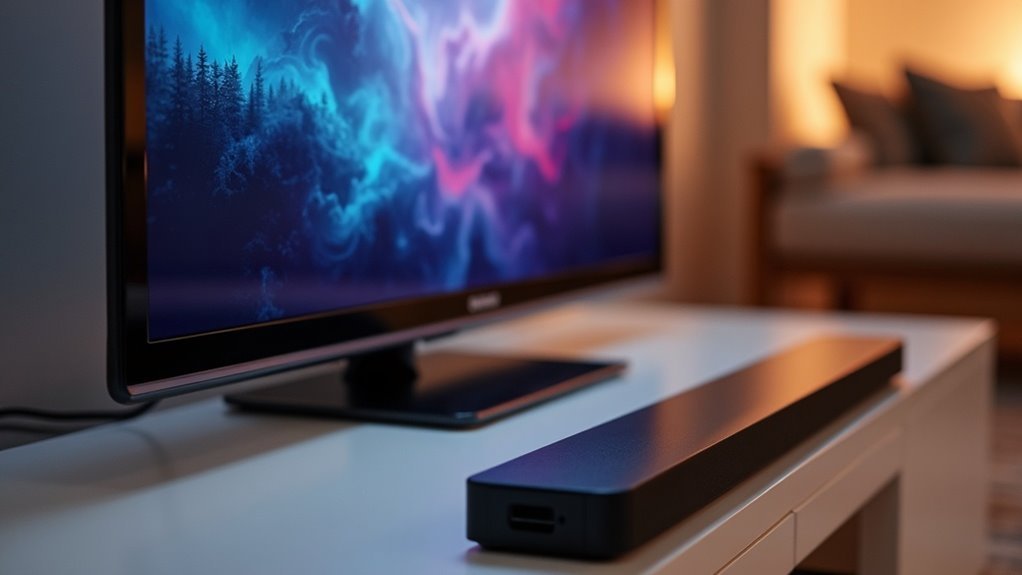
You can connect a soundbar to your Samsung TV in several ways. The best option is HDMI; simply link the HDMI IN (ARC) port on your TV to the soundbar’s HDMI OUT. Alternatively, you can use an optical cable for excellent audio quality or opt for wireless connections via Bluetooth or Wi-Fi. Remember to adjust your TV’s audio settings for optimal sound performance. Looking for tips to troubleshoot common issues? Keep reading for more information!
Key Takeaways
- Connect via HDMI by using an HDMI cable from the TV’s HDMI IN (ARC) to the soundbar’s HDMI OUT (TV-ARC) for excellent audio quality.
- Use an optical cable by connecting the TV’s OPTICAL OUT to the soundbar’s DIGITAL AUDIO IN for reliable and clear sound transmission.
- Pair the soundbar with the TV using Bluetooth by setting the soundbar to “BT” mode and selecting it from the TV’s Bluetooth Speaker List.
- Set up a Wi-Fi connection by connecting the soundbar to the same network as your smartphone and using the Samsung SmartThings app for setup.
- Ensure both devices are powered on and select the correct input source on the TV for successful connection.
For more information on soundbars, explore our comprehensive guides and resources.
Method 1 – Connect With an HDMI Cable
Connecting your Samsung TV to a soundbar with an HDMI cable is one of the best ways to enhance your audio experience.
To set up, plug the HDMI cable into the TV’s HDMI IN (ARC) port and the soundbar’s HDMI OUT (TV-ARC) port. Ensure both the soundbar and TV are powered on, then select D.IN on the soundbar for optimal audio output.
Additionally, enable the HDMI-CEC feature (Anynet+) for seamless control. This digital connection minimizes latency and allows you to manage audio settings through your TV remote, making your soundbar integration straightforward and elevating your overall sound experience.
Method 2 – Connect With an Optical Cable
Connecting your Samsung TV to a soundbar using an optical cable provides a dependable method for experiencing superior audio quality.
Simply follow a few easy steps to set up the connection and ensure everything is configured properly.
If you encounter any sound issues, troubleshooting is quick and easy, allowing you to return to enjoying your favorite shows without interruption.
Optical Cable Benefits
When you want to enhance your soundbar’s audio experience with your Samsung TV, using an optical cable is a smart choice.
This type of cable provides a reliable connection for transmitting digital sound, ensuring high audio quality without interference. Unlike analog connections, optical cables are less prone to signal degradation, maintaining sound clarity over longer distances.
To connect, you simply plug one end into your TV’s OPTICAL OUT port and the other into your soundbar’s DIGITAL AUDIO IN (OPTICAL) port.
Remember to set the soundbar to D.IN mode and adjust your TV’s audio output settings for peak performance.
Enjoy superior audio with your soundbar!
Connection Steps Overview
To get your Samsung TV and soundbar working together through an optical cable, start by ensuring both devices are powered on and your soundbar is set to the D.IN source.
Follow these steps:
- Connect one end of the optical cable to the TV’s OPTICAL OUT port.
- Connect the other end to the soundbar’s DIGITAL AUDIO IN (OPTICAL) port.
- Navigate to the TV Settings menu.
- Select Sound, then choose Sound Output.
- Pick Audio Out/Optical to route the audio through the optical connection.
If there’s no sound, double-check the connections and make sure the soundbar’s input is set correctly.
For optimal performance, ensure your soundbar is compatible with your TV and check for any firmware updates that may enhance connectivity.
Troubleshooting Sound Issues
If you’re experiencing sound issues after connecting your Samsung TV to a soundbar via an optical cable, there are several steps you can take to troubleshoot the problem effectively.
First, ensure that both your TV and soundbar are powered on and that the soundbar is set to D.IN input mode.
Check the connections to confirm that the optical cable is securely connected to the TV’s OPTICAL OUT and the soundbar’s DIGITAL AUDIO IN.
Next, navigate to your TV settings, select Sound, and choose Audio Out/Optical as the output option.
Finally, make sure to adjust the volume on both the TV and soundbar, as muted or low volume can impact the audio experience.
Method 3 – Connect With Bluetooth
Connecting your Samsung soundbar to your TV via Bluetooth is a straightforward process that enhances your audio experience without the hassle of wires.
Follow these steps for a seamless connection:
- Set your Samsung soundbar to “BT” mode and hold the Source button to enter pairing mode.
- Use your TV remote to navigate to Settings.
- Select Sound, then Sound Output to open the Bluetooth Speaker List.
- Choose your soundbar from the list to establish the connection.
- Ensure both devices are powered on and within range to achieve the best wireless connection.
It’s important to note that while Bluetooth provides convenience, it may offer lower sound quality compared to wired connections.
Enjoy the freedom of wireless audio with your Samsung soundbar!
Method 4 – Connect With Wi-Fi
Connecting your soundbar to your Samsung TV via Wi-Fi provides an expanded range and enables multiple devices to connect at once.
To begin, ensure that your soundbar is set to Wi-Fi mode and that your smartphone is connected to the same network.
Utilize the Samsung SmartThings app to effortlessly establish the connection and elevate your audio experience with your soundbar.
Wider Range Benefits
One significant advantage of using Wi-Fi to connect your soundbar to a Samsung TV is the extended range it offers, allowing you to position your soundbar in the optimal location for the best audio experience.
Unlike Bluetooth, Wi-Fi connections provide greater flexibility and support for multiple devices simultaneously, enhancing your overall soundbar experience.
To set up your soundbar using Wi-Fi, follow these steps:
- Activate Wi-Fi mode on your soundbar.
- Use the SmartThings app for a streamlined setup process.
- Ensure your mobile device is connected to the same network as your soundbar.
- Select the location of your soundbar within the app.
- Navigate to your TV settings to choose Wi-Fi sound output.
With this Wi-Fi setup, you’ll enjoy seamless audio playback, overcoming the limitations often associated with Bluetooth connections.
SmartThings App Usage
While using the SmartThings app simplifies the process of connecting your soundbar to a Samsung TV via Wi-Fi, it also enhances your control over audio settings.
First, ensure that both your soundbar and TV are on the same Wi-Fi network. Activate Wi-Fi mode on the soundbar using the remote control.
Next, download and open the SmartThings app on your device. Tap the Add icon (+), select the AV category, and choose your soundbar brand.
After tapping Start, navigate to the TV settings, select Sound, then Sound Output, and choose the Wi-Fi option to enjoy seamless audio playback through your soundbar.
This integration allows for a more immersive audio experience, making your soundbar a central component in your home entertainment setup.
Troubleshooting Connection Issues
To troubleshoot connection issues between your Samsung soundbar and TV, start by ensuring that the correct input source is selected on both devices.
To resolve connection issues, first ensure the correct input source is selected on both your Samsung soundbar and TV.
Follow these troubleshooting steps to resolve any problems:
- Verify all cables (HDMI or optical) are securely connected and undamaged.
- Check the mute status; if the soundbar shows “S MUTE,” adjust the volume levels.
- Reset both the soundbar and TV if problems persist.
- Consult the user manuals for specific troubleshooting steps related to soundbars.
- Test the connection with different devices to isolate the issue.
Contact Samsung Support
If you’re still encountering issues after following the troubleshooting steps for your soundbar, reaching out to Samsung Support can be a helpful next step. They provide various contact methods, including WhatsApp and LiveChat, for assistance with connecting your soundbar to your TV. You can also call during specified hours for support. Additionally, Samsung’s website features online troubleshooting guides and FAQs, where you can find detailed instructions for using digital optical cable, HDMI ARC, or Bluetooth connections for your soundbar. Don’t forget to check for firmware updates to enhance compatibility and performance.
| Support Method | Availability | Purpose |
|---|---|---|
| 24/7 | Quick messaging support | |
| LiveChat | Business Hours | Real-time assistance |
| Phone Support | Specified Hours | Direct help for issues |
| Online Guides | Anytime | Self-help resources |







