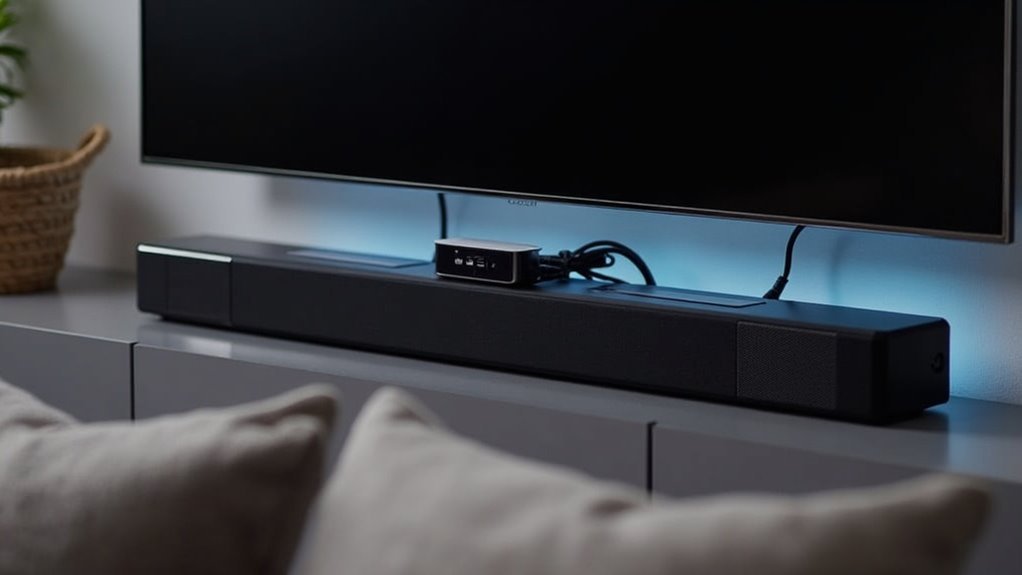
You can connect a soundbar to your Roku TV using either HDMI ARC or an optical audio cable. HDMI ARC simplifies control, allowing you to manage both audio and video with a single remote, while optical cables provide excellent sound quality. Ensure that the soundbar is powered on and set to the correct input mode. If you experience any difficulties, there are straightforward troubleshooting steps available to enhance your audio experience. Additionally, there’s plenty of information to explore about these connection methods and their benefits for your soundbar setup!
Key Takeaways
- Connect the soundbar to your Roku TV using HDMI ARC for simplified audio management and the convenience of controlling everything with a single remote.
- If HDMI ARC is not an option, consider using an optical audio cable, making sure to set the soundbar to optical input mode for proper functionality.
- For those using a Roku Stick, connect the Stick directly to the TV, allowing audio to be routed seamlessly through the soundbar.
- Ensure the soundbar is powered on and set to the correct input mode to achieve the best audio performance.
- Don’t forget to adjust the Roku TV audio settings to select the soundbar as the primary output device for an enhanced listening experience.
Understanding Soundbar Connectivity Options
When it comes to connecting your soundbar to a Roku TV, you’ll want to weigh your options carefully.
The most straightforward method is using an HDMI cable via the HDMI ARC port, which lets you manage audio and video with one remote.
If your soundbar lacks HDMI, you can opt for an optical audio cable, delivering high-quality sound.
Remember, when connecting additional devices like a Roku Stick, plug it directly into the TV and use the soundbar for audio.
Just keep in mind that Bluetooth isn’t supported for soundbars, making wired connections your best bet for ideal sound quality.
Connecting via Optical Cable
Connecting your soundbar to a Roku TV via optical cable is a straightforward process that ensures you enjoy high-quality audio.
Begin by plugging one end of the optical cable into the optical audio output port on your Roku TV and the other end into the optical input (D.IN) on your soundbar.
Ensure that your soundbar is powered on and set to the optical input mode.
Next, navigate to the Roku TV settings and select the optical output for audio.
This connection allows sound from all devices connected to the TV, including streaming players, to play through your soundbar, enhancing your audio experience.
Using HDMI for Enhanced Control
If you’re looking to enhance your audio experience while simplifying your setup, using HDMI ARC (Audio Return Channel) to connect your soundbar to a Roku TV is an outstanding option. This configuration allows you to manage both the TV and soundbar volume with just one remote. To set it up, connect an HDMI cable from your soundbar to the HDMI ARC port on the Roku TV. Here’s a quick overview of the benefits:
| Feature | Benefit |
|---|---|
| Single Remote Control | Easily adjusts both TV and soundbar volume |
| Automatic Switching | Inputs automatically change based on the active device |
| High Audio Quality | Supports superior audio formats |
Don’t forget to enable HDMI-CEC in your settings for even greater control over your soundbar experience!
Setting up the Soundbar With Roku TV
Setting up your soundbar with Roku TV is straightforward if you follow a few key steps.
You’ll connect your soundbar using either an HDMI ARC port or an optical audio cable, then configure the audio settings in the Roku menu.
Let’s explore the connection methods, configuration steps, and some common troubleshooting tips to guarantee everything runs smoothly with your soundbar setup.
Connection Methods Overview
To achieve the best audio experience with your soundbar, using it with your Roku TV can greatly enhance your setup.
You can connect your soundbar primarily through the HDMI ARC port, which guarantees superior audio quality and simplified control. Alternatively, an optical audio cable can also deliver high-quality sound.
Ensure your soundbar is powered on and select it as the audio output device in your TV’s audio settings menu.
For a seamless experience with multiple devices, consider connecting the Roku Stick directly to your TV and using the optical cable for soundbar audio.
Adjust the soundbar input mode based on your chosen connection method for optimal performance.
Audio Configuration Steps
Once you’ve connected your soundbar to your Roku TV, configuring the audio settings is essential for the best sound experience. Follow these steps:
- Navigate to the TV settings menu and select the “Audio” options.
- Choose your soundbar as the audio output device.
- If using HDMI ARC, ensure both the soundbar and TV support this feature.
- Adjust the volume using either your TV remote or the soundbar remote for optimal control.
- Test the sound output to ensure clarity and quality.
Troubleshooting Common Issues
Even after configuring your audio settings, you might encounter issues with your soundbar when using it with your Roku TV. Start by checking your cable connections; verify that the HDMI ARC or optical cable is secure. Ensure the soundbar is powered on and set to the appropriate input mode. Check the TV’s audio settings to confirm that the soundbar is selected as the output device. If issues persist, try restarting both devices. For additional assistance, refer to the user manuals for troubleshooting tips.
| Issue | Solution |
|---|---|
| No sound | Check connections and settings |
| Incorrect input mode | Set soundbar to HDMI ARC or D.IN |
| Persistent glitches | Restart Roku TV and soundbar |
| Ongoing problems | Consult user manuals for guidance |
Troubleshooting Common Connection Issues
When troubleshooting connection issues between your soundbar and Roku TV, start by checking all cable connections to confirm they’re securely attached.
Begin by checking all cable connections to ensure they are securely attached when troubleshooting your soundbar and Roku TV.
Here are some steps to help you resolve common problems:
- Confirm the soundbar is powered on and set to the correct input mode (HDMI or optical).
- Check the TV audio settings to select the soundbar as the audio output device.
- Restart both the soundbar and the Roku TV to reset the connection.
- Verify all HDMI ARC or optical audio cables are securely connected.
- Consult the user manuals for specific troubleshooting steps related to your soundbar model.
Exploring Additional Features and Settings
While connecting your soundbar to a Roku TV enhances your audio experience, exploring the additional features and settings can take it to the next level.
Accessing your soundbar settings through the Roku TV interface allows for seamless adjustments while streaming, ensuring you get the most out of your soundbar.
If your soundbar is connected via HDMI-CEC, the Roku remote can control its volume and settings, adding convenience to your setup.
Don’t forget to check for firmware updates on your soundbar to optimize audio performance and compatibility.
Immerse yourself in the audio options menu to customize surround sound configurations, creating a tailored listening experience that suits your preferences perfectly.
User Experience With Soundbar and TV Integration
When integrating a soundbar with your Roku TV, managing multiple remotes can be a hassle.
Optical connections often require a separate remote for the soundbar’s volume control, which can complicate your setup.
On the other hand, utilizing HDMI connections with HDMI-CEC can simplify this process, allowing you to control both your TV and soundbar with a single remote.
Understanding these options is key to creating a seamless audio experience that enhances your viewing enjoyment.
Remote Control Integration
Integrating a soundbar with your Roku TV can significantly enhance your audio experience, but the efficiency of remote control usage largely depends on the type of connection you choose.
Here’s how remote control integration can vary with soundbars:
- HDMI ARC: This connection allows for unified control if both your soundbar and Roku TV support HDMI-CEC, enabling you to manage both devices with a single remote.
- Optical Connections: When using an optical connection, you may need to rely on the soundbar’s remote for volume adjustments, which can complicate the user experience.
- Programmable Remotes: Some soundbars come equipped with programmable remotes that can control both the soundbar and your Roku TV, simplifying your remote management.
- Optical to HDMI Converters: These converters can enable CEC features, providing a more seamless integration between your soundbar and Roku TV.
- Device Compatibility: The compatibility between your soundbar and Roku TV can greatly affect your user experience; having to use dual remotes may lead to frustration.
Choosing the right connection for your soundbar can greatly improve your experience with remote control integration.
Dual Remote Challenges
Connecting a soundbar to your Roku TV can often lead to the frustrating challenge of managing multiple remotes. When utilizing an optical cable, you may find yourself dealing with dual remote issues, as separate remotes are typically required for TV functions and soundbar volume control.
While HDMI connections can offer a more streamlined solution through HDMI-CEC, it’s important to note that not all soundbars support this feature. Some users might explore optical to HDMI converters in hopes of achieving better compatibility, but the results can vary significantly.
Ultimately, the struggle with dual remotes can detract from your viewing experience, as many users prefer a single remote that effortlessly controls both sound and TV. Finding an effective solution is key to enhancing your overall entertainment experience with your soundbar.
Future Prospects for Soundbar Connectivity
As technology progresses, the future of soundbar connectivity looks promising, especially with the potential for user-driven enhancements.
Here are some trends to watch:
- Bluetooth support may become standard for soundbars, allowing for easy wireless connections to various devices.
- Improved integration could reduce reliance on multiple remotes, streamlining the user experience.
- Enhanced firmware updates may simplify audio pass-through for various formats, ensuring compatibility with a wide range of content.
- Community engagement could shape future software features, allowing users to suggest improvements and enhancements.
- Monitoring trends in HDMI and audio technology might reveal new connectivity options, expanding the versatility of soundbars.
These advancements could greatly enhance your experience when using soundbars, making it easier to enjoy high-quality audio seamlessly.







