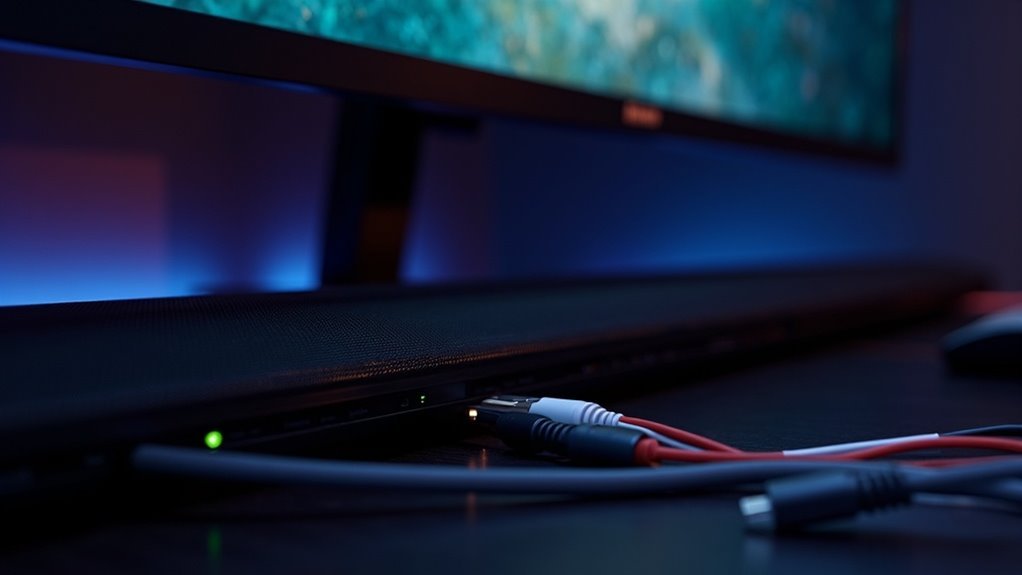
You can connect a soundbar to your PC using Bluetooth, an AUX cable, or an optical audio connection. For Bluetooth, put your soundbar in pairing mode and select it from your PC’s Bluetooth settings. If you prefer a wired connection, plug an AUX cable into the headphone jack of your PC and the soundbar. Alternatively, use a Toslink cable for an optical connection if your PC has the port. Explore each method to find the best fit for your soundbar setup.
Key Takeaways
- Soundbars can connect to a PC via Bluetooth, AUX audio cable, or optical audio (Toslink) cable.
- For Bluetooth, ensure both the soundbar and PC are powered on and in pairing mode.
- Use an AUX cable by plugging it into the headphone jack on the PC and the AUX port on the soundbar.
- An optical audio connection requires a Toslink cable plugged into both the soundbar and the PC’s optical audio port.
- If you encounter issues, verify that the soundbar is powered on and set as the default audio output device.
Overview of Connection Methods
When connecting a soundbar to your PC, you have several methods at your disposal, each tailored to different needs and setups.
The most common options include Bluetooth, AUX audio cable, and optical audio connection.
Bluetooth allows for wireless streaming, simplifying setup but requiring compatible devices.
Alternatively, using an AUX cable provides a direct wired connection by plugging one end into your PC’s headphone jack and the other into the soundbar’s AUX port.
Finally, the optical audio connection utilizes a Toslink cable to transmit high-quality digital audio, but this requires both devices to have compatible optical ports.
Connecting via Bluetooth
How do you connect your soundbar to your PC using Bluetooth?
First, power on your soundbar and set it to pairing mode, indicated by an activating light.
Next, access the Bluetooth settings on your Windows PC via the Start menu, ensuring that Bluetooth is enabled.
Click on “Add Bluetooth or other device,” select Bluetooth, and choose your soundbar from the list.
The connection process will display “Connecting…” followed by “Done,” confirming a successful link.
If it doesn’t pair, verify that the soundbar is within range, not connected to other devices, and try restarting both your PC and the soundbar.
Enjoy an enhanced audio experience with your soundbar!
Connecting With AUX Cable
For those preferring a wired connection, using an AUX cable is a straightforward method to link your soundbar to your PC.
Start by plugging one end of the AUX cable into the computer’s headphone or sound port, usually marked with a headphone icon. Then, insert the other end into the AUX port on the soundbar.
Once connected, Windows should automatically redirect audio output to the soundbar, requiring no extra configuration.
Windows will seamlessly route audio to your soundbar without any additional setup required.
If you notice any sound quality issues, check for dust or dirt on the AUX cable. Confirm the soundbar is powered on and adjust volume levels on both devices for optimal audio performance.
Enjoy the enhanced sound experience your soundbar offers!
Using Optical Audio (Toslink) Cable
Using an Optical Audio (Toslink) cable is an excellent way to connect your soundbar to a PC, especially if you’re seeking superior audio quality.
To set up, insert one end of the cable into the soundbar’s optical audio port and the other into your PC’s optical audio port, typically labeled TOSLINK or DIGITAL AUDIO OUT.
Ensure that the soundbar is powered on and the indicator light is activated before making the connection.
Once connected, all audio output from your PC will be directed to the soundbar, enhancing your listening experience.
However, it’s important to verify compatibility, as some laptops may lack a Toslink port, which could affect your setup.
Troubleshooting Connection Issues
After connecting your soundbar via an optical cable, you may encounter some issues that disrupt your listening experience. First, ensure that the soundbar is powered on and set as the default audio output device. For Bluetooth connections, make sure the soundbar is in pairing mode and that Bluetooth is enabled on your PC. If you experience static or distorted audio, check your cable connections and update your audio drivers. Restarting your PC can also help refresh audio device recognition.
| Issue | Solution |
|---|---|
| No sound | Set soundbar as the default output |
| Bluetooth not pairing | Enable Bluetooth and check pairing status |
| Distorted audio | Inspect cables and update drivers |







