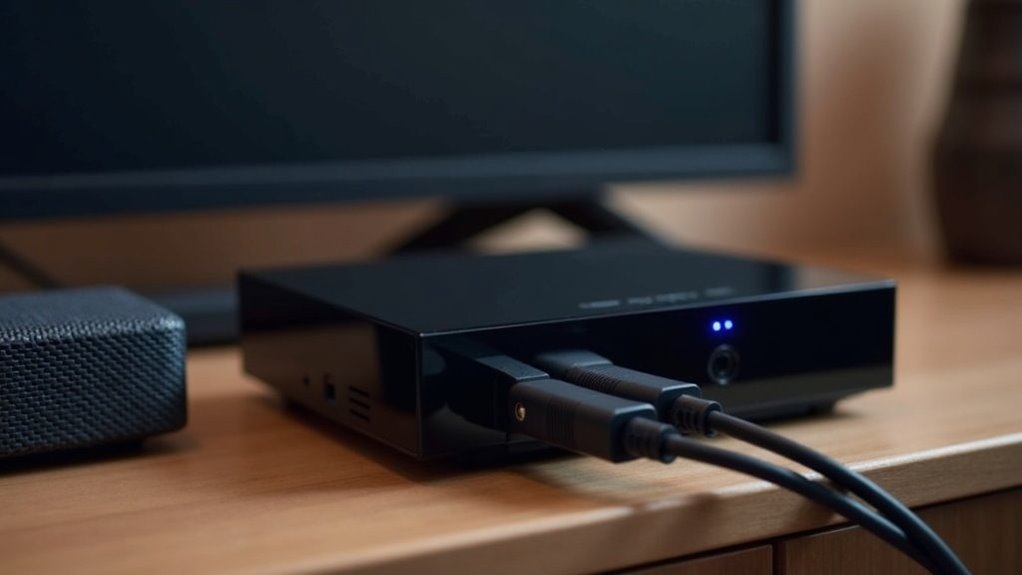
You can connect your soundbar to the Nvidia Shield in several ways, ensuring an enhanced audio experience. The most efficient method is using an HDMI cable through the HDMI ARC port, which provides high-quality audio. Alternatively, you can opt for an optical cable for a reliable connection, though this may limit your access to advanced sound formats. Bluetooth is another option for a wireless setup, but be aware that it might introduce some audio lag. Each connection method has its own advantages, so explore them to determine which works best for your soundbar setup.
Key Takeaways
- Connect the Nvidia Shield to the soundbar using an HDMI cable through the HDMI ARC port for optimal audio quality, which is essential for a superior soundbar experience.
- Alternatively, use an optical cable from the Shield or TV to the soundbar for a reliable connection, though it may have limited audio format support compared to HDMI.
- For wireless options, pair the Shield with the soundbar via Bluetooth; however, be aware of potential audio latency and quality loss that can affect your listening experience.
- Ensure HDMI ARC and CEC settings are enabled on both the soundbar and TV to ensure proper functionality and seamless integration with HDMI connections for a hassle-free setup.
- Regularly check and maintain connections, and keep firmware updated to enhance audio performance and prevent issues, ensuring your soundbar operates at its best.
Step-by-Step Instructions for Connecting Your Shield to a Soundbar
Connecting your Nvidia Shield to a soundbar can enhance your audio experience if you follow these straightforward steps.
Begin by plugging the Shield’s HDMI output into the soundbar’s HDMI input that supports HDMI ARC. Next, connect the soundbar’s HDMI ARC output to your TV’s HDMI ARC port for optimal sound integration.
If you prefer an optical connection, use an optical cable from the Shield or TV to the soundbar, and make sure to adjust the sound settings on the Shield to select optical audio.
For those who favor a wireless setup, consider pairing the Shield via Bluetooth, but be mindful of potential latency issues.
Always double-check that your soundbar’s settings align with your chosen connection type for the best audio performance.
Method 1: Direct HDMI Connection
When you want to elevate your audio experience with your soundbar, a direct HDMI connection to the Nvidia Shield is an excellent choice.
Start by using a high-speed HDMI cable that supports 4K and audio passthrough. Connect the HDMI output from the Nvidia Shield directly to the HDMI input on the soundbar, ensuring it supports HDMI ARC for audio return.
Next, link the soundbar’s HDMI ARC port to your TV’s HDMI ARC port for two-way communication.
Don’t forget to enable HDMI ARC and CEC settings on both devices to maximize functionality, allowing your soundbar to handle advanced audio formats seamlessly and deliver an immersive audio experience.
Method 2: Optical Cable Connection
Optical cable connections are a reliable alternative for linking your soundbar to an Nvidia Shield. To set this up, locate the optical out port on either the Shield or your TV, depending on your configuration. Connect the optical cable from the Shield (or TV) to the soundbar’s optical input. In the Nvidia Shield’s audio settings, select “optical” as your audio output option. While optical cables deliver clear sound, keep in mind that they may limit support for advanced audio formats like Dolby Atmos.
| Feature | Optical Connection | HDMI Connection |
|---|---|---|
| Sound Quality | High | Highest |
| Dolby Atmos Support | Limited | Full |
| Setup Complexity | Simple | More complex |
Method 3: Bluetooth Connection
If you prefer a wireless option, connecting your soundbar to an Nvidia Shield via Bluetooth is a great choice.
You’ll want to ensure both devices are compatible and that your soundbar is in pairing mode for a smooth setup.
Keep in mind, though, that while Bluetooth offers convenience, it might come with some audio quality trade-offs and stability considerations.
This makes it an ideal solution for those who value ease of use in their soundbar setup.
Bluetooth Setup Steps
To connect your soundbar to an Nvidia Shield via Bluetooth, start by ensuring that your soundbar is in pairing mode, which is usually indicated by a blinking light.
Then, follow these steps:
- On your Nvidia Shield, go to Settings > Device Preferences > Bluetooth.
- Select “Add Accessory” to search for available Bluetooth devices.
- Once your soundbar appears, select it to initiate pairing, confirming the connection if needed.
Make sure both devices have updated firmware for peak performance.
While Bluetooth is a convenient option for connecting your soundbar, be aware that it may introduce latency, making it less ideal for watching movies or gaming.
Audio Quality Considerations
While Bluetooth offers a convenient way to connect your soundbar to the Nvidia Shield, it’s essential to consider the audio quality implications.
Bluetooth connections can introduce latency, leading to noticeable audio delays that can detract from your viewing or gaming experience. Additionally, audio quality over Bluetooth is typically lower than that of wired connections, which can impact high-fidelity formats.
For casual listening, Bluetooth may suffice, but for a truly immersive experience, it’s advisable to select a soundbar that supports HDMI Port connections.
If you opt for Bluetooth, ensure you use high-quality devices with advanced codecs to minimize audio degradation and enhance your overall sound experience.
Connection Stability Issues
While Bluetooth offers a convenient method to connect your soundbar to the Nvidia Shield, it can result in connection stability issues that may disrupt your audio experience.
Here are some common concerns to keep in mind:
- Latency: Bluetooth connections can introduce audio delays, which may affect synchronization during movies or gaming sessions.
- Audio Quality: The sound quality delivered via Bluetooth is often inferior to that of wired connections, potentially diminishing your immersive audio experience.
- Signal Interference: Ensure that both devices are within the recommended range to minimize interruptions.
For casual listening, Bluetooth’s convenience is appealing, but for a more immersive audio setup, consider opting for wired connections to achieve superior performance.
Common Connection Mistakes and How to Avoid Them
When connecting your Nvidia Shield to a soundbar, it’s easy to confuse the regular HDMI port with the HDMI ARC port, which can lead to frustrating audio issues.
Make sure you’re using the correct HDMI ARC port on your soundbar and that your audio output settings on the Shield are compatible with your soundbar’s features.
HDMI ARC Confusion
Navigating the world of HDMI ARC can be challenging, especially with the many connection options available for soundbars.
To avoid common mistakes and ensure optimal audio quality, keep these points in mind:
- Always connect your Nvidia Shield to the HDMI ARC port on your soundbar, not a standard HDMI port.
- Verify that both your soundbar and TV have HDMI ARC enabled in their settings for seamless communication.
- If your soundbar features multiple HDMI ports, remember that only the designated HDMI ARC port handles audio return.
These steps are crucial for enjoying high-quality sound from your soundbar, especially if it supports Dolby formats.
Don’t overlook these details!
Audio Format Mismatch
To fully enjoy the capabilities of your soundbar, it’s crucial to ensure that the audio settings on your Nvidia Shield are properly configured to match the features of your soundbar.
An audio format mismatch can happen if you select stereo output while your soundbar is capable of surround sound. Always utilize HDMI eARC ports for advanced audio formats like Dolby Atmos, as standard HDMI ports may not effectively transmit these signals.
Additionally, make sure to enable passthrough options on both your Nvidia Shield and soundbar for optimal audio processing.
Lastly, consider investing in high-quality HDMI cables to ensure seamless 4K and audio passthrough, reducing the likelihood of sound dropouts and mismatches.
Optimizing Audio Settings for the Best Sound Experience
Optimizing your audio settings on the Nvidia Shield can significantly enhance your soundbar experience.
To ensure you achieve the best possible audio output, follow these steps:
- Access Settings > Device Preferences > Sound and select the appropriate audio output format, such as stereo, 5.1 surround, or bitstream, depending on your soundbar’s specifications.
- Activate passthrough for advanced audio formats like Dolby Atmos to ensure full compatibility with your soundbar.
- Regularly check for firmware updates on both the Nvidia Shield and your soundbar to keep them performing at their best.
With these adjustments, you can maximize the performance of your soundbar and enjoy an exceptional sound experience.
Troubleshooting Connection Issues Like a Pro
When you’re experiencing connection issues between your Nvidia Shield and soundbar, it can be quite frustrating, especially when you’ve set everything up for an optimal audio experience.
First, ensure that the HDMI ARC feature is enabled on both devices to facilitate proper audio output. If you’re not getting any sound, check the Shield’s audio output settings; set them to “Auto” and enable “Stereo Upmix” if necessary.
Remember to unplug and reconnect HDMI cables to reset the connections. If you’re using an optical cable, make sure the Shield’s audio output is configured accordingly.
Finally, reboot both devices to effectively troubleshoot the issue and start fresh.







