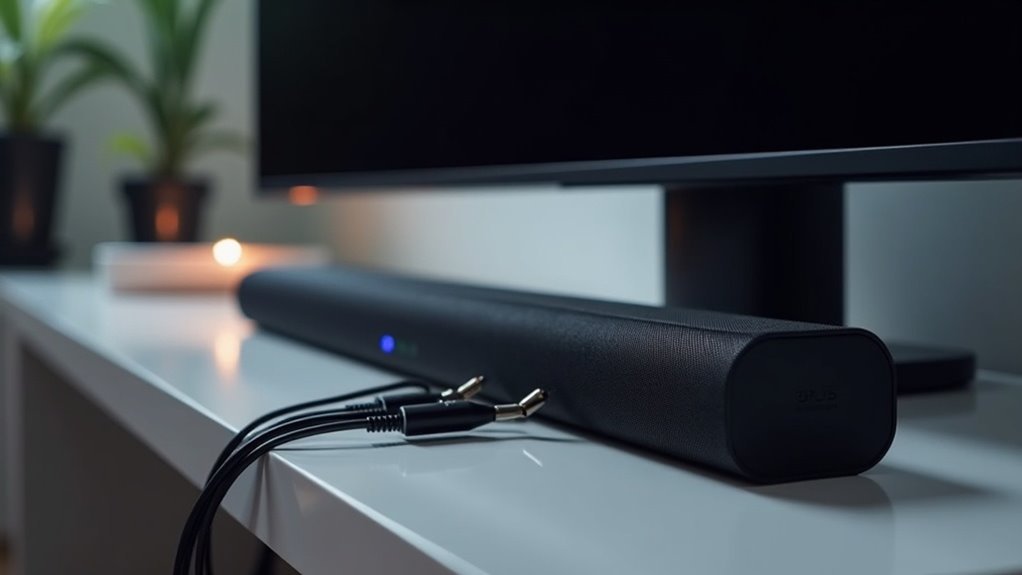
Soundbars connect to monitors mainly through HDMI, optical audio, or USB connections. HDMI is preferred for its high-quality audio and video transfer. You can use an optical audio cable for digital audio or plug in a USB-powered soundbar directly into your monitor’s USB port for both power and sound. If you need wireless flexibility, Bluetooth is an option, but it may compromise audio quality. Explore various connection methods and setup tips to ensure optimal performance of your soundbar with your monitor.
Key Takeaways
- Soundbars connect to monitors primarily using HDMI, optical audio cables, or USB for power and audio transmission.
- USB-powered soundbars utilize the monitor’s USB port for both power and audio connectivity.
- HDMI connections offer high-quality audio and video, while optical cables are used for digital audio options.
- For monitors with only HDMI, an HDMI audio extractor may be necessary for optimal audio performance.
- Bluetooth connections provide wireless flexibility, but may sacrifice some audio quality compared to wired options.
What Is a Soundbar and Its Benefits?
A soundbar is a slim, rectangular speaker designed to enhance your audio experience, particularly when paired with monitors and televisions. By improving audio quality, it delivers superior sound compared to built-in speakers.
Devices like the Dell Slim Soundbar SB521A can connect directly to compatible monitors via USB, simplifying setup and reducing clutter. This connection eliminates the need for bulky desk speakers and extra power sources.
Additionally, using an HDMI cable can streamline your audio output, minimizing cable mess. Overall, soundbars offer an aesthetically pleasing, space-saving solution that creates an immersive environment for gaming, movies, and music.
Types of Soundbars and Their Compatibility
When considering soundbars for your monitor, it’s essential to understand the different types and their compatibility.
There are USB-powered soundbars that connect via USB for both power and audio, alongside AC-powered models that require separate power and audio connections.
Compatibility is vital, as these soundbars are designed for specific monitor brands and models; always check your monitor specifications first.
Soundbars connect through various methods, including HDMI, optical audio, or analog connections.
If direct compatibility isn’t available, you might need an HDMI audio extractor to facilitate the connection for optimal audio performance.
How to Set up a Soundbar With Your Monitor
Setting up a soundbar with your monitor can significantly enhance your audio experience, provided you ensure compatibility and use the appropriate connections.
First, connect your soundbar using HDMI cables or a TOSLINK cable if your monitor supports optical audio output. If your monitor only has HDMI, consider utilizing an HDMI audio extractor for optimal audio through additional inputs.
For USB-powered soundbars, simply connect them to the monitor’s USB port for both power and audio.
Lastly, if your soundbar features Bluetooth, check if your monitor can pair with it, although this may not deliver the best quality for gaming.
Be sure to adjust your audio settings accordingly for the best performance.
Connection Methods for Soundbars
Connecting a soundbar to your monitor involves several methods, each varying in quality and compatibility based on your devices.
The HDMI connection is preferred, especially if your monitor supports ARC, as it delivers high-quality audio and video. An HDMI switch can simplify connections if multiple devices are involved.
For a digital audio option, use an optical audio cable, ensuring your monitor has a compatible optical output.
Alternatively, you can connect a soundbar via analog connections using a 3.5 mm stereo plug.
Finally, Bluetooth offers wireless flexibility but may compromise audio quality for gaming.
Choose the connection method that best suits your audio needs and preferences for an optimal sound experience.
Troubleshooting Common Soundbar Issues
Troubleshooting common soundbar issues can often be straightforward with a few key checks. Start by ensuring your soundbar is set as the default output device and that all connections are secure. If the soundbar won’t turn on, check the power connections and try different ports. For static or distorted audio, inspect connections and update your audio drivers. Low volume issues may require adjustments on both your audio source and soundbar. If your soundbar randomly turns off, look into power issues and test with other devices.
| Issue | Solution |
|---|---|
| No sound | Check default output settings |
| Won’t turn on | Verify power connections |
| Distorted audio | Inspect connections and update drivers |
| Low volume | Adjust settings on both devices |
| Randomly turns off | Investigate power sources |







