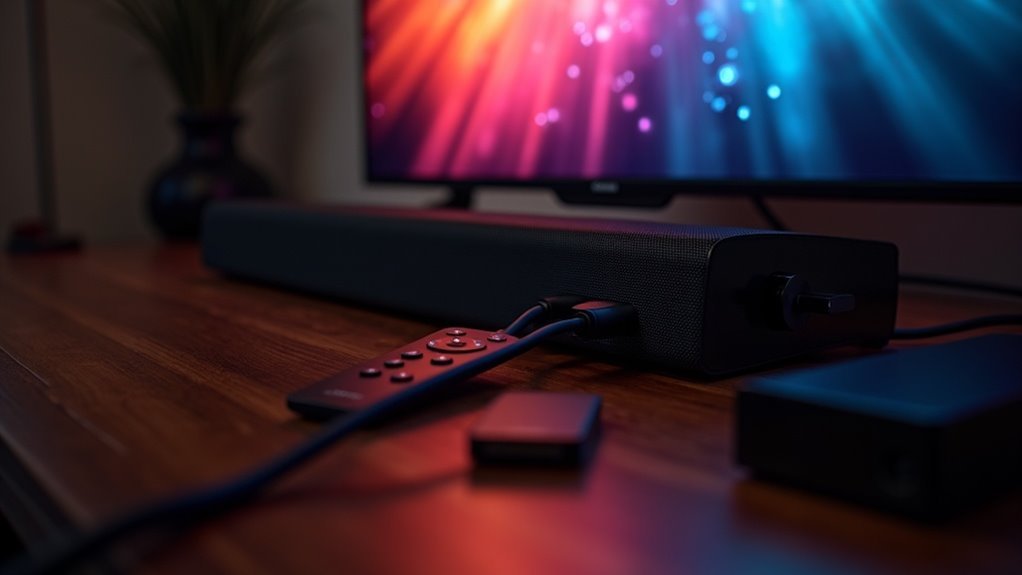
To connect your soundbar to Fire TV, you can utilize HDMI ARC for optimal audio quality, or an optical cable for a solid wired connection. Bluetooth provides a convenient wireless option, while RCA inputs cater to older soundbars. Ensure that you select the correct input mode on your soundbar and adjust your TV settings to route audio appropriately. For extensive setup instructions and troubleshooting advice, there’s much more information available.
Key Takeaways
- Connect the soundbar to your Fire TV using HDMI ARC for high-quality audio and seamless management of settings.
- Alternatively, use an optical cable to link your Fire TV to the soundbar through the TV’s optical out port for reliable sound output.
- You can also pair the soundbar with Fire TV via Bluetooth by enabling discovery mode on the soundbar and connecting through the Fire TV settings.
- For older devices, utilize RCA connections with separate red and white cables for basic stereo audio output.
- Always ensure you select the correct input on the soundbar to guarantee proper audio functionality with your chosen connection method.
Understanding Connection Options
When you’re setting up your soundbar with Fire TV, understanding the connection options is essential for achieving the best audio experience.
For ideal sound, use an HDMI input if your soundbar supports HDMI ARC, as this provides the best audio quality. Alternatively, you can use an optical cable to connect your Fire TV to the soundbar through the TV’s optical out port, ensuring clear sound transmission.
If you prefer a wireless option, Bluetooth allows you to connect without the need for physical cables.
Lastly, RCA connections are handy if your soundbar features separate left and right audio inputs, providing another way to enjoy your favorite shows.
Setting Up an Optical Connection
When setting up an optical connection for your soundbar, ensure that your optical cable is compatible with both your soundbar and TV.
If you encounter any fitting issues, remember to handle the cable gently, as it has a specific shape for proper insertion.
Once everything is connected, test the audio to confirm it’s functioning smoothly.
Optical Cable Compatibility
To successfully connect your soundbar to a Fire TV using an optical cable, first ensure that your TV has an available optical audio output and that your soundbar features an optical input.
Optical cables have a distinct square shape with a bump; verify you orient it correctly to avoid fitting issues.
Once connected, switch your soundbar to the optical input mode for proper audio output.
Don’t forget to check your TV’s audio settings to confirm that the sound output is directed to the optical connection.
If you encounter any problems, inspect all connections and adjust the optical cord position as needed for a secure fit.
Enjoy enhanced audio performance from your soundbar!
Connection Troubleshooting Tips
Even if you’ve followed all the steps to connect your soundbar to Fire TV using an optical cable, issues can still arise.
First, ensure that the optical cable is correctly inserted—its square shape with a bump must face the right direction.
Next, set your soundbar to optical input mode.
Check your TV’s audio settings to guarantee sound is routed through the optical connection, disabling any internal speakers if necessary.
If you still hear no sound, verify all connections, power on the soundbar, and restart both devices.
These troubleshooting tips should help you resolve any connection issues with your soundbar.
Exploring HDMI and RCA Inputs
Connecting your Fire TV to a soundbar can greatly enhance your audio experience, and there are two primary methods to achieve this: HDMI and RCA inputs.
| Input Type | Connection Method | Quality |
|---|---|---|
| HDMI | Directly to soundbar’s HDMI | High-quality |
| RCA | Separate RCA cables (red/white) | Basic stereo |
Using HDMI allows for easy control and high-quality audio, especially if your soundbar has an HDMI ARC port, which simplifies the connection and management of audio settings. RCA connections work with older devices, providing basic audio output, but may not deliver the same level of sound performance. Remember to select the correct input on your soundbar for the audio to function properly and enjoy the best audio experience possible.
Pairing via Bluetooth
Pairing your soundbar with the Fire TV Stick via Bluetooth is a straightforward process that enhances your audio experience.
First, ensure your soundbar is in discovery mode. Then, navigate to the Fire TV settings to locate and connect to your soundbar.
Once paired, remember to set your soundbar to the Bluetooth input to fully enjoy the audio from your Fire TV Stick.
This seamless integration allows you to take full advantage of your soundbar’s capabilities for an immersive viewing experience.
Bluetooth Pairing Process
How can you easily connect your soundbar to Fire TV via Bluetooth?
First, ensure your soundbar is in discovery mode so it can be detected.
Next, navigate to the Fire TV settings, select “Controllers & Bluetooth Devices,” and then choose “Other Bluetooth Devices.” This will initiate the pairing process.
Once your Fire TV detects your soundbar, select it from the list to complete the pairing.
After a successful connection, make sure your soundbar is set to the Bluetooth input for optimal audio output.
If you encounter any issues, try restarting both devices and checking for firmware updates to ensure seamless performance.
Soundbar Discovery Mode
After successfully pairing your soundbar with Fire TV via Bluetooth, it’s important to ensure that your soundbar is in discovery mode. This allows your Fire TV to detect the soundbar.
Here’s how to verify that it’s ready:
- Power on your soundbar and navigate to its settings.
- Enable discovery mode, which is typically indicated by a blinking light.
- On your Fire TV, go to Settings, select “Controllers & Bluetooth Devices,” then “Other Bluetooth Devices” to search for your soundbar.
Once your soundbar is detected, select it to complete the pairing process.
With this setup, your audio experience will be significantly enhanced through the soundbar.
Audio Output Settings
To ensure your soundbar provides the best audio experience, it’s crucial to adjust the audio output settings on your Fire TV.
Start by making sure your soundbar is in discovery mode for Bluetooth pairing. Go to the Firestick settings, select “Controllers & Bluetooth Devices,” and then choose “Other Bluetooth Devices” to locate and connect your soundbar.
After pairing, confirm that your soundbar’s input is set to Bluetooth.
Lastly, modify the Firestick audio settings to direct sound to your new device. For optimal performance, keep the soundbar and Firestick within a reasonable range to ensure a stable Bluetooth connection.
Enjoy your enhanced soundbar audio experience!
Integrating Remote Controls
Integrating remote controls for your soundbar and Fire TV enhances your audio-visual experience, allowing for seamless enjoyment of your favorite shows without the hassle of multiple remotes.
To facilitate this integration, follow these steps:
- Navigate to the Firestick settings and select “Equipment Control” to add your soundbar for unified control.
- Set up input switching, ensuring that the Fire TV remote can automatically switch the soundbar’s input when activated.
- Test the setup by powering on both devices and ensuring that the audio is routed through the soundbar.
For optimal performance, double-check that the soundbar’s input aligns with the connection method (HDMI, optical, or Bluetooth) that you have used with your Fire TV Stick.
This will ensure a smooth and enjoyable viewing experience.
Troubleshooting Common Issues
If you encounter audio issues with your soundbar and Fire TV setup, troubleshooting those problems is straightforward.
First, verify that all connections are secure; loose cables can block sound output.
Next, ensure the selected input source on your soundbar matches your connection method, whether HDMI, optical, or Bluetooth.
If issues persist, restart both the Fire TV Stick and the soundbar to clear any temporary glitches.
Additionally, check the Fire TV Stick’s audio settings to make sure the right output format is selected.
Finally, if you’re using Bluetooth, confirm that the soundbar is in pairing mode and recognized by the Fire TV Stick.







