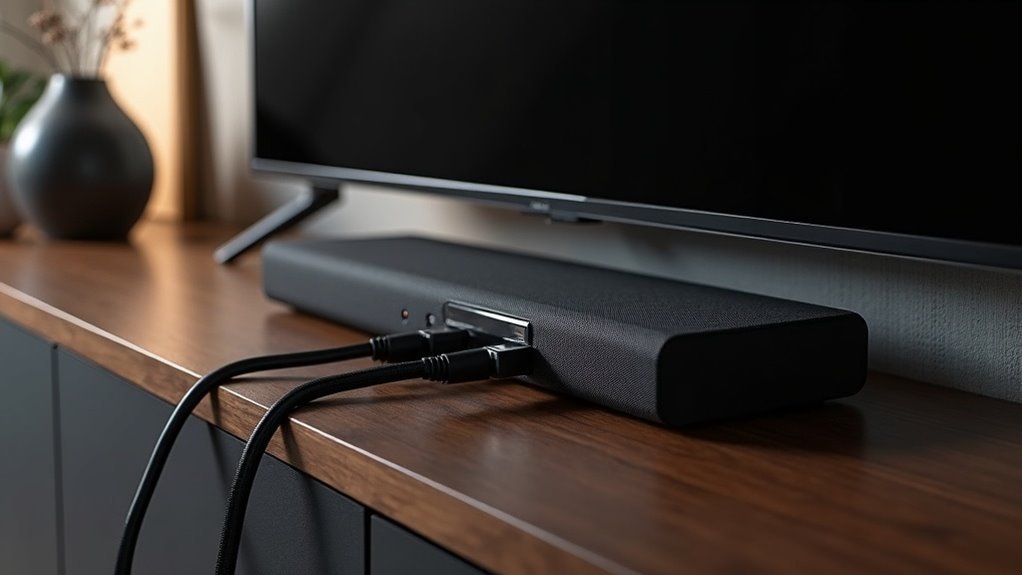
You can connect soundbars to Blu-ray players through several methods, including HDMI, optical, digital coaxial, and RCA connections. HDMI offers the best audio quality and supports advanced formats, making it the preferred option for soundbars. Optical and digital coaxial connections also provide high-quality audio but may not support all formats available in modern soundbars. RCA connections are available for older devices but typically yield lower sound quality. Each connection method has its own setup specifics, so if you’re looking to optimize your audio experience, there’s plenty more to explore on how to get the best performance from your soundbar.
Key Takeaways
- Soundbars can connect to Blu-ray players using various methods such as HDMI, optical cables, digital coaxial, or RCA connections, depending on compatibility between the devices.
- Utilizing HDMI-ARC streamlines the connection process, allowing for both audio transmission and control with a single cable.
- While optical connections deliver high-quality audio, they do not support advanced sound formats like Dolby Atmos.
- For optimal performance, ensure that both the soundbar and Blu-ray player are powered on, and select the correct input on the soundbar.
- To troubleshoot any sound issues during playback, check the audio output settings on the Blu-ray player.
HDMI Connections
HDMI connections are a favored option for connecting soundbars to Blu-ray players, as they allow for the transmission of high-quality audio and video signals. By linking your Blu-ray player’s HDMI output directly to the soundbar’s HDMI input, you significantly elevate your audio experience.
If your soundbar is equipped with HDMI-ARC, it can also receive audio from your TV, streamlining your setup. For optimal performance, it’s recommended to use authorized Premium High Speed HDMI cables to ensure compatibility with advanced audio formats.
Additionally, if your soundbar includes HDMI pass-through, you can connect the Blu-ray player to the soundbar and then to the TV for a seamless audio and video output.
Optical Connections
When connecting a Blu-ray player to a soundbar, optical connections provide a dependable solution for delivering high-quality digital audio.
These connections utilize fiber optic cables to ensure minimal signal loss and interference. Most Blu-ray players come equipped with an optical audio output (TOSLINK) that connects directly to the soundbar’s optical input.
While optical cables can handle multi-channel audio formats like Dolby Digital and DTS, they don’t support more advanced formats such as Dolby Atmos.
Ensure that both devices are powered on and that the correct optical input on the soundbar is selected. If you experience no sound, be sure to check the volume levels and audio output settings on the Blu-ray player.
Digital Coaxial Connections
Digital coaxial connections provide an efficient means to transmit high-quality audio from your Blu-ray player to a soundbar. Utilizing a single RCA cable, this method offers sound quality that rivals optical cables.
Many soundbars support digital coaxial inputs, but it’s essential to ensure compatibility with your Blu-ray player’s output. To set up the connection, make sure both devices are powered on and select the appropriate input on the soundbar.
Keep in mind that while digital coaxial connections deliver excellent audio quality, they may limit compatibility with certain advanced audio formats. Be sure to consult your device manuals for information on supported audio formats before proceeding with the connection.
Composite Connections
Although composite connections are increasingly overlooked in favor of more advanced options, they still offer a way to connect your soundbar to a Blu-ray player or TV. Using Red, White, and Yellow RCA cables, these connections transmit analog audio and video signals.
| Cable Color | Signal Type |
|---|---|
| Red | Stereo audio signal |
| White | Stereo audio signal |
| Yellow | Standard video signal |
Keep in mind that most modern soundbars prefer HDMI, so check for RCA support. Composite connections generally provide lower audio quality, making them less ideal for high-definition sound experiences.
RCA Connections
RCA connections, utilizing red, white, and yellow cables, provide a straightforward method for linking your soundbar to older devices such as Blu-ray players or TVs. The red and white cables transmit stereo audio signals, while the yellow cable carries video signals, making this option suitable for devices that lack HDMI support.
However, it’s important to note that most modern soundbars may not have RCA inputs, so checking compatibility is crucial. When using RCA connections, ensure both the soundbar and the connected device are powered on, and adjust the soundbar’s input settings accordingly.
Keep in mind that RCA connections don’t support high-definition audio formats, which may result in lower audio output quality compared to more modern connection methods.
Troubleshooting Connection Issues
If you’re experiencing connection issues between your soundbar and Blu-ray player, begin by identifying common problems such as incorrect cables or settings.
Testing different configurations can help isolate the issue, so try various connections and check device compatibility.
Ensuring that your soundbar is set up correctly will usually resolve any audio problems you encounter.
Common Connection Problems
When connecting your soundbar to a Blu-ray player, you may encounter several common connection problems that can disrupt your audio experience.
First, ensure that both your soundbar and Blu-ray player support HDMI or optical connections, as compatibility is essential for seamless integration. If your soundbar features multiple HDMI ports, it’s advisable to connect the Blu-ray player directly to the soundbar for enhanced audio quality.
Additionally, check the audio output settings on the Blu-ray player, particularly if you’re using an optical cable, since incorrect configurations can result in no sound.
If direct connections aren’t possible, connect the Blu-ray player to your TV and then link the soundbar to the TV, making sure to adjust the settings to properly route the audio.
Testing Different Configurations
To troubleshoot connection issues between your soundbar and Blu-ray player effectively, start by testing different configurations.
First, connect the Blu-ray player directly to your TV to determine if the problem lies with the player or soundbar.
If your soundbar supports HDMI pass-through, connect the Blu-ray player to the soundbar’s HDMI input, then connect the soundbar to the TV.
Alternatively, if HDMI connections are problematic, use an optical audio cable, ensuring that the soundbar’s input is set correctly.
Experimenting with these configurations can significantly enhance audio quality and help you achieve optimal performance with your soundbar.
Verifying Device Compatibility
How can you ensure your soundbar will work seamlessly with your Blu-ray player? Start by verifying that both devices support compatible audio formats like Dolby Digital or DTS for optimal sound quality.
Next, check the available connection ports—commonly HDMI, optical, or coaxial—to confirm you’re using the right one for your soundbar. If you connect the Blu-ray player directly to the soundbar, ensure that your soundbar has HDMI-ARC or HDMI pass-through capabilities.
Always consult the user manual for your soundbar for specific compatibility notes.
Finally, test the connection by playing a disc and adjusting volume levels and settings as necessary to confirm proper audio output from your soundbar.
Recommended Setup for Optimal Audio Quality
To achieve ideal audio quality with your soundbar, connect your Blu-ray player directly to the soundbar using an HDMI cable.
If your soundbar supports HDMI-ARC, take advantage of this feature to enhance sound output by linking the soundbar to the TV’s HDMI-ARC port.
Alternatively, if HDMI-ARC isn’t available, an optical audio cable serves as a solid option, ensuring quality audio transmission for your soundbar setup.
Direct HDMI Connection
Connecting your soundbar directly to a Blu-ray player via HDMI is the best way to achieve superior audio quality.
Use an HDMI cable to connect the Blu-ray player’s HDMI OUT port to the soundbar’s HDMI IN port. Next, link the soundbar’s HDMI OUT to your TV’s HDMI ARC port.
This setup minimizes cable clutter and allows you to control audio settings with your TV remote, if supported. Make sure both the Blu-ray player and soundbar are powered on and set to the correct input for ideal performance.
With this connection, you’ll enjoy immersive audio formats like Dolby TrueHD and DTS-HD Master Audio, enhancing your overall soundbar experience.
Optical Audio Alternative
While direct HDMI connections offer excellent audio quality, using an optical audio connection is a solid alternative for linking your soundbar to a Blu-ray player.
To set this up, you’ll need a TOSLINK optical cable to connect your Blu-ray player’s optical output to the soundbar’s optical input. This method supports high-quality audio formats, ensuring clearer sound than traditional analog connections, which is essential for enhancing your audio experience with a soundbar.
Make sure both devices are powered on and the soundbar is set to the correct source input. Additionally, check compatibility with advanced audio formats and adjust settings to prevent audio syncing issues during playback for optimal performance with your soundbar.
HDMI-ARC Configuration Benefits
HDMI-ARC (Audio Return Channel) transforms the way you connect your soundbar to your home entertainment system, providing a seamless solution that significantly improves audio performance.
Here are the key benefits of utilizing HDMI-ARC with your soundbar:
- Simplified Setup: Connect your soundbar using just one HDMI cable, reducing clutter from multiple connections.
- Enhanced Audio Quality: Experience superior sound with support for high-bandwidth formats like Dolby Atmos, delivering immersive audio.
- Easy Control: Enjoy the convenience of managing both your TV and soundbar volume with a single remote control.
- Optimal Performance: Fine-tune your TV audio settings to ensure sound is effectively routed through your soundbar for the best listening experience.







