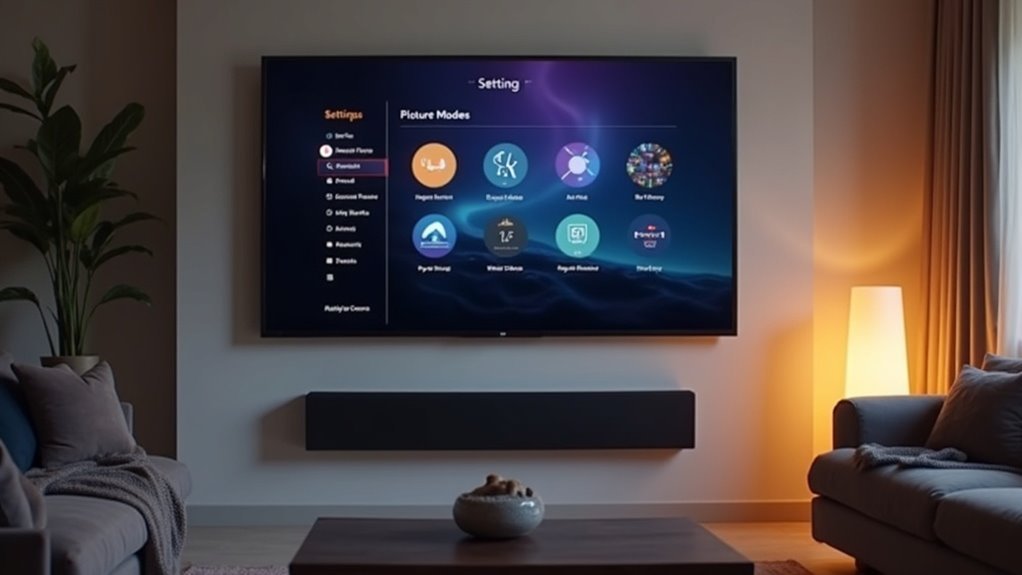
To minimize audio delay to your soundbar, use picture modes like Game Mode or PC Mode, which disable unnecessary video processing. Avoid Cinema or Movie modes; they often add latency. Standard Mode can also provide a good balance with minimal enhancements. Disabling features like motion smoothing and dynamic contrast further aligns audio and visual signals, ensuring a seamless experience with your soundbar. For the best results, experiment with these settings and discover more tips to enhance your audio-visual experience with your soundbar.
Key Takeaways
- Game Mode is the best option for minimizing audio delay when using a soundbar, as it reduces unnecessary processing time.
- PC Mode can enhance audio-visual transmission to a soundbar by bypassing certain video processing features.
- Standard Mode offers a good balance for soundbars without additional enhancements that may introduce lag.
- Avoid Cinema or Movie Mode when using a soundbar, as these modes often include image enhancements that can increase audio delay.
- Look for Auto Low Latency Mode (ALLM) options to optimize audio synchronization with your soundbar.
Understanding Audio Delay in TV and Soundbar Setups
When setting up a soundbar with your TV, understanding audio delay is essential for an optimal listening experience.
Audio delay often occurs due to the separate processing of audio and video signals, which can lead to synchronization issues. Various sound settings and modes can impact processing speed; for instance, enabling Game mode on your soundbar can help reduce input lag and may minimize audio delay.
Features such as advanced audio processing and surround sound settings can sometimes increase latency. To address this, experiment with different sound modes and consider disabling options like virtual surround or excessive audio enhancements to find a configuration that balances reduced audio delay with the best sound quality.
Importance of Low Latency Picture Modes
Why settle for a subpar audio experience when low latency picture modes can significantly enhance your soundbar setup?
These modes, often labeled as “Game Mode” or “PC Mode,” minimize audio delay by disabling unnecessary video processing features. This reduction in input lag directly improves lip sync, ensuring that sound and visuals align perfectly.
Non-low latency modes can introduce delays of 30 to 100 milliseconds, considerably disrupting your enjoyment. By manually selecting low latency modes, you can cut overall audio delay by up to 50%, delivering a truly seamless audio experience when paired with your soundbar.
Prioritize these settings for optimal sound performance.
Recommended Picture Modes for Reducing Audio Delay
To achieve ideal audio-visual synchronization with your soundbar, selecting the right picture mode on your TV is essential.
Using “Game Mode” minimizes processing time and reduces audio delay, ensuring a more seamless experience. Alternatively, “Standard Mode” offers a balanced picture without additional processing that can hinder audio sync.
It’s best to avoid “Cinema” or “Movie Mode,” as these settings often introduce lag through image enhancements that can disrupt the audio clarity from your soundbar.
“PC Mode” can also be beneficial, as it bypasses certain features for a more direct audio-visual transmission.
Additionally, look for “Low Latency” or “Auto Low Latency Mode (ALLM)” options, which automatically optimize settings for better synchronization with your soundbar.
Disabling Processing Features for Better Sync
To achieve better audio-visual sync with your soundbar, you’ll want to disable any sound enhancements and processing features, as they can introduce latency.
Simplifying your audio settings by turning off features like surround sound or virtual sound can also help.
Additionally, adjusting your TV’s picture settings to eliminate enhancements will further reduce delays between the audio and video.
Turn Off Motion Smoothing
While motion smoothing can enhance the clarity of fast-moving scenes, it often creates an audio delay that disrupts the viewing experience when paired with your soundbar.
This sync issue arises because motion smoothing processes frames separately from audio, leading to a lag. By turning off motion smoothing in your TV’s picture settings, you can considerably reduce this processing time and improve synchronization between your soundbar and video.
Additionally, consider disabling other processing features like noise reduction and dynamic contrast, as they also contribute to audio delay.
Simplifying your picture settings can result in a more immediate audio response from your soundbar, enhancing your overall viewing experience.
Disable Audio Enhancements
Turning off motion smoothing is just the first step in achieving ideal audio-visual sync when using soundbars.
Disabling audio enhancements like equalizers, dialogue boosters, and surround sound processing on your TV can greatly reduce audio delay. These features often introduce processing time that disrupts synchronization with your soundbar.
Opting for a standard picture mode helps, as it avoids these enhancements. Additionally, utilizing your TV’s “Game Mode” can disable unnecessary processing, further enhancing audio-visual synchronization.
Regularly check for any remaining audio processing settings to improve performance and reduce echo effects, ensuring a seamless experience with your soundbar.
Simplify Picture Settings
To achieve better audio-visual synchronization with your soundbar, it’s important to simplify your TV’s picture settings.
Start by disabling features like motion smoothing and noise reduction, as these can create audio delay. Instead, choose “Standard” or “Game” picture modes for a quicker signal path, which can enhance the sync with your soundbar.
Be wary of “Cinema” mode, as it might introduce additional processing. Lowering resolution or frame rate settings can also help reduce processing load and improve synchronization.
Lastly, make sure to regularly check your TV’s firmware and settings, as updates may enhance features related to picture processing that affect audio delay, ensuring a smoother viewing experience with your soundbar.
Testing and Adjusting Settings for Optimal Performance
To achieve ideal audio synchronization with your soundbar, start by selecting the appropriate sound mode for your content.
Avoid modes with excessive enhancement features, as these can increase processing time and create delays.
Regularly test different settings, including latency adjustments, to fine-tune your audio experience based on the material you’re listening to.
Picture Mode Selection
While selecting the appropriate Picture Mode on your TV may seem straightforward, it considerably impacts the performance of your soundbar and overall viewing experience.
Modes like “Game” or “Sports” minimize audio delay by reducing processing time, ensuring faster response rates during action scenes. Avoid options that feature advanced processing, such as “Motion Smoothing,” which can introduce delays in audio synchronization with your soundbar.
Test various Picture Modes during fast-paced scenes to find the best visual quality and audio sync balance.
Additionally, customize your soundbar settings by reducing features like bass enhancement, and regularly update your soundbar’s firmware to optimize performance and address any audio-visual synchronization issues effectively.
Processing Feature Management
Managing processing features on your soundbar is essential for optimizing audio-video synchronization with your TV. Disabling features like motion smoothing can greatly reduce audio delay. Select sound modes prioritizing performance, such as Game Mode or Standard Mode, to enhance sync. Experimenting with Cinema Mode might help too, but results vary by model. Additionally, using PC Mode may further minimize processing time. Always check audio settings and activate lip sync features to address any remaining delays.
| Processing Feature | Effect on Audio Delay |
|---|---|
| Motion Smoothing | Increases delay |
| Game Mode | Reduces delay |
| PC Mode | Minimizes processing |
Additional Tips for Enhancing Audio-Visual Synchronization
When optimizing your soundbar settings for better audio-visual synchronization, consider several key adjustments that can substantially reduce lag.
These changes can help you achieve a more seamless experience with your audio:
Implementing these adjustments can enhance your audio experience and ensure perfect synchronization with visuals.
- Use sound modes like “Game” or “Standard” on your soundbar to minimize audio delay.
- Disable any audio enhancements or surround sound features that may introduce processing time.
- Enable “Low Latency Mode” on your soundbar for fast-moving content to maintain sync.
- Ensure your source device is set to a compatible refresh rate to limit processing delays.
Regularly check your soundbar’s audio settings, as different content types may require specific adjustments for ideal audio and visual alignment.







