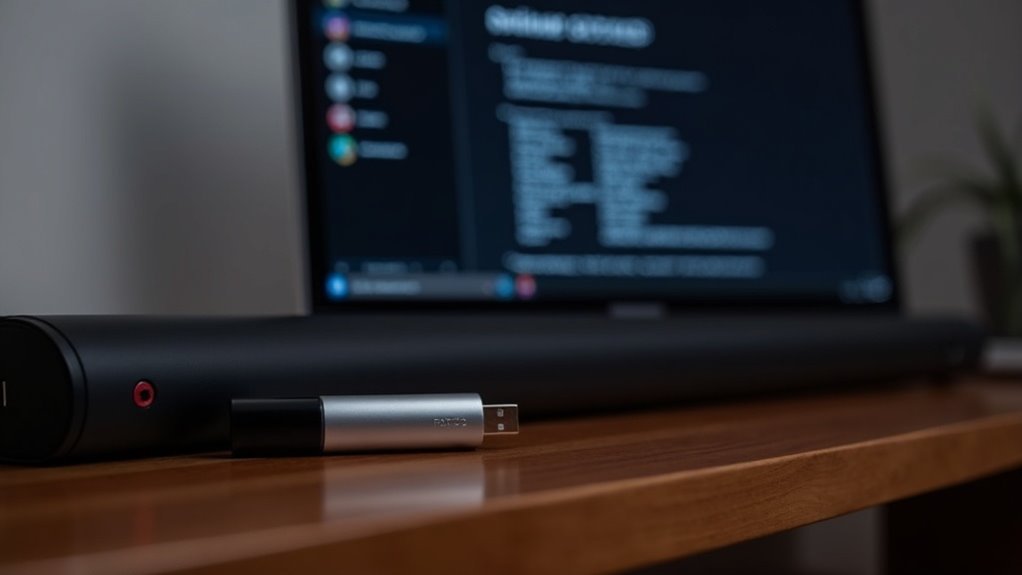
To update your soundbar that requires a USB drive formatted to FAT32, begin by formatting the USB drive using Disk Utility or the formatting options available on your computer. Next, download the firmware update from the soundbar manufacturer’s website and unzip the downloaded file to locate the necessary .ROM or .SSP file. Transfer this file to the root directory of your USB drive, ensuring it is the only file present. Once this is done, insert the USB drive into the soundbar, switch to the USB input, and follow the on-screen installation prompts to complete the update successfully. If you need further assistance with any of these steps, you can find more detailed guidance on our website dedicated to soundbars.
Key Takeaways
- Format the USB drive to FAT32 using Disk Utility or similar tools to ensure compatibility with your soundbar.
- Download the correct firmware update file from the soundbar manufacturer’s website and extract it to access the .ROM or .SSP files.
- Copy the extracted firmware file to the root directory of the USB drive, ensuring no other files are present to avoid any issues during the update.
- Insert the USB drive into the designated port on the soundbar and switch the input to USB to initiate the update process.
- Verify the update by checking the LED indicators on the soundbar and confirming that the firmware version matches the latest available on the manufacturer’s website.
Preparing Your USB Storage Device
To successfully update your soundbar, the first step is preparing your USB storage device.
Make sure your USB flash drive is formatted to FAT32, as this is essential for compatibility with most soundbar models.
If you’re using a Mac, open Disk Utility, select your USB drive, and choose the “Erase” option, then pick “MS-DOS (FAT)” or “ExFAT” for formatting.
Confirm that the USB drive is empty before transferring firmware files to prevent conflicts.
Finally, check that the drive functions properly and contains no previous firmware files to avoid an “Invalid USB” error during the firmware update process.
Downloading the Software Update File
Downloading the software update file is a crucial step in ensuring your soundbar functions optimally.
Begin by navigating to the manufacturer’s website to find the specific update file tailored for your soundbar model. Typically, this file will be in a .zip format, so you’ll need to extract it to access the necessary ROM or .SSP files.
Before moving forward, it’s important to verify the integrity of the downloaded firmware file to prevent any issues during the update process.
Additionally, ensure that your USB drive is formatted as FAT32, as this is required for compatibility with your soundbar.
Also, check that there are no other files on the drive to avoid any interference when transferring the update file later.
Transferring the Update File to the USB
To transfer the update file to your USB drive for your soundbar, begin by formatting the USB to FAT32, as this format is essential for compatibility with your device.
Next, download the correct firmware file from the manufacturer’s website specifically for your soundbar and extract it to locate the necessary files.
Finally, copy the firmware file to the root directory of the USB drive, ensuring it’s the only file present to prevent any conflicts during the update process.
Formatting the USB Drive
Formatting your USB drive correctly is essential for a smooth firmware update on your soundbar. Follow these steps to ensure proper formatting:
- Use Disk Utility on your Mac.
- Select the USB drive and choose MS-DOS (FAT) or ExFAT format.
- Verify that the USB drive is empty before transferring files.
After formatting, download the firmware update file from your soundbar manufacturer’s website.
Be sure to confirm that the firmware files are correctly named and stored separately if required.
Once you’ve completed these steps, safely eject the USB drive from your Mac. This prevents conflicts and prepares your USB for a seamless update process with your soundbar.
Downloading Firmware Files
After ensuring your USB drive is properly formatted, the next step involves obtaining the firmware update files for your soundbar. Visit the manufacturer’s website and download the firmware, ensuring it’s compatible with your specific soundbar model. Typically, the file is compressed in a .zip format, so be sure to extract it to access the necessary .ROM file.
| File Type | Description |
|---|---|
| .zip | Compressed firmware file |
| .ROM | Actual update file needed |
| .SSP | Alternative firmware format |
Once extracted, copy the files directly to the root directory of the USB drive without renaming them.
Transferring Files Correctly
Once you’ve extracted the firmware files for your soundbar, it’s crucial to transfer them correctly to your USB drive to ensure a smooth update process. Follow these steps:
- Confirm your USB stick is formatted to FAT32 or MS-DOS (FAT).
- Place the extracted firmware files in the root directory of the USB drive, ensuring that only one type of file is present.
- Make certain the USB drive is free of any previous firmware files.
After transferring the files, safely eject the USB stick from your computer before connecting it to your soundbar. This will help you avoid compatibility issues and ensure a successful firmware update.
Connecting the USB to Your Soundbar
To connect the USB flash drive to your soundbar, first verify that it’s formatted to FAT32 or MS-DOS (FAT) for compatibility.
Use an empty USB drive to prevent conflicts during the update process. Next, insert the USB flash drive into the designated USB port on your soundbar, ensuring a secure connection.
To avoid conflicts during the update, use an empty USB drive and securely connect it to the soundbar’s USB port.
Before connecting, make sure the soundbar is set to a different input (not USB). Once connected, switch the soundbar input to USB to initiate the firmware update.
You’ll see a “DONE” message when the process is complete, indicating a successful update. This ensures your soundbar is running the latest software for optimal performance.
Following Installation Instructions
With the USB drive connected and ready for the update process, following the installation instructions is key to guaranteeing a smooth firmware upgrade for your soundbar.
Make sure to:
- Verify the USB drive is FAT32 formatted for compatibility with your soundbar.
- Copy the extracted firmware files directly to the USB drive’s root directory.
- Set the soundbar to a different input before inserting the USB drive for the update.
Verifying Successful Update Completion
After updating your soundbar, check for any LED indicators that confirm the process is complete.
You should also verify the firmware version by pressing the DRC button for 5-10 seconds.
This step ensures that your soundbar is functioning as it should and is equipped with the latest features and improvements.
LED Indicators Confirmation
How can you be sure that your soundbar’s firmware update was successful? Pay close attention to the LED indicators during the process:
- Flashing LED lights may signify that the update has started.
- Steady or specific color patterns indicate that the soundbar is processing the update.
- A “DONE” message will appear once the update is complete, often accompanied by a change in LED status.
Ensure your soundbar is set to the correct input (not USB) throughout the update.
If the LED indicators don’t respond as expected, check your USB formatting or the firmware file’s integrity.
Stay informed about your soundbar’s capabilities and updates to enhance your audio experience.
Firmware Version Check
To confirm that your soundbar’s firmware update was successful, you’ll need to check the firmware version information.
Press the DRC button for 5-10 seconds while the soundbar is in standby mode. You should see a “HELLO” message followed by the current firmware version numbers.
Verify these match the latest version listed on the manufacturer’s website. Additionally, ensure that only one firmware file is present in the root directory of the USB drive during the update process.
If the version numbers don’t match, it indicates an incomplete update, and you’ll need to revisit the file transfer and update procedures.







