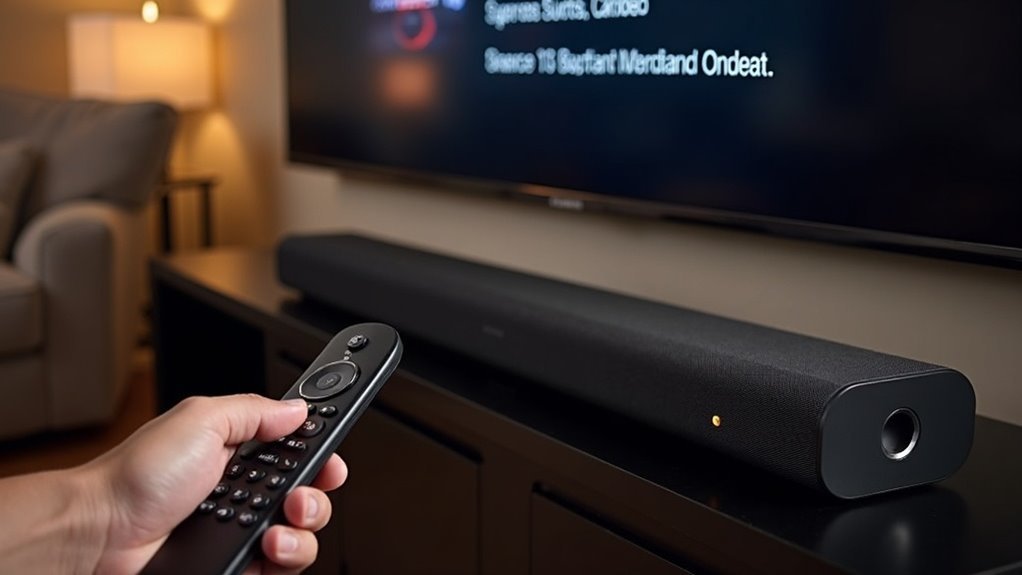
To assign audio delay per app on your soundbar, start by accessing the audio settings through your remote or the dedicated app for your soundbar. Look for options labeled “Audio Delay” or “Lip Sync.” Manually adjust the delay for each app to enhance synchronization between audio and video. To ensure accuracy, test your settings using videos with clear dialogue. Remember to save your adjustments to maintain consistency across different apps. Additionally, verify that your soundbar’s firmware is up to date to ensure optimal performance. If you encounter any issues, there are several tips available to further optimize your audio-visual experience with your soundbar.
Key Takeaways
- Access your soundbar’s settings through the remote or mobile app, and look for options labeled “Audio Delay” or “Lip Sync.”
- Check if your soundbar supports app-specific audio adjustments, allowing you to customize delay settings for different applications.
- Make manual adjustments using content with clear dialogue to identify discrepancies and improve synchronization.
- Save your adjustments within the app to maintain consistency, especially after firmware updates.
- Regularly update your soundbar’s firmware and check connected devices for their own audio sync settings to reduce delay issues.
Understanding Audio Delay and Its Causes
When you’re using a soundbar while watching a movie or playing a game, audio delay can significantly disrupt your experience. This issue often arises from the separate decoding processes of audio and video in devices, especially with advanced formats like DTS or Dolby Digital.
Features such as motion smoothing or dialogue enhancement can exacerbate delays by manipulating signals. Many soundbars offer built-in settings for adjusting audio delay, but these typically allow for delaying audio rather than advancing it, making synchronization more challenging.
Furthermore, the audio format used can greatly influence sync issues, so making direct connections to soundbars can help mitigate these problems, although it may come with its own set of challenges.
Accessing Your Soundbar Settings
Accessing your soundbar settings is essential for fine-tuning audio delay to enhance your viewing experience.
Use the dedicated remote control or the manufacturer’s mobile app to navigate to the audio settings. Look for options labeled “Audio Delay” or “Lip Sync,” where you’ll find sliders to adjust delay for various audio sources.
Some soundbars even provide app-specific settings, allowing you to set different audio delay values for streaming services, gaming consoles, or cable boxes.
Make sure your soundbar’s firmware is up to date, and consult the user manual or the manufacturer’s website for detailed instructions tailored to your specific model.
Finding the Audio Delay Adjustment Option
To find the audio delay adjustment option on your soundbar, begin by navigating through the settings menu using either the dedicated app or the remote control.
Look for sections titled “audio delay” or “lip sync settings.” Depending on your specific soundbar model, you may have the option to set different audio delay values for various applications, such as streaming services or gaming consoles.
It’s crucial to refer to your user manual or support documentation, as the adjustment process can differ significantly between manufacturers.
Don’t forget to save any changes you make, as some soundbars may revert to default settings when switching between apps or sources.
Customizing Audio Delay for Specific Apps
Customizing audio delay for specific apps on your soundbar can greatly enhance your viewing experience.
You can manually adjust the delay settings through your soundbar’s companion app, allowing for precise synchronization based on the content you’re consuming.
If your soundbar supports it, consider creating presets for quick adjustments between different applications.
This feature ensures that whether you’re watching a movie, streaming a show, or playing a game, your audio and visual experiences are perfectly aligned.
App-Specific Delay Settings
While many soundbars provide general audio delay settings, some advanced models offer the capability to customize these settings for specific apps, greatly enhancing your viewing or gaming experience.
To assign audio delay per app, simply access your soundbar’s companion app or settings menu, where you can create or adjust app profiles. This feature helps resolve sync issues that can arise from the differing audio processing requirements of streaming services compared to gaming applications.
Be sure to check your soundbar’s specifications to confirm it supports app-specific audio adjustments. For optimal performance, it’s advisable to test the audio delay settings across various apps to fine-tune synchronization based on each application’s distinct audio characteristics.
Manual Adjustment Recommendations
Adjusting audio delay manually can greatly enhance your experience with soundbars, especially when dealing with latency issues while using specific apps.
Many soundbars, like Vizio models, provide access to audio delay settings via their companion app or remote control. You’ll want to fine-tune these adjustments based on the app’s requirements, particularly for advanced audio formats such as Dolby Digital or DTS.
Creating presets for specific apps can streamline this process, allowing your soundbar to automatically adjust audio delay when you select an app.
While most soundbars don’t allow for audio advancement, experimenting with these settings can significantly improve sync issues, ensuring a more immersive viewing experience.
Testing and Saving Your Adjustments
After adjusting your soundbar’s audio delay settings, it’s essential to test the synchronization by playing back various media across different applications.
This ensures that your adjustments meet the necessary requirements for optimal sound quality.
Once satisfied with the results, be sure to save these settings within the soundbar’s app to avoid having to reconfigure them in the future.
Testing Audio Delay Settings
Testing audio delay settings on your soundbar is essential for achieving ideal synchronization between audio and video.
Start by selecting a video with clear dialogue to identify any discrepancies post-adjustment. Many soundbars, like those from Vizio or Samsung, may also feature a “test tone” option, which aids in visually aligning the audio with the video.
This precise method allows you to fine-tune the audio delay settings effectively for each app. Remember to regularly check for firmware updates, as these can refine your soundbar’s capabilities and enhance your overall viewing experience by improving synchronization options.
Saving Your Adjustments
Once you’ve identified the ideal audio delay for your soundbar, it’s important to save those adjustments to guarantee consistent performance across your devices.
Follow these steps to ensure your settings are preserved:
- Navigate to the soundbar’s settings menu and locate the audio delay option.
- Save the adjustments for each connected device individually, utilizing any profile features available.
- Document the audio delay settings for future reference, especially after firmware updates.
Regularly revisit these settings, as updates can alter audio processing, potentially requiring new adjustments to maintain optimal syncing across your devices.
Troubleshooting Common Audio Delay Issues
When you encounter audio delay issues with your soundbar, it’s essential to understand that the problem often stems from varying audio processing requirements across different applications.
Streaming services like Netflix and gaming consoles may use unique audio formats that introduce delays. To tackle this, adjust your soundbar’s specific audio delay settings for each app.
Additionally, check if external devices like Blu-ray players offer their own audio sync settings that can impact your soundbar’s performance.
Regularly updating the firmware of both your soundbar and TV can also resolve bugs related to audio delay, enhancing your overall viewing experience with your soundbar across all applications.
Tips for Optimal Audio-Visual Synchronization
To address audio delay issues and achieve optimal audio-visual synchronization with your soundbar, consider the following tips to enhance your setup:
- Utilize your soundbar’s app to see if it offers per-app audio delay adjustments.
- Experiment with various audio formats such as PCM and Dolby Digital to find which provides the best synchronization.
- Keep your soundbar’s firmware updated regularly to access improved audio delay features.
Testing with content known for synchronization challenges, such as live sports or action-packed movies, can help you fine-tune your settings.
This approach ensures the best possible alignment between audio and video, significantly enhancing your overall viewing experience with your soundbar.







