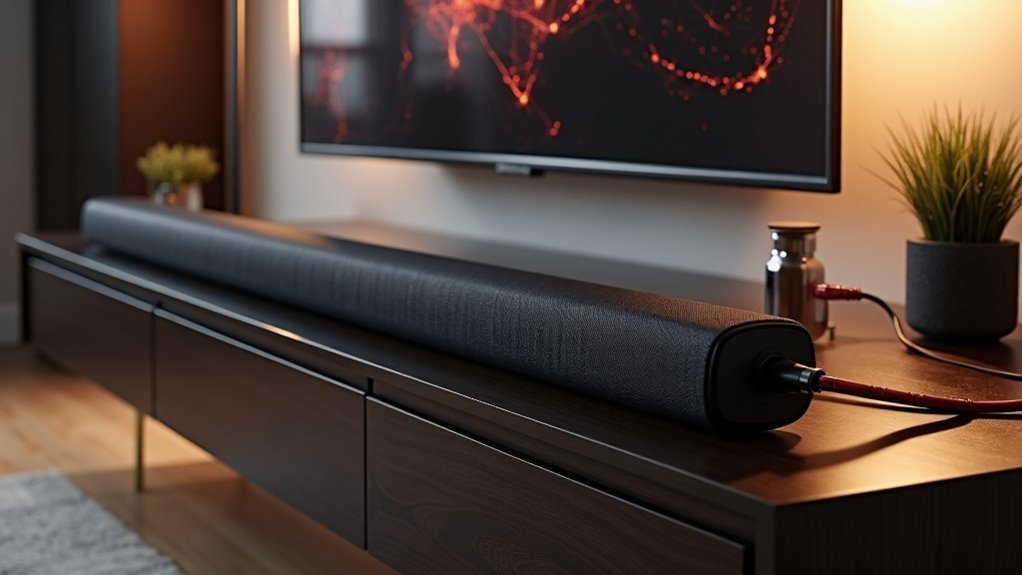
To connect your soundbar to your TV using RCA, first locate the red and white audio OUT jacks on the TV. Plug one end of the RCA cables into these jacks and the other end into the corresponding audio IN jacks on your soundbar. Make sure to adjust your TV’s audio output settings to use RCA. Turn on the soundbar and set it to the correct input mode for optimal sound quality. Explore more tips and tricks to enhance your soundbar experience for the best audio performance.
Key Takeaways
- Locate the RCA audio OUT jacks on your TV, typically labeled as “Audio Out” or “Line Out.”
- Connect the red and white RCA cables from the TV’s audio OUT jacks to the soundbar’s audio IN jacks.
- Adjust your TV’s audio settings to ensure the output is set to RCA.
- Select the appropriate input mode on the soundbar to receive audio from the RCA connection.
- Test the connection by playing audio and fine-tuning the soundbar settings for optimal performance.
Understanding RCA Connections for Soundbars
When connecting a soundbar to your TV, understanding RCA connections is essential since these older audio jacks play a crucial role in transmitting sound.
RCA connections consist of red and white jacks, with red for the right audio channel and white for the left. To connect, plug the RCA cables into the TV’s audio OUT jacks and the corresponding audio IN jacks on your soundbar.
Make sure your TV’s audio output settings are configured to use RCA, as it may default to internal speakers.
Finally, turn on the soundbar and set it to the correct input mode to receive the analog audio signal.
This guide will help you enhance your soundbar experience with proper connectivity.
Identifying RCA Audio Output on Your TV
To identify RCA audio output on your TV for connection to a soundbar, start by examining the back or side panel for red and white RCA jacks labeled as “Audio Out” or “Line Out.”
Ensure these jacks aren’t being used for video input, as some models have separate connections.
Check that the RCA jacks are not designated for video input, as some TV models feature distinct connections.
Refer to your TV manual for specific locations and labeling to avoid confusion with other ports.
If available, use the “AV” input or “Aux” settings to route audio to the RCA output for your soundbar.
Finally, confirm that the RCA audio output is enabled in your settings menu, as some TVs require activation of the audio output function to properly connect to external audio devices like soundbars.
Connecting Your Soundbar Using RCA Cables
Connecting your soundbar to the TV using RCA cables is a straightforward process that enhances your audio experience.
Start by plugging the red and white RCA cables into the TV’s Audio OUT jacks and connect them to the corresponding Audio IN jacks on your soundbar. Be sure to check the labels to avoid confusion.
If your soundbar features an AUX input, consider using an RCA-to-AUX cable for a more convenient connection.
Once everything is connected, adjust your TV’s audio settings to select the appropriate audio output.
Keep in mind that RCA connections transmit analog audio, which may not provide the same sound quality as digital alternatives, but they can still deliver an enjoyable sound experience.
Adjusting Soundbar Settings for Optimal Performance
To achieve optimal performance from your soundbar, begin by selecting the audio mode that best suits your content, whether it’s for movies, music, or dialogue.
Then, fine-tune the bass and treble settings to enhance clarity and balance, taking into account your room’s acoustics.
Lastly, ensure that your soundbar’s audio syncs perfectly with your TV to eliminate any lag, allowing for a seamless viewing experience.
Soundbar Audio Mode Settings
When setting up your soundbar, it’s crucial to ensure it’s configured to the correct audio input mode, such as RCA, to effectively receive the signal from your TV.
Here are some key adjustments to consider:
- Equalizer Settings: Customize audio profiles for optimal music playback or enhanced dialogue clarity.
- Dialogue Enhancement: Activate features like ‘night mode’ to improve sound quality in quieter environments.
- Firmware Update: Regularly check for updates to enhance sound quality and compatibility with your devices.
Additionally, experiment with volume levels on both your TV and soundbar to achieve the best balance for clear audio performance.
Adjusting Bass and Treble
After ensuring your soundbar is set to the appropriate audio mode, fine-tuning the bass and treble settings can greatly enhance your listening experience with your soundbar.
Locate the audio settings on your soundbar or remote; many models offer equalization options specifically tailored for soundbars. Explore preset sound modes to boost bass or treble based on the content, ensuring tailored audio clarity for your soundbar.
If available, use smartphone app controls for precise adjustments, allowing real-time modifications to your soundbar’s audio output.
Regularly revisit these settings to adapt to different audio sources or personal preferences, ensuring that both dialogue and music remain clear and balanced for an ideal soundbar performance in your space.
Syncing With TV Audio
Syncing your soundbar with your TV audio is essential for an immersive viewing experience, especially if you want to eliminate any audio lag.
To achieve peak sound quality with your soundbar, follow these steps:
- Ensure RCA connections are securely linked between the TV’s audio output and the soundbar’s audio input.
- Set your TV’s audio settings to “External Speakers” to redirect sound specifically to your soundbar.
- Adjust the volume control on both the TV and soundbar to compatible levels, and enable audio delay or sync settings on the soundbar to minimize latency.
Regularly test your settings for optimal performance, customizing them to suit your specific soundbar model and TV combination for the best sound experience.
Troubleshooting Common RCA Connection Issues
To guarantee a seamless audio experience when connecting your soundbar to your TV via RCA, it’s essential to troubleshoot common connection issues that may arise.
First, verify the RCA jacks are labeled correctly; the TV should send audio output to the soundbar’s audio input.
Ensure the RCA jacks are properly labeled, directing audio from the TV to the soundbar’s input.
Next, confirm that the RCA cables are securely connected, as loose connections can lead to no sound.
If your soundbar isn’t producing sound, check the soundbar input settings to ensure it’s on the correct RCA input.
Finally, test the RCA cables with another device to rule out faulty cables and verify that the TV settings allow audio output.
Exploring Alternative Connection Methods for Soundbars
If RCA connections aren’t suitable for your setup, there are several alternative methods to connect your soundbar to your TV. Consider these options:
- HDMI Connection: If your soundbar and TV support HDMI ARC, it’s the best choice for superior audio quality, providing a seamless connection and control.
- Optical Input: Use an RCA-to-optical converter if your TV lacks RCA outputs. This allows you to connect via the soundbar’s optical input for enhanced sound performance.
- AUX Input: If your soundbar features an AUX input, an RCA to AUX cable simplifies the setup and can maintain decent audio quality.
Always check specifications for compatibility before connecting to ensure optimal performance.







