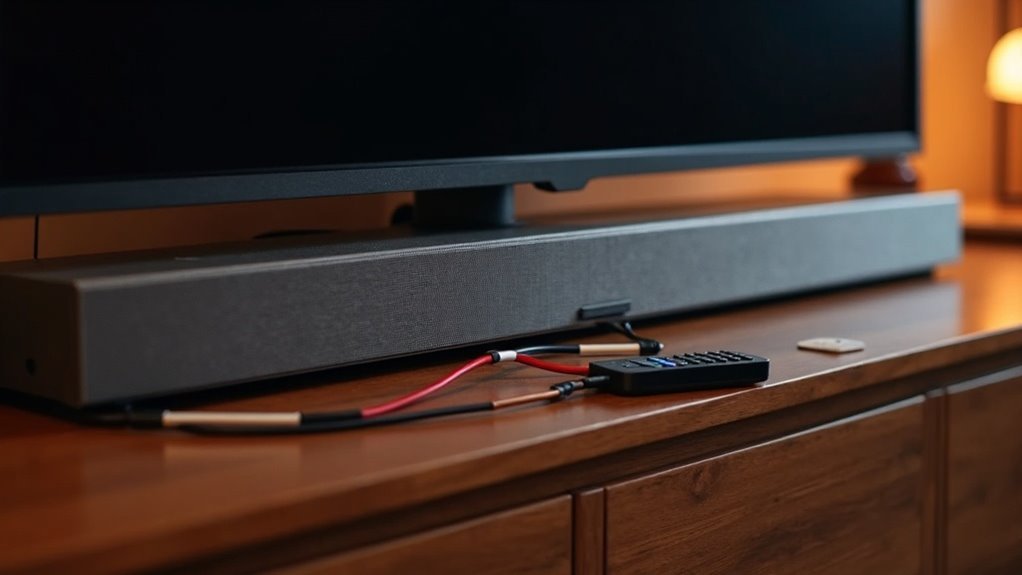
To connect your soundbar to a TV without HDMI, start by checking for optical or RCA audio outputs. Use an optical cable for high-quality sound, or connect RCA cables to the appropriate ports. If your TV has a headphone jack, a 3.5mm AUX cable works too. Don’t forget to adjust your TV’s audio settings, selecting options like “Optical Out” or “Analog” based on your connection. There are a few more methods you might find useful for enhancing your soundbar experience.
Key Takeaways
- Identify the available audio outputs on your TV, such as optical, RCA, or 3.5mm jack, which can be used to connect your soundbar.
- For high-quality digital audio, use an optical cable, or opt for RCA cables for analog audio connections between the TV and soundbar.
- If you’re using a 3.5mm connection, utilize a 3.5mm-to-RCA cable and ensure that the soundbar is set to the correct input mode.
- Adjust your TV’s audio settings to match the connection type, selecting “Optical Out” for optical connections or “Analog” for RCA output.
- If your TV supports Bluetooth, consider using it for a wireless connection; however, be mindful of potential audio lag issues.
Look for Optical or RCA Audio Outputs
When connecting your soundbar to the TV, the first step is to locate the audio outputs on the back of your television.
Look for an optical output, which features a squarish port with notches on each side, ideal for delivering high-quality audio to your soundbar.
Alternatively, check for RCA audio outputs, typically marked with left (white) and right (red) channels, which are often found on older TVs.
Ensure that your soundbar has the compatible inputs for these outputs.
Using the correct audio cable, whether it’s an optical cable or an RCA-to-3.5mm Y-cable, will ensure successful connectivity, enabling you to enjoy enhanced sound quality from your soundbar.
Pick the Right Soundbar
When selecting the ideal soundbar, it’s essential to align the audio inputs with your TV’s outputs, whether they’re optical, RCA, or analog.
Pay attention to surround sound features, such as virtualized audio modes, which can significantly elevate your listening experience.
Furthermore, there are budget-friendly soundbar options that deliver essential functionality without sacrificing quality.
Match Audio Inputs
To ensure optimal audio performance, it’s essential to choose a soundbar that aligns with your TV’s audio outputs.
Look for models that incorporate the necessary audio inputs, such as optical, RCA, or 3.5mm analog inputs. Many budget-friendly soundbars priced under $200 typically offer both optical and analog connections, making them suitable for older TVs that may not have HDMI.
It’s advisable to prioritize soundbars with optical inputs, as they provide superior sound quality by supporting higher audio formats compared to RCA or analog options.
Always verify compatibility by checking that the soundbar accommodates your TV’s available outputs, particularly if you’re using RCA connections for audio.
Consider Surround Sound Features
Choosing the right soundbar is essential for enhancing your audio experience, particularly when it comes to surround sound features. Opt for models equipped with virtualized surround sound technologies, such as DTS Virtual:X, which create the sensation of audio coming from multiple directions. It’s also important to ensure compatibility with older TVs by selecting soundbars that provide optical audio and RCA inputs.
| Feature | Benefits |
|---|---|
| Virtual Surround | Immersive audio experience |
| Optical Audio | Compatibility with older TVs |
| Built-in Processing | 3D sound effects |
| Compressed Audio Support | Ideal sound quality |
Budget-Friendly Options Available
Finding an affordable soundbar that enhances your TV’s audio can significantly elevate your viewing experience without breaking the bank.
Look for budget-friendly models under $200 that come with essential features like optical cables and RCA analog inputs, making them compatible with older TVs. Many of these soundbars also offer virtualized 3D sound modes such as DTS Virtual:X, which enriches your audio experience without the need for complex setups.
Additionally, check if the soundbar includes handy accessories like RCA-to-3.5mm Y-cables to help you save on extra costs. Built-in Bluetooth capabilities allow for seamless wireless connections to your modern devices, ensuring you enjoy high-quality sound without overspending.
Make sure to prioritize well-reviewed models to achieve peak performance in your audio setup.
Use the Correct Optical or 3.5mm-to-RCA Cables
To ensure optimal sound quality when connecting your soundbar, it’s essential to select the appropriate cables.
An optical Toslink cable typically provides superior audio performance, making it an excellent choice for soundbars.
Alternatively, a 3.5mm-to-RCA cable can be a practical option if your soundbar supports it.
Follow the correct setup steps to achieve a successful connection and elevate your overall viewing experience.
Cable Types Explained
When connecting a soundbar to your TV, understanding the different cable types is crucial for optimal audio performance. Here are the key options:
- Optical Cable (TOSLINK): This cable transmits high-quality digital audio and features squarish connectors, making it a popular choice for modern setups.
- RCA Cables: These cables consist of red and white connectors for analog audio output, making them ideal for connecting older TVs to soundbars.
- 3.5mm-to-RCA Cable: This cable connects devices with a headphone jack to soundbars. For proper channel separation, it’s advisable to use a Y-splitter.
- Input Settings: Ensure your soundbar is set to the correct input mode (aux) to achieve effective audio output.
Choosing the right cable significantly impacts your soundbar’s audio experience.
Connection Setup Steps
Connecting your soundbar to the TV can be straightforward, especially if you have the right cables on hand.
For an optical connection, plug one end of the optical (Toslink) cable into the TV’s optical output and the other into the soundbar’s optical input. Confirm your TV’s audio settings are set to “Optical Out.”
If using RCA outputs, connect the red and white RCA cables from the TV’s “Audio Out” to the soundbar’s “Audio In.”
For a 3.5mm AUX input, use a 3.5mm-to-RCA Y-cable.
Finally, select the appropriate input mode on the soundbar to enable audio output.
Tweak Your TV’s Audio Output Settings
Before diving into the immersive audio experience your soundbar offers, it’s essential to tweak your TV’s audio output settings.
Before enjoying your soundbar’s immersive audio, remember to adjust your TV’s audio output settings for optimal performance.
Follow these steps to optimize your TV’s audio settings for the best soundbar experience:
- Navigate to your TV’s settings menu and locate the audio output options.
- Choose between “Fixed” or “Variable” output; selecting “Variable” allows your soundbar to manage the volume seamlessly.
- Ensure that your TV automatically switches the audio output to the connected soundbar for a hassle-free experience.
- If you’re utilizing RCA connections, set the audio output to “Analog” or “RCA.” For optical connections, make sure to select “Optical Out.”
These adjustments ensure you connect your soundbar effectively and enjoy an enhanced audio experience.
Method 1: Optical Cable (TOSLINK)
One effective way to connect your soundbar to a TV is by using an optical cable, commonly referred to as TOSLINK.
First, ensure that both your TV and soundbar are equipped with optical audio ports, which are square-shaped with notches. Insert one end of the optical cable into the TV’s optical output port and the other into the soundbar’s optical input port.
After establishing the connection, navigate to your TV’s audio settings and select “Optical Out” to direct the sound properly to your soundbar.
If you encounter any issues, double-check that the cable is securely connected and that the soundbar is set to the correct input mode for optimal audio performance.
Method 2: Bluetooth Pairing
Bluetooth pairing offers a wireless option to connect your soundbar to a TV, as long as both devices are Bluetooth-enabled and within range.
Follow these steps to enhance your audio experience:
- Activate Bluetooth on both the soundbar and the TV through their settings menus.
- Use the TV remote to navigate to the Bluetooth menu and search for available devices.
- Select your soundbar from the list of devices shown.
- Adjust the TV’s audio settings to direct sound to the soundbar instead of the internal speakers.
Keep in mind that Bluetooth connections might introduce a slight audio lag, which may not be suitable for fast-paced content like gaming.
Enjoy the improved sound quality that your soundbar brings to your home entertainment setup!
Method 3: RCA (Analog) Cables
If your soundbar is being connected to a TV that lacks modern digital audio outputs, using RCA (analog) cables is a straightforward and effective solution.
First, locate the RCA “Audio Out” ports on your TV, which are typically color-coded red for the right channel and white for the left. Connect the red RCA connector to the red port and the white connector to the white port.
Next, plug the other ends into the corresponding “Audio In” ports on your soundbar. Ensure that the TV’s audio output is set to “Analog” or “RCA.”
This method provides stereo sound, enhancing the audio quality from older TV models to deliver a better listening experience through your soundbar.
Method 4: 3.5mm AUX Cable
Connecting a soundbar to your TV with a 3.5mm AUX cable is a quick and effective method, particularly useful for older TV models that may not have digital outputs.
Follow these steps for a successful connection:
- Locate the TV’s headphone jack and the soundbar’s AUX input.
- Set the TV’s audio output to “Headphone” or “External Speakers.”
- Plug one end of the 3.5mm AUX cable into the TV’s headphone jack.
- Connect the other end to the soundbar’s AUX input.
Make sure the headphone jack isn’t muted or volume-limited to avoid sound issues.
This method provides a straightforward solution for basic audio output, enhancing your soundbar experience.







