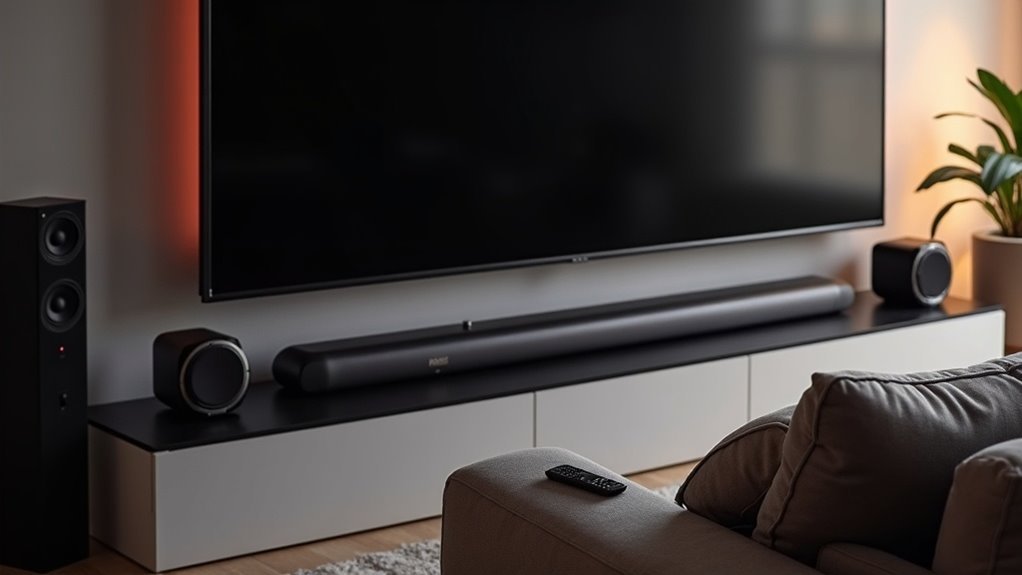
To set up your soundbar for Dolby Atmos, connect it to your TV using a high-speed HDMI cable in the HDMI ARC/eARC port. Ensure both your soundbar and TV support HDMI ARC or eARC for optimal performance. Adjust your soundbar’s audio output settings to “Passthrough” or “Auto” to maximize sound quality. Additionally, make sure your TV’s audio settings are configured correctly. To further enhance your experience, test your setup with Dolby Atmos content to confirm everything is functioning properly. Explore further options to elevate your soundbar setup!
Key Takeaways
- Connect your soundbar to the TV using a high-speed HDMI cable in the HDMI ARC/eARC port for optimal audio transmission.
- Ensure that both your soundbar and TV support Dolby Atmos, and configure the soundbar’s audio output to “Passthrough” or “Auto” for the best experience.
- Keep your soundbar’s firmware updated to ensure the best performance and compatibility with various audio formats.
- Test your setup with Dolby Atmos content and watch for indicators on the soundbar that confirm the audio format recognition.
- If you encounter any issues, double-check all connections, restart the devices, and review the TV audio settings to ensure passthrough mode is enabled.
Connecting Your Soundbar and TV
To connect your soundbar to the TV for Dolby Atmos, begin by using a high-speed HDMI cable. Plug one end into the TV’s HDMI ARC/eARC port and the other into your soundbar’s HDMI input labeled “eARC/HDMI input.”
Ensure that both your TV and soundbar support HDMI ARC or eARC to achieve optimal audio performance.
If your soundbar features multiple HDMI inputs, you can connect devices such as Blu-ray players or gaming consoles directly to the soundbar, then use its HDMI output to connect to the TV.
Lastly, verify that HDMI ARC/eARC is enabled on both devices to ensure proper audio output.
Configuring HDMI Input Settings
Once you’ve connected your soundbar to the TV, configuring the HDMI input settings is essential for prime Dolby Atmos performance.
Ensure that your soundbar is connected to a TV HDMI port labeled “ARC” or “eARC” for optimal audio output. Use high-speed HDMI cables to connect your Dolby Atmos-enabled soundbar to this port.
For the best audio experience, connect your soundbar to the TV’s HDMI port marked “ARC” or “eARC” using high-speed HDMI cables.
If you have multiple devices, such as a Blu-ray player or gaming console, connect them directly to the soundbar’s HDMI inputs to maintain Dolby Atmos compatibility.
Access your soundbar’s audio settings and set the audio output to “Passthrough” or “Auto” to enable effective decoding of Dolby Atmos signals.
Don’t forget to update the firmware of your soundbar to ensure the best performance!
Ensuring Audio Format Compatibility
Achieving ideal Dolby Atmos performance with your soundbar requires not only proper connections but also ensuring that your audio format compatibility is in check.
First, make sure both your soundbar and TV support Dolby Atmos and are connected directly via an HDMI ARC or eARC port. Your soundbar must also be capable of passing through various audio formats like Dolby Digital and DTS.
Use high-speed HDMI cables that support 4K video and Dolby Atmos to avoid audio quality issues. Additionally, verify that your streaming devices, such as Blu-ray players, are enabled with Dolby Atmos and outputting the correct audio format.
Regularly updating the firmware on your soundbar will help maintain the best compatibility and performance.
Testing Soundbar Functionality
Testing your soundbar’s functionality is essential to ensure you’re experiencing the full capabilities of your audio system.
Start by identifying an indicator on the soundbar that confirms it recognizes various audio formats during playback, including Dolby Atmos. Utilize the on-device display, LED lights, or a companion app to monitor feedback and performance while testing different audio content.
Identify your soundbar’s indicators for audio format recognition, and use displays or apps to monitor performance during playback.
Begin with multiple pieces specifically designed to showcase Dolby Atmos to evaluate sound quality and the immersive experience.
Refer to the product manual for detailed testing instructions, and adjust settings based on your findings, such as switching sound modes or calibrating audio levels for optimal performance.
Troubleshooting Common Issues
When encountering issues with your soundbar’s Dolby Atmos functionality, it’s essential to methodically troubleshoot the setup to ensure optimal performance.
First, confirm that all devices are connected via HDMI ARC/eARC, as optical cables can’t transmit Dolby Atmos audio.
Next, check that your soundbar is set to the appropriate audio mode, typically “Auto” or a specific “Atmos” setting.
Additionally, verify that your TV’s audio settings are configured for passthrough mode or set to auto-detect compatible formats.
If your soundbar fails to display “Dolby Atmos,” try restarting the devices and testing with known Atmos content.
For further assistance, consult user manuals for additional troubleshooting guidance if issues persist.







