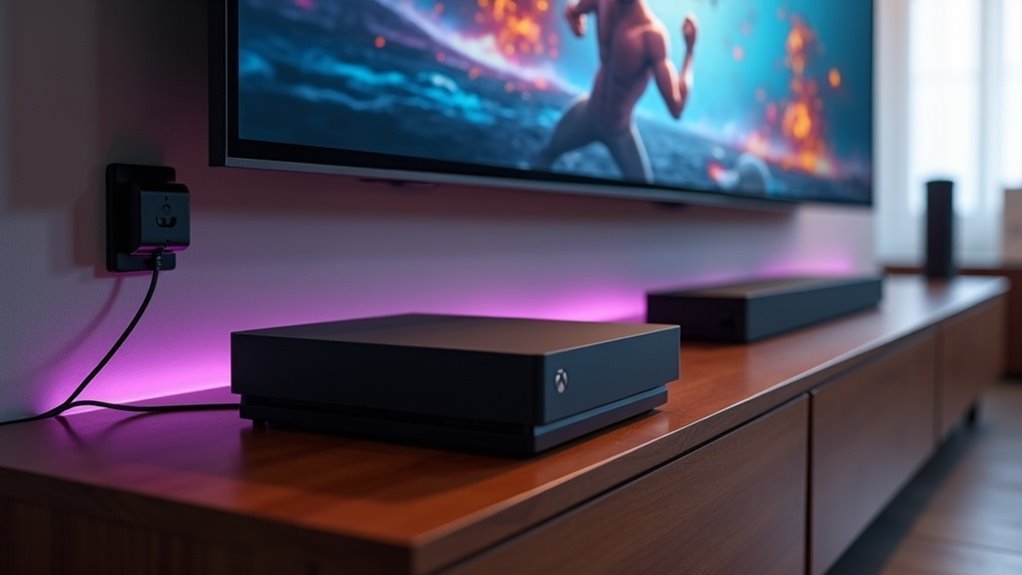
To set up your soundbar with the Xbox Series X, start by connecting the Xbox to the soundbar using an HDMI cable for optimal audio quality. Next, connect the soundbar to your TV. Access your Xbox audio settings under Profile & system to select the appropriate output option and audio format for the best sound performance. If your soundbar features HDMI ARC, it will make controlling your devices easier. For further guidance, troubleshooting tips, and recommended soundbar configurations, please explore our additional resources.
Key Takeaways
- Connect the Xbox Series X to the soundbar via HDMI, then link the soundbar to the TV using a second HDMI cable for optimal audio and video output.
- Access the audio settings on your Xbox to select the appropriate output option based on how you’ve connected your soundbar (HDMI or Optical).
- In the settings, choose the audio format that best suits your needs; opt for Bitstream out for immersive surround sound or Stereo uncompressed for standard stereo audio compatibility.
- Regularly check for firmware updates for your soundbar to ensure compatibility with new audio formats and to enhance performance.
- Experiment with various audio settings and configurations to achieve the best sound quality for gaming and media playback, maximizing your soundbar’s capabilities.
Connect Through an HDMI Audio Device
When you want to enhance your gaming experience, connecting your Xbox Series X to a soundbar via HDMI is a smart move.
Use an HDMI cable to link the Xbox’s output to the soundbar’s HDMI input. Then, connect a second HDMI cable from the soundbar to your TV for seamless audio and video.
Ensure that your soundbar supports HDMI ARC for easier control.
Finally, adjust your audio settings by navigating to Profile & system > Settings > General > Volume & audio output, and select HDMI audio for superior sound quality.
Enjoy immersive sound that elevates your gaming sessions!
Connect via Optical or 3.5mm (With Workarounds)
If your soundbar doesn’t support HDMI, you can still connect it to your Xbox Series X using optical or 3.5mm methods. Here are some options to consider for optimal sound quality:
- Connect your Xbox to the TV via HDMI, then use the TV’s optical out to transmit audio to your soundbar.
- Utilize an HDMI audio extractor to split the audio signal from your Xbox, allowing for connections via optical or 3.5mm.
- For a personal gaming experience, connect headsets directly to your Xbox controller using the 3.5mm jack.
- Keep in mind that these setups may require additional equipment and configuration to work effectively.
Choose the method that best aligns with your soundbar capabilities and gaming preferences.
Use Bluetooth-Compatible Devices (Indirectly)
Connecting Bluetooth-compatible soundbars to your Xbox Series X isn’t straightforward since the console doesn’t natively support Bluetooth audio.
To make it work, you’ll need a Bluetooth transmitter. Connect this transmitter to your TV’s headphone or optical output.
To connect your soundbar, use a Bluetooth transmitter linked to your TV’s headphone or optical output.
Once set up, you can pair your Bluetooth soundbar to receive audio wirelessly.
Keep in mind that the quality of Bluetooth audio can vary based on the transmitter you choose, so select one that meets your audio expectations.
This indirect method allows you to enjoy enhanced sound quality for your gaming experience without the hassle of wired connections.
Adjust Your Xbox Audio Settings
After setting up your Bluetooth soundbar, it’s time to optimize your audio settings on the Xbox Series X for the best sound experience.
Start by pressing the Xbox button and navigating to Profile & system > Settings > General > Volume & audio output.
Here’s how to get the most out of your soundbar:
- Select the appropriate audio output option, either HDMI audio or Optical audio, depending on how your soundbar is connected.
- Choose your audio format: Bitstream out for an immersive surround sound experience or Stereo uncompressed for stereo audio.
- Ensure your audio settings are compatible with your soundbar’s capabilities for optimal performance.
- Remember to update these settings whenever you switch audio devices to maintain top-notch audio quality.
Monitor and Connection Ports
When setting up your Xbox Series X with a soundbar, you’ll typically find two HDMI 2.0 ports and one DisplayPort, offering various connection options for your audio experience. For optimal sound quality, use an HDMI 2.1 port if your soundbar supports it, especially for advanced audio features like eARC. Keep in mind that most soundbars may lack enhanced audio return channel (eARC) support, which can limit certain audio capabilities. You might need specific settings adjustments to ensure proper audio output through your sound system.
| Connection Type | Resolution Support | Audio Capability |
|---|---|---|
| HDMI 2.0 | Up to 4K at 60Hz | Standard audio |
| HDMI 2.1 | Up to 4K at 120Hz | eARC supported |
| DisplayPort | Up to 4K at 60Hz | Standard audio |
Wiring Configuration and Setup
To set up your soundbar with the Xbox Series X, it’s essential to select the appropriate connection method for optimal audio performance.
HDMI provides the best audio and video experience, particularly if your soundbar supports HDMI ARC.
If HDMI options are unavailable on your soundbar, you can use an optical connection to ensure you achieve the best sound quality possible.
Soundbar Connection Methods
Setting up your soundbar with the Xbox Series X can significantly enhance your gaming experience, especially when you select the right connection method.
Here are some options to consider:
- HDMI Connection: Connect the Xbox directly to the soundbar using HDMI if your soundbar is equipped with an HDMI port.
- HDMI ARC: Use HDMI ARC to link the soundbar to the TV, allowing for seamless audio and video routing.
- Optical Cable: For soundbars that don’t support ARC, connect the Xbox directly to the TV, and then use an optical cable to route audio to the soundbar.
- HDMI Audio Extractor: If necessary, you can utilize an HDMI audio extractor to split audio from the video signal while maintaining video output to your display.
Choose wisely to maximize your sound quality and elevate your gaming immersion!
HDMI vs. Aux Output
While both HDMI and aux outputs can connect your Xbox Series X to a soundbar, they offer different audio experiences that are crucial for enhancing your home theater setup.
For superior audio quality, it’s recommended to use an HDMI cable, as it supports higher fidelity and advanced features like Dolby Atmos, which can significantly enhance your movie and gaming experience.
An aux connection, on the other hand, may compromise sound quality by lacking these enhancements. If a direct HDMI connection isn’t feasible, consider using an HDMI audio extractor to achieve optical or 3.5mm output.
Ensure your soundbar supports HDMI ARC or eARC for seamless integration, better audio management, and simplified device control.
Experimenting with different configurations can help you discover the ideal setup to fully enjoy your soundbar’s capabilities.
Sound Quality Considerations
When it comes to sound quality in soundbars, the connection type can make a significant difference—HDMI usually offers better audio than AUX due to its higher bandwidth capabilities.
Features like built-in subwoofers can greatly enhance your gaming and movie experience by delivering richer bass.
Additionally, it’s important to consider how well your soundbar manages signal pass-through, as this can impact overall performance and audio clarity.
HDMI vs. AUX Quality
How can you guarantee the best sound quality for your soundbar and Xbox Series X gaming experience? Opt for an HDMI connection instead of AUX. Here’s why:
- HDMI supports high-definition audio formats like Dolby Atmos and DTS, enhancing your soundbar’s performance.
- AUX often compresses audio, resulting in less clarity and a diminished sound experience.
- HDMI enables automatic power on/off for your soundbar, making it more convenient to use during gaming sessions.
- High-end soundbars thrive on HDMI connections, maximizing immersive audio capabilities for a more engaging experience.
Soundbar Features Impacting Audio
Choosing the right soundbar features can greatly enhance your audio experience with the Xbox Series X. When selecting a soundbar, look for models that offer HDMI ARC or eARC support, as they ensure higher quality audio and seamless integration, allowing you to control everything with a single remote.
Additionally, consider soundbars that support Dolby Atmos, which creates a three-dimensional sound field for a more immersive gaming and cinematic experience. Built-in subwoofers can significantly improve bass response, making gameplay more engaging.
Lastly, ensure your soundbar receives regular firmware updates to maintain compatibility and optimize performance with new audio formats. This way, you’ll enjoy the best sound possible from your soundbar.
Signal Pass-Through Performance
The sound quality of your gaming setup can be significantly affected by the signal pass-through performance of your soundbar.
To ensure optimal audio quality, consider the following factors:
- Utilize HDMI connections for superior fidelity audio.
- Verify if your soundbar features automatic power on/off capabilities.
- Upgrade to a premium soundbar with integrated subwoofers to boost bass response.
- Adjust your soundbar settings by enabling enhanced mode for improved 4K video pass-through.
Experimenting with various configurations and keeping the firmware for your soundbar up to date will help you achieve the best sound quality and enhance your overall audio pass-through experience.
Troubleshooting, Testing, and Community Feedback
While setting up your soundbar can significantly enhance your overall audio experience, troubleshooting any issues that arise is essential for achieving optimal sound quality.
Ensure your HDMI cables are rated for HDMI 2.0 or higher, and consider adjusting the enhanced mode settings if necessary.
Testing various configurations, such as utilizing an HDMI audio extractor, may help refine your audio output.
Regular firmware updates for your soundbar can also improve compatibility with other devices.
Lastly, don’t hesitate to share your experiences and insights in community forums; your feedback can be invaluable for others navigating similar soundbar setups and troubleshooting challenges.







