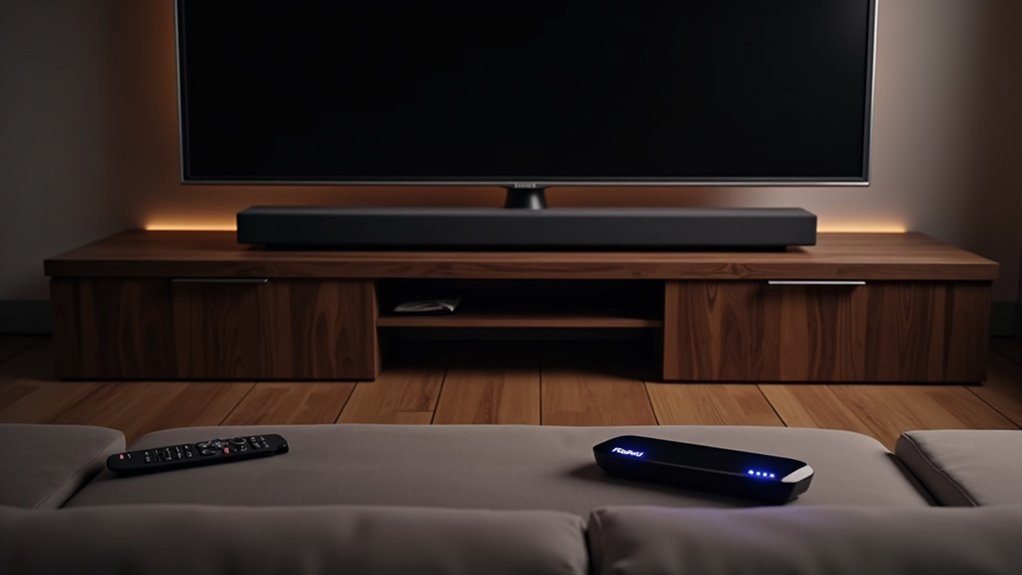
To set up your soundbar with Roku, first, ensure your Roku TV is updated and connected to the internet. Begin by plugging in your soundbar. Next, hold the HOME button on your Roku remote for 5 seconds to access the “Wireless sound bar” option. Allow time for automatic pairing. Connect your soundbar using either HDMI ARC or an optical cable. Finally, adjust the audio settings in the TV menu to route sound through the soundbar for optimal performance. Explore additional features to enhance your audio experience!
Key Takeaways
- Make sure your Roku TV is running OS 10.0 or later and is connected to a reliable internet connection.
- Plug the soundbar into a wall outlet and connect it using either the HDMI ARC port or an optical audio cable.
- On the Roku TV remote, press and hold the HOME button for 5 seconds, then choose the “Wireless sound bar” option.
- Go to the audio settings on your Roku TV to set the soundbar as the audio output and enable HDMI ARC.
- Test the sound output and troubleshoot any issues by checking all connections, restarting devices, and referring to the soundbar’s user manual if needed.
Requirements for Setup
To set up your soundbar with Roku, you’ll need to meet a few essential requirements.
First, verify that your Roku TV is connected to a stable internet connection and updated to OS 10.0 or later for compatibility.
Ensure your Roku TV has a stable internet connection and is updated to OS 10.0 or later for seamless compatibility.
Keep your Roku TV remote handy, as you’ll use it to navigate settings and initiate pairing.
Ensure your soundbar is powered on and plugged into a wall outlet to allow for automatic pairing.
Additionally, confirm that your soundbar is compatible with Roku TV for optimal audio performance.
Be prepared to follow voice prompts throughout the setup process for guidance.
Initial Setup Process
Starting the initial setup process for your soundbar with Roku is straightforward and quick.
Follow these steps to set up your Roku soundbar:
- Plug the soundbar into a wall outlet and verify it’s powered on.
- Press and hold the HOME button on your Roku TV remote for 5 seconds to access the setup menu.
- Select the “Wireless sound bar” option and press “Continue” to start the pairing process.
- Wait for the soundbar to pair automatically, followed by a software update.
A success screen will confirm completion, and you can choose to view the audio demo video or skip it for later.
Enjoy enhanced audio quality with your new soundbar!
Connecting the Soundbar
Connecting your soundbar to your Roku TV is essential for achieving the best audio experience.
Start by positioning the soundbar near the TV and use the HDMI ARC port for optimal sound quality. If your TV lacks HDMI ARC, you can connect via an optical audio cable instead.
Ensure the soundbar is powered on, and then check your TV settings to select the soundbar as the audio output device.
For setups with a Roku Stick, plug the Roku Stick into the soundbar’s HDMI input and connect the soundbar’s HDMI output to the TV.
Use your TV remote to navigate to the settings and confirm that sound is routed through the soundbar effectively.
Enjoy the enhanced audio capabilities that your soundbar provides!
Configuring TV Settings
Once your soundbar is connected, you’ll need to configure the TV settings to ensure the audio output is set correctly.
Follow these steps:
- Press the Home button on your Roku TV remote and navigate to the Settings menu.
- Select Audio settings and change the audio output device to your connected soundbar.
- Verify HDMI ARC is enabled to facilitate proper communication between the TV and the soundbar.
- Adjust the volume levels as needed for an ideal listening experience.
Save all changes, exit the settings menu, and test the sound output to confirm clarity and functionality through the soundbar.
Enjoy enhanced audio quality and an immersive experience with your new soundbar setup!
Troubleshooting Common Issues
While setting up your soundbar with Roku, you might encounter some common issues that can hinder your audio experience.
First, ensure that all cable connections are securely plugged in; loose connections can disrupt audio transmission. If you hear no sound, check the TV audio settings to confirm the soundbar is selected as the output device and that HDMI ARC is enabled.
Restart both the soundbar and Roku TV to resolve temporary glitches. Additionally, verify that the soundbar is powered on and set to the correct input mode.
If problems persist, consult the user manual for specific troubleshooting steps tailored to your soundbar model.
Exploring Soundbar Features
When you explore soundbar features, you’ll discover a variety of enhancements that can elevate your audio experience.
Here are four key features to evaluate:
- Bluetooth Connectivity: Stream audio from your smartphone or tablet without the hassle of extra cables, making it easy to enjoy your favorite tracks or podcasts.
- Preset Sound Modes: Enjoy tailored audio settings for movies, music, or news, optimizing your listening experience for any type of content.
- Firmware Updates: Stay up-to-date with the latest features and improvements through the Roku TV interface, ensuring your soundbar delivers peak performance.
- Voice Control: Easily adjust the volume and switch inputs hands-free with compatible smart devices, adding convenience to your audio setup.
Maintenance Tips
To keep your soundbar performing at its best, establish a regular cleaning schedule by dusting it with a soft, dry cloth.
It’s also essential to check for software updates periodically to ensure you have access to the latest features and improvements.
These simple steps will help you maintain optimal sound quality and extend the lifespan of your soundbar.
Regular Cleaning Schedule
Establishing a regular cleaning schedule for your soundbar is crucial for maintaining its audio quality and performance. Aim to clean it once a month.
Follow these steps:
- Use a microfiber cloth slightly dampened with a mild cleaning solution to wipe the exterior of your soundbar.
- Check and clean the speaker grilles and ports with a soft brush or compressed air to ensure optimal sound quality.
- Always power off and unplug your soundbar during cleaning to prevent any electrical issues.
- Keep your soundbar in a cool, dry location, away from direct sunlight and heat sources to avoid damage.
These practices will help guarantee your soundbar delivers peak performance and enhances your audio experience.
Software Update Checks
Keeping your soundbar’s software up to date is crucial for ensuring optimal performance and access to the latest features. Regular software update checks can help resolve connectivity issues and enhance functionality. Here’s how to check for updates on your soundbar:
| Step | Action |
|---|---|
| 1. Navigate | Go to the soundbar settings on your Roku TV |
| 2. Select | Choose the option to check for updates |
| 3. Connect | Ensure your soundbar is connected to the internet |
| 4. Update | Follow the prompts to install any new software |
While most soundbars will notify you of available updates, it’s always a good idea to check manually to ensure your device is running the latest software.







