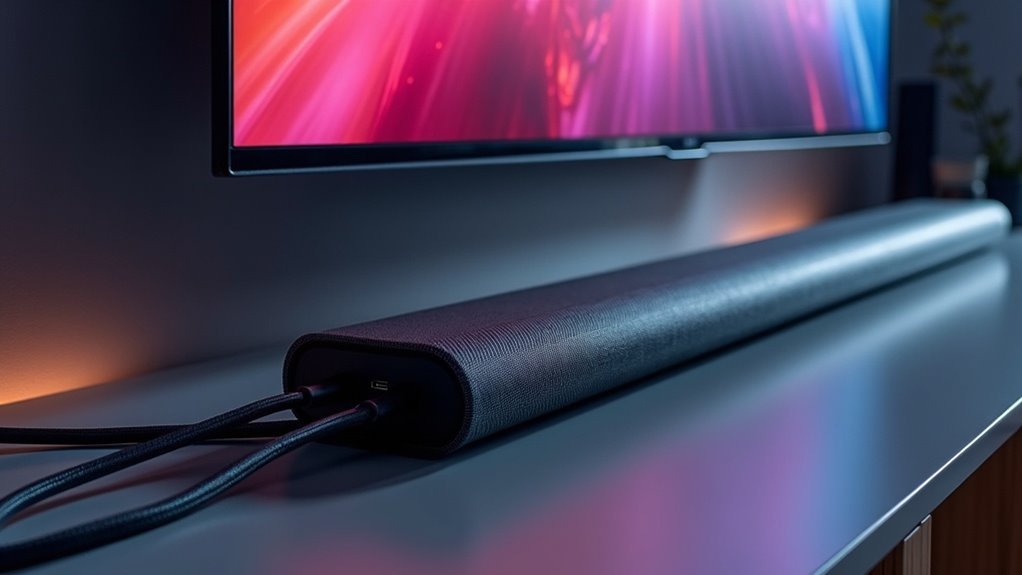
You can connect your soundbar to your smart TV using several methods, each enhancing your audio experience in unique ways. HDMI offers superior sound quality and connects easily via the HDMI ARC ports, making it a top choice for many users. Optical cables serve as a straightforward option, providing a reliable connection without the need for additional components. For those who prefer a wireless setup, Bluetooth is available; however, keep in mind that it may come with some sound quality trade-offs. Alternatively, Wi-Fi provides a clean and fuss-free connection, allowing for seamless audio streaming. Each connection method has its benefits, so stick around to discover detailed steps for each type and maximize your soundbar setup.
Key Takeaways
- Connect via HDMI using the HDMI ARC port for superior sound quality and easy control, providing an immersive audio experience with your soundbar.
- Use an optical cable for a straightforward wired connection that enhances audio performance and reliability.
- Pair wirelessly through Bluetooth for a convenient connection, although be mindful that sound quality may be compromised compared to wired options.
- Opt for a Wi-Fi connection through the SmartThings app for a clutter-free audio solution, allowing for seamless integration with your smart home setup.
- Ensure correct input settings on both the TV and soundbar to achieve optimal audio performance and enjoy the full capabilities of your soundbar.
Method 1: Connect With an HDMI Cable
When it comes to enhancing your home audio experience with soundbars, connecting your soundbar to a smart TV using an HDMI cable is one of the best methods available.
HDMI cables deliver superior sound quality through digital sound transmission, minimizing latency and boosting clarity. To connect your soundbar, plug one end of the HDMI cable into the TV’s HDMI IN (ARC) port and the other into the soundbar’s HDMI OUT (TV-ARC).
Make certain both devices are powered on, then select the Source option on the soundbar to D.IN. This setup guarantees ideal audio output for your viewing pleasure and allows you to fully enjoy the capabilities of your soundbar.
Method 2: Connect With an Optical Cable
Connecting your soundbar to a smart TV using an optical cable is a straightforward process that can greatly enhance your audio experience. Follow these steps for a seamless connection:
- Set your soundbar to D.IN input mode.
- Plug one end of the optical cable into the OPTICAL OUT port on your TV and the other into the DIGITAL AUDIO IN (OPTICAL) port on your soundbar.
- In your TV Settings, navigate to Sound and select Audio Out/Optical.
Ensure the optical cable’s U-shape aligns correctly with the ports for a secure fit.
If you encounter any issues, check other audio equipment and consult the troubleshooting guide.
Enjoy superior audio quality with your soundbar!
Method 3: Connect With Bluetooth
To connect your soundbar to a smart TV via Bluetooth, start by switching the soundbar to “BT” mode and enabling pairing.
Next, navigate to your TV’s settings, select Sound, and look for your soundbar in the Bluetooth Speaker List to finalize the connection.
Keep in mind that while Bluetooth provides a convenient wireless option for soundbars, it may not offer the same audio quality as a wired connection.
Bluetooth Connection Process
Many users appreciate the convenience of connecting a soundbar to their smart TV via Bluetooth for an enhanced audio experience.
To get started with this process, follow these steps:
- Set your soundbar to “BT” mode and press the Source button to activate pairing mode.
- On your TV, navigate to Settings, select Sound, and then access the Bluetooth Speaker List.
- Choose your soundbar from the list of available devices to complete the connection.
Ensure both devices are powered on and within range for optimal audio performance.
While Bluetooth offers ease of use, it may provide lower sound quality compared to wired connections.
Be sure to weigh your preferences before making the connection.
Sound Quality Considerations
While Bluetooth connections provide a convenient way to connect your soundbar to a smart TV, it’s crucial to consider the potential compromises in sound quality.
Generally, Bluetooth delivers lower audio fidelity compared to wired connections, such as those using an HDMI port or optical cable. Additionally, external interference from other devices can lead to instability and audio dropouts.
You may also encounter latency issues that can disrupt the synchronization between sound and visuals. To ensure optimal playback, always select your soundbar as the output device in your TV’s sound settings.
Ultimately, while Bluetooth offers convenience, it may come at the cost of sound quality.
Method 4: Connect With Wi-Fi
Connecting your soundbar to a smart TV via Wi-Fi provides a clutter-free, wireless solution that enhances your audio experience.
Connecting your soundbar to your smart TV wirelessly elevates your sound quality while keeping your space tidy and cable-free.
To establish a strong Wi-Fi connection, follow these steps:
- Select Wi-Fi mode on your soundbar.
- Ensure your mobile device is connected to the same Wi-Fi network.
- Utilize the Samsung SmartThings app to tap the Add icon (+) and select your soundbar brand.
Next, go to your TV Settings, select Sound, then Sound Output, and choose the Wi-Fi option.
This method streamlines your setup while delivering high-quality sound without the inconvenience of cables.
Enjoy the seamless audio experience that a soundbar can bring to your home entertainment system!
Related Questions and Support
Once you’ve set up your soundbar using Wi-Fi, you may have questions about troubleshooting or enhancing your audio experience.
If you’re experiencing no sound from your soundbar, check the HDMI (ARC) or optical port connections and ensure the correct input is selected on your TV.
For an immersive audio experience, consider connecting rear speakers and a subwoofer, as detailed in your user manual.
Numerous online resources are available to guide you through the setup process, while customer support via WhatsApp or LiveChat can assist with any further issues.
Additionally, remember to check your remote control settings; Bluetooth pairing may also enhance sound quality and functionality.
Contact Information
If you need assistance with your soundbar, multiple contact options are available to ensure you receive the support you require.
You can reach out through:
- WhatsApp or LiveChat for immediate help
- Phone support during designated hours for your region
- Online resources, including troubleshooting guides specific to soundbars
If you’re having trouble connecting your TV to the soundbar, or if you’re experiencing issues such as no sound, make sure to check the buttons on your remote or the optical port on the TV.
Connecting via Bluetooth is also a viable option.
Don’t hesitate to provide feedback through available forms to share your experiences!







