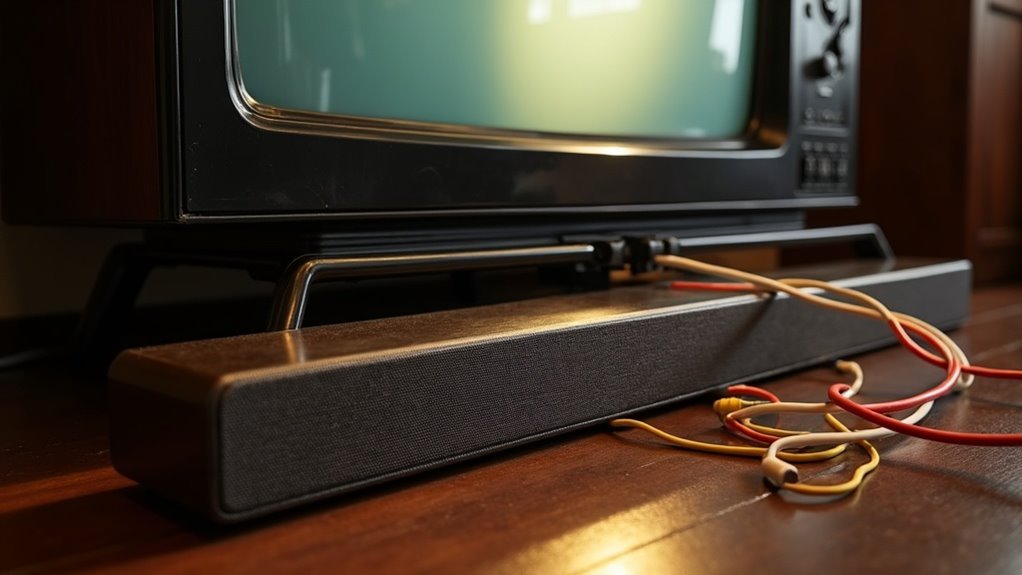
You can connect a soundbar to an older TV using several methods. First, check for optical audio outputs, as they provide superior sound quality. Alternatively, you can use RCA audio outputs for a straightforward connection. If your TV has a headphone jack, you can connect using a 3.5mm cable; however, be aware that this may lower audio fidelity. For wireless options, consider using a Bluetooth transmitter. It’s important to adjust your TV’s audio settings for optimal performance. You’ll find more helpful information on soundbars throughout our website.
Key Takeaways
- Connect soundbars to older TVs using RCA audio outputs with red and white cables for a straightforward analog connection.
- Optical outputs provide superior audio quality; use a TOSLINK cable to connect soundbars for enhanced sound.
- For TVs without optical output, use a 3.5mm headphone jack, though this may result in lower audio fidelity.
- Bluetooth transmitters can enable wireless soundbar connections if the TV lacks built-in Bluetooth capabilities.
- Always check audio output settings on the TV and ensure the soundbar input matches the connection method used.
Understanding Connection Options for Older TVs
When you’re connecting a soundbar to an older TV, it’s essential to know the available connection options for optimal sound quality.
Many older TVs come equipped with RCA audio outputs, allowing you to utilize RCA-to-3.5mm Y-cables for a straightforward connection. If your TV has an optical output, a TOSLINK cable can be used to achieve high-quality audio, supporting formats like 5.1 surround sound for an immersive experience.
Some models may have a 3.5mm headphone jack, but this often leads to lower audio fidelity. Always inspect the back of your TV for available ports to determine the best connection method for your soundbar, and be sure to adjust the settings for the best audio performance.
Choosing the Right Soundbar for Your Setup
When selecting a soundbar for your older TV, it’s crucial to ensure compatibility by matching its audio inputs, such as optical or RCA connections.
Additionally, look for soundbars that provide surround sound features to elevate your listening experience, even if your TV only has stereo outputs.
Lastly, consider budget-friendly options that fulfill your requirements without compromising on quality, particularly those priced under $200 that come with essential analog inputs.
Match Audio Inputs
To ensure your soundbar integrates seamlessly with an older TV, it’s crucial to match the available audio outputs. Check for optical audio, RCA, or 3.5mm inputs, as these are common on older models. Many budget soundbars under $200 offer RCA and 3.5mm connections for compatibility with TVs lacking HDMI ports. Soundbars with optical inputs provide significantly improved sound quality compared to analog connections.
| Audio Output Type | Soundbar Compatibility |
|---|---|
| Optical Audio | High-quality sound |
| RCA | Basic sound quality |
| 3.5mm | Limited compatibility |
| HDMI | Not applicable |
| Virtual Surround | Enhanced experience |
Consider Surround Sound Features
Finding the right soundbar for your older TV involves more than just matching audio inputs; surround sound features are crucial for elevating your audio experience.
When selecting a soundbar, opt for models that include analog RCA or optical inputs, as many older TVs don’t support HDMI ARC. Look for soundbars equipped with virtual surround sound technologies like DTS Virtual:X, which can effectively simulate surround sound effects, enhancing your audio experience even with basic stereo connections.
Additionally, consider soundbars that offer adjustable sound modes, allowing you to customize audio settings based on the type of content you’re watching. This level of flexibility ensures that you’ll enjoy improved sound quality tailored to your preferences, making your older TV feel much more modern.
Evaluate Budget Options
Budget-friendly soundbars can greatly enhance your older TV’s audio without breaking the bank.
When exploring budget options under $200, look for models with optical cables and RCA audio inputs for compatibility. Many soundbars in this price range offer features like DTS Virtual:X, which boosts sound quality even on a TV without advanced audio output.
Ensure that your soundbar includes necessary cables to avoid additional costs. While newer models focus on HDMI ports, budget soundbars still support essential inputs.
Prioritize options with adjustable audio settings to optimize your listening experience and make sure to connect your soundbar using the correct input for the best audio results.
Connecting via Optical and RCA Cables
Connecting your older TV to a soundbar is a simple process when you have the correct cables.
You can choose optical cables for superior audio quality or RCA cables for a more straightforward connection.
Let’s explore the steps for each method to ensure you get the most out of your soundbar and enhance your audio experience.
Optical Cable Connection Steps
To successfully link your soundbar to an older TV using an optical cable, begin by identifying the TV’s optical audio output, which has a distinctive squarish port with notches.
Connect one end of the optical cable to this port and the other end to the soundbar’s optical input.
Once the connection is made, adjust the TV’s audio settings to ensure sound is directed through the chosen audio-out port, allowing for fixed or variable output options as required.
Finally, verify that the soundbar is set to the correct input corresponding to the optical connection for optimal sound output from your TV.
RCA Cable Setup Guide
If your older TV lacks an optical output or you prefer a more straightforward connection method, using RCA cables is a viable option for linking your soundbar.
Start by locating the red (right) and white (left) audio outputs on your TV. Connect these to the corresponding RCA inputs on your soundbar, using RCA-to-3.5mm Y-cables if necessary.
For improved audio quality, verify your TV’s audio output settings are configured to the selected RCA port.
While optical audio connections offer better surround sound support, RCA cables remain an excellent choice for many budget soundbars, providing a reliable link to your older TV.
Utilizing Bluetooth for Wireless Connections
While many older TVs lack built-in Bluetooth capabilities, you can still enhance your audio experience by connecting a soundbar wirelessly using a Bluetooth transmitter. Begin by putting your soundbar into pairing mode. Next, use your TV remote to navigate to the Bluetooth settings to find and select your soundbar. Below is a quick comparison of connection options for soundbars:
| Connection Type | Audio Quality | Latency |
|---|---|---|
| Bluetooth | Lower | Possible |
| HDMI | Higher | Minimal |
| Optical | Higher | Minimal |
Remember to keep your devices updated to ensure optimal performance when streaming audio to your soundbar.
Adjusting TV Audio Settings for Optimal Performance
Achieving ideal audio performance from your soundbar requires careful adjustments to your TV’s audio settings.
Start by accessing the TV’s audio settings menu and set the audio output to align with your soundbar’s connection type, such as HDMI ARC or optical port. If your TV features a fixed audio output, switch it to variable for more convenient volume control.
To resolve any audio sync issues, adjust the audio delay settings to ensure that the sound matches the visuals perfectly. It’s also recommended to turn off any internal TV speakers to prevent conflicts with your soundbar.
Lastly, make it a habit to regularly check for firmware updates on both your TV and soundbar to improve compatibility and overall performance.
Troubleshooting Common Sound Issues
When you encounter sound issues with your soundbar connected to an older TV, it’s essential to quickly identify and resolve the problem for an optimal audio experience. Start by checking your audio output settings to ensure the correct connection method (HDMI ARC or Optical) is selected. Make sure all audio cables are secure, as loose connections can disrupt sound. If you’re using an optical digital audio connection, confirm that the soundbar input is set to optical. Additionally, updating the firmware on both devices and restarting them can resolve minor glitches. Use the table below to troubleshoot effectively:
| Issue | Possible Cause | Solution |
|---|---|---|
| No sound | Loose cable connections | Check and secure cables |
| Incorrect audio output | Wrong TV settings | Adjust audio output settings |
| Incompatible firmware | Outdated software | Update firmware |
| Wrong input selection | Incorrect soundbar mode | Select correct input mode |







