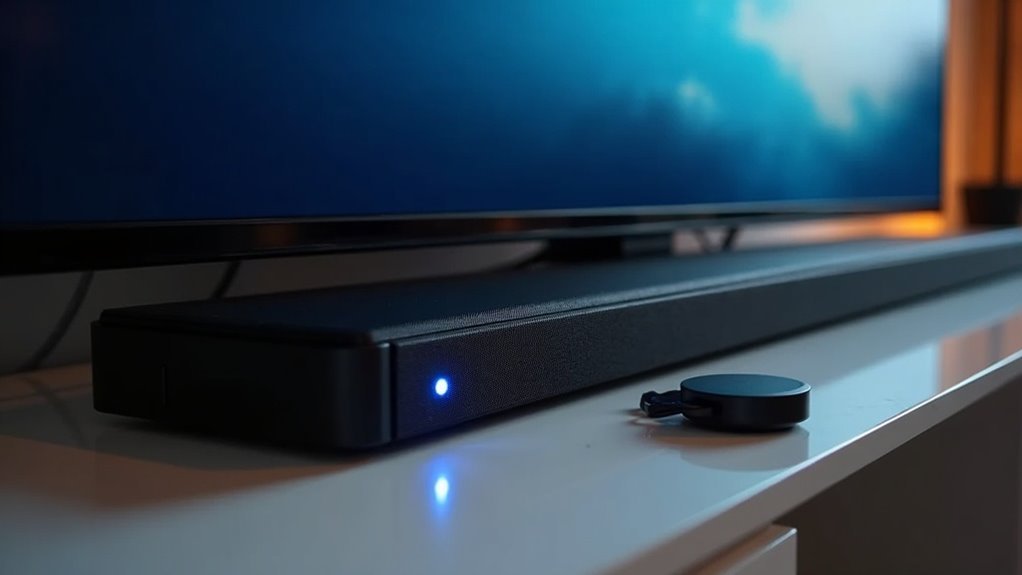
Soundbars connect to Chromecast primarily through HDMI ARC, Bluetooth, or optical cables. For an easy setup, simply plug your Chromecast into the TV and connect the soundbar using HDMI ARC for optimal audio quality. If your soundbar supports Bluetooth, you can stream music directly from your Chromecast for added convenience. Optical cables serve as a reliable alternative when HDMI is not an option. Interested in enhancing your soundbar setup for the best audio experience? There’s a wealth of information available to help you configure your system!
Key Takeaways
- Connect the Chromecast to the TV via HDMI, and link the soundbar to the TV or Chromecast for audio output.
- Use HDMI ARC for a streamlined connection, allowing both audio and video to flow with a single cable.
- If supported, connect the soundbar to Chromecast via Bluetooth for direct streaming.
- Optical audio cables can enhance sound quality when connecting the soundbar to the TV.
- Set the soundbar as the default audio output in the TV settings for optimal performance.
Understanding Chromecast and Soundbar Compatibility
When it comes to enhancing your home theater experience, understanding how soundbars connect to Chromecast is essential.
Typically, a soundbar connects to Chromecast via an HDMI cable, but it usually requires a direct link to the TV for optimal audio playback.
If your soundbar supports Bluetooth, you can connect it directly to Chromecast with Google TV for added convenience.
Be sure to set your soundbar as the audio output device in your TV settings to ensure proper audio routing.
Utilizing the HDMI ARC port can further simplify this connection, improving audio management and compatibility between your soundbar and Chromecast.
Connection Options for Soundbars
There are several effective ways to connect your soundbar to Chromecast, each offering unique advantages.
You can use an HDMI cable, plugging Chromecast into the soundbar’s HDMI in port for seamless audio playback. If your soundbar supports HDMI ARC (Audio Return Channel), it’ll receive audio from your Google TV while sending video to the TV.
Bluetooth connectivity is another option, allowing you to stream audio directly if your soundbar supports it.
Alternatively, you can use optical audio cables to connect your soundbar to the TV. Just make sure to set the soundbar as the default audio output device in your TV settings to enhance your audio experience.
Setting up Chromecast With Your TV
To set up your Chromecast with a soundbar and TV, begin by connecting the Chromecast device to an available HDMI port on your television.
If your soundbar includes an HDMI input, you can connect the Chromecast dongle to it; however, ensure that the soundbar is also connected to the TV for proper audio output.
If your soundbar has an HDMI input, connect the Chromecast to it, ensuring the soundbar is linked to the TV for audio.
For optimal sound quality, set the soundbar as your TV’s audio output device in the settings, utilizing either HDMI ARC or an optical cable.
Finally, make sure your Chromecast is configured in the Google Home app to ensure smooth integration with your soundbar and TV setup.
Configuring Soundbar Audio Output
To get the best audio experience from your soundbar while using Chromecast, it’s essential to connect it properly and adjust your TV’s audio output settings.
First, check your soundbar’s connection methods, such as HDMI ARC or optical, and ensure it’s set as the default audio device in your TV settings.
If you encounter any audio issues, follow troubleshooting steps specifically designed for soundbars to resolve them quickly and enhance your listening experience.
Soundbar Connection Methods
Connecting your soundbar to a Chromecast-enabled TV can significantly enhance your audio experience. To achieve the best sound playback, it’s essential to configure the audio output correctly.
You have a couple of options for connecting your soundbar: using HDMI ARC or optical audio cables. Both methods provide high-quality sound.
If your soundbar is equipped with Bluetooth, you can also connect it wirelessly to Chromecast devices that support Bluetooth audio output, offering added flexibility. However, keep in mind that the Chromecast 2nd generation doesn’t support Bluetooth, so a direct wired connection will be necessary in that case.
Always ensure compatibility between your soundbar and Chromecast for optimal audio performance during media playback, ensuring a seamless experience for all your entertainment needs.
Audio Output Settings
Once you’ve connected your soundbar to the TV, ensuring it’s set as the audio output device is essential for a seamless audio experience.
Follow these steps to configure your soundbar’s audio output:
- Access your TV’s audio settings menu.
- Select your soundbar as the preferred output device.
- If using Chromecast, confirm it’s linked with Google Home for audio management.
- For Bluetooth soundbars, connect directly to Chromecast for wireless streaming.
These steps will help you optimize the performance of your soundbar, enhancing your overall viewing and listening experience.
Troubleshooting Audio Issues
While you enjoy your favorite shows, audio issues with your soundbar can be frustrating. Start by checking your TV settings to ensure your soundbar is set as the default audio output. Verify that your streaming device, such as Chromecast, is correctly configured through the Google Home app and that all devices are connected to the same Wi-Fi network. Confirm the physical connections, making sure you’re using HDMI ARC, optical, or another compatible method. Finally, check the compatibility between your soundbar and Chromecast model, as not all soundbars support Bluetooth.
| Check Audio Issue | Action |
|---|---|
| No sound from soundbar | Verify output settings |
| Connections not secure | Check physical connections |
| Incompatible devices | Confirm compatibility |
| Ongoing issues | Reach out to the soundbar community |
Exploring HDMI ARC and Optical Connections
When connecting your soundbar to Chromecast, understanding HDMI ARC and optical connections is essential for optimizing your audio experience.
HDMI ARC offers benefits like high-quality audio and simplified setup, allowing for easier control of both your soundbar and TV with a single remote.
On the other hand, optical connections provide a reliable alternative for sound output, ensuring consistent audio quality.
Let’s delve into how each option enhances your soundbar setup and what you need to take into account for a seamless audio experience.
HDMI ARC Benefits
HDMI ARC offers several significant advantages for soundbar users compared to traditional optical connections, making it the preferred choice for many setups.
Here are some key benefits:
- Simplified Connections: With HDMI ARC, you only need one HDMI cable for both audio and video, helping to reduce cable clutter around your soundbar setup.
- Single Remote Control: This feature allows you to control your soundbar’s volume and power directly from your TV remote, enhancing convenience.
- High-Quality Audio: HDMI ARC supports advanced audio formats like Dolby Digital and DTS, delivering an immersive audio experience that complements your soundbar.
- Automatic Input Switching: When you power on your TV, the soundbar automatically switches to the correct input, streamlining your audio setup.
These features make HDMI ARC a smart choice for enhancing your modern soundbar experience.
Optical Connection Advantages
For those exploring soundbar connections, optical connections offer several distinct advantages, particularly when HDMI ARC isn’t an option.
Optical cables ensure high-quality sound transmission from your TV to the soundbar without any audio delay, making them a dependable choice for enhancing your audio experience. They can effectively transmit surround sound formats like Dolby Digital, elevating your sound quality significantly.
Furthermore, if your TV lacks HDMI ARC support, optical connections become crucial, providing an alternative that still improves sound quality compared to standard TV speakers.
Ultimately, they allow you to enjoy a richer viewing experience without the complexities associated with more advanced setups.
Setup Considerations
When connecting your soundbar to Chromecast, it’s essential to understand the distinctions between HDMI ARC and optical connections.
Here are some key setup considerations tailored for soundbar enthusiasts:
- HDMI ARC: Check for the “ARC” label on your TV’s HDMI port. Using HDMI ARC not only simplifies the setup but also minimizes cable clutter, enhancing your soundbar experience.
- Audio Configuration: Ensure that your soundbar is configured to receive audio through HDMI ARC. This will guarantee optimal performance and sound quality.
- Optical Connection: If you opt for an optical connection, make sure to connect the optical cable securely and change your TV’s audio output settings to “optical” for seamless audio transmission to your soundbar.
- Connection Order: Always connect the soundbar to the TV instead of directly to the Chromecast. This approach ensures effective and synchronized audio playback through your soundbar system.
Troubleshooting Common Audio Issues
To troubleshoot common audio issues with your soundbar and Chromecast setup, begin by ensuring that your soundbar is selected as the primary audio output device in your TV settings. Next, confirm that your Chromecast is set up correctly in the Google Home app. Check for any compatibility issues between devices and examine the physical connections to make sure they are secure. Lastly, ensure that the firmware for both your Chromecast and soundbar is up to date.
| Issue | Solution |
|---|---|
| No sound from soundbar | Verify audio output settings |
| Audio lag | Check for device compatibility |
| Intermittent sound | Inspect physical connections |
Utilizing Bluetooth and Alternative Inputs
When you’re looking to enhance your audio experience with soundbars, utilizing Bluetooth and alternative inputs can make a significant difference.
Here are some options to evaluate:
- Bluetooth Connection: Stream audio wirelessly from your smartphone or tablet directly to your soundbar for a convenient listening experience.
- 3.5mm Audio Jack: Use a wired connection for reliable audio, particularly useful if you want to avoid potential Bluetooth quality issues.
- HDMI ARC: Connect your soundbar via HDMI ARC for seamless audio transmission and control, allowing for easy integration with your television.
- Optical Out: Utilize optical cables for a high-quality wired connection, enhancing sound clarity and depth.
Explore these options to find the best setup for your soundbar and elevate your audio experience!
Recommendations for Optimal Audio Experience
Connecting your soundbar to Chromecast can significantly elevate your audio experience, especially when you employ the right methods.
For optimal sound quality, consider using HDMI ARC or optical out to create a direct connection to your TV, ensuring effective audio routing while Chromecast manages the video. Remember to select your soundbar as the audio output in your TV settings to prevent any playback issues.
If your soundbar has Bluetooth capability, it can connect directly to Chromecast; however, wired connections generally provide superior sound quality.
Additionally, think about using an audio extractor for simultaneous audio output.
Lastly, don’t forget to regularly check for firmware updates on both devices to improve compatibility and performance.







