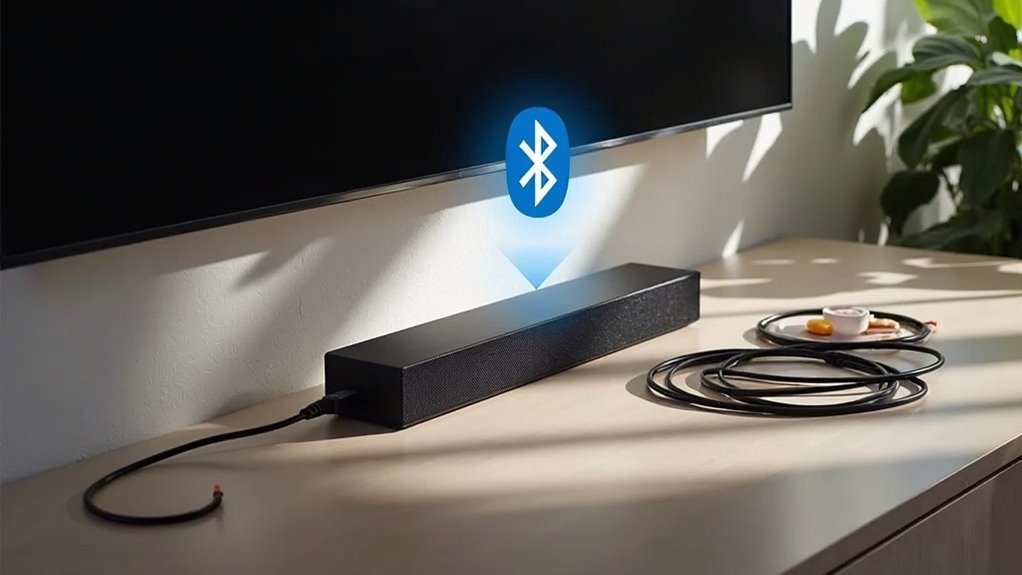
You can connect a soundbar to your TV without HDMI using several methods. One effective option is to use an optical cable, which delivers high-quality digital audio. For a wireless solution, Bluetooth can be utilized, although it’s important to consider potential audio lag. Older TVs can benefit from RCA cables or a 3.5mm AUX connection, offering straightforward analog sound options. For a more advanced setup, Wi-Fi streaming is available, allowing for high-quality audio formats. Explore these connection methods to enhance your audio experience with your soundbar.
Key Takeaways
- Soundbars can connect to TVs using optical cables, providing high-quality digital audio without the need for HDMI ports.
- Bluetooth pairing allows for wireless audio transmission, although it may introduce some audio lag.
- RCA cables can link soundbars via red and white connectors for analog audio output, making them suitable for older TV models.
- A 3.5mm AUX cable can connect the TV’s headphone jack to the soundbar, offering an affordable connection option.
- Wi-Fi streaming allows for high-quality audio and multi-room capabilities, provided both devices are connected to the same network.
Understanding Soundbar Connections Without HDMI
While many modern setups rely on HDMI for audio and video connections, soundbars can still connect to your TV through several alternative methods.
You can use optical cables for high-quality digital audio output, provided both devices have optical ports. Bluetooth pairing allows for wireless audio transmission, though be mindful of potential audio lag.
For older TVs, RCA audio cables offer a simple analog connection, linking your TV’s audio output to the soundbar. Additionally, a 3.5mm AUX cable can connect from the TV’s headphone jack, while Wi-Fi streaming capabilities let you use apps like Chromecast or AirPlay for a cable-free experience.
Understanding these options can help you enhance your soundbar setup without relying on HDMI connections.
Method 1: Optical Cable (TOSLINK)
Optical cables, also known as TOSLINK, provide a dependable method for connecting your soundbar to the TV, as long as both devices are equipped with the necessary optical ports.
Begin by connecting one end of the optical audio cable to the TV’s optical output port and the other end to the soundbar’s optical input. Make sure to adjust the TV audio settings to “Optical Out” to ensure audio transmission through this connection.
Optical connections are capable of delivering high-quality digital audio, making them well-suited for transmitting compressed 5.1- and 7.1-channel Dolby Digital and DTS sound.
However, it’s important to note that they don’t support more advanced formats like Dolby Atmos.
Method 2: Bluetooth Pairing
To connect your soundbar to the TV via Bluetooth, first ensure both devices are compatible and within 30 feet of each other.
Activate Bluetooth on both the soundbar and the TV, then navigate to the TV’s pairing menu to select your soundbar.
Keep in mind that while Bluetooth provides a convenient way to enjoy enhanced audio, it may introduce slight audio lag, which could impact gaming sessions or fast-paced movie viewing.
Bluetooth Setup Process
Setting up a Bluetooth connection between your TV and soundbar is a straightforward process, provided both devices are Bluetooth-enabled and within approximately 30 feet of each other.
Follow these steps to enhance your audio experience with your soundbar:
- Activate Bluetooth mode on both your TV and soundbar through their respective settings.
- Use your TV to scan for available Bluetooth devices.
- Select your soundbar from the list to initiate the pairing process.
- Adjust the audio output settings on your TV to ensure sound is directed to your soundbar.
Once completed, you’ll enjoy a wireless audio experience that elevates your home entertainment.
Just keep in mind that Bluetooth can introduce slight audio lag, making it ideal for casual viewing rather than high-stakes gaming or fast-paced action.
Audio Lag Considerations
While Bluetooth offers a convenient way to connect your soundbar wirelessly, it’s important to be aware of potential audio lag that can occur during playback.
This latency, often ranging from 100 to 200 milliseconds, can affect the synchronization between video and sound, making it less ideal for fast-paced content. The specific Bluetooth codecs used can influence the extent of audio lag, with aptX Low Latency being preferable but not universally available.
To mitigate lag, consider exploring the settings or features on your devices. However, for optimal performance, wired connections such as optical digital audio or RCA analog are recommended, as they provide instantaneous audio output without delay.
Device Compatibility Check
Before you proceed with connecting your soundbar via Bluetooth, it’s crucial to verify that both your TV and soundbar are Bluetooth-enabled.
Follow these steps to confirm compatibility:
- Activate Bluetooth on both your soundbar and TV.
- Navigate to your TV’s Bluetooth menu to search for available devices.
- Select your soundbar from the detected devices list, confirming any pairing codes if prompted.
- Adjust the TV’s audio output settings to use the soundbar as the primary audio source.
Ensuring that both devices are compatible will enhance your audio experience and allow for seamless connectivity.
Method 3: RCA (Analog) Cables
One effective way to connect a soundbar without HDMI is by using RCA (analog) cables. These cables typically have red and white connectors, where red represents the right audio channel and white the left.
To set it up, locate the “Audio Out” RCA ports on your TV and connect them to the “Audio In” ports on the soundbar, matching the colors.
Ensure that you adjust the TV’s audio output settings to “Analog” or “RCA” so the sound directs through these connections instead of the internal speakers.
Finally, set the soundbar to the correct input mode to receive the audio for an enhanced listening experience.
Method 4: 3.5mm AUX Cable
To connect your soundbar using a 3.5mm AUX cable, simply plug one end into the TV’s headphone jack and the other into the soundbar’s AUX input.
After making the physical connection, ensure that you adjust the TV’s audio output settings to route the sound correctly to the soundbar.
While this method is straightforward and budget-friendly, keep in mind that the audio quality may not be as high as with other connection options, such as optical or HDMI ARC.
Connection Setup Process
Connecting a soundbar using a 3.5mm AUX cable is a straightforward and effective way to enhance your TV’s audio output. Follow these steps for a seamless setup:
- Plug one end of the AUX cable into your TV’s headphone jack.
- Connect the other end to the soundbar’s AUX input.
- Set the TV’s audio output to “Headphone” or “External Speakers.”
- Ensure the headphone jack isn’t muted or volume-limited.
This method is particularly useful for older TVs that may not have digital audio ports, allowing you to enjoy improved sound quality.
A 3.5mm AUX cable is readily available and typically costs under $10, making it a budget-friendly choice for upgrading your audio experience with a soundbar.
Audio Quality Considerations
While using a 3.5mm AUX cable is a convenient method for connecting your soundbar, it’s important to consider the audio quality implications. This connection primarily provides stereo sound, which may not deliver the immersive experience offered by advanced formats like Dolby Atmos.
If you’re connecting a TV without HDMI, ensure that the headphone jack isn’t muted or volume-limited, as this can degrade audio quality. The 3.5mm AUX cable is particularly effective for older TVs that lack modern digital outputs, enhancing sound without the need for additional converters.
However, keep in mind that it may not fully utilize your soundbar’s capabilities, potentially limiting your overall audio experience.
Method 5: Wi-Fi Streaming
Wi-Fi streaming provides a seamless way to connect your soundbar to your TV without the clutter of cables, leveraging wireless technology for optimal audio transmission. To ensure effective use, make certain that both your soundbar and TV are connected to the same Wi-Fi network.
The benefits of Wi-Fi streaming for soundbars include:
- Support for high-quality audio formats, enhancing your listening experience
- Companion apps that simplify setup and management (such as those from Sonos and Bose)
- Multi-room audio capabilities, allowing you to enjoy synchronized sound throughout your home
- Popular streaming protocols like Chromecast and AirPlay, which enable direct streaming from your devices to your soundbar
This method not only streamlines your audio setup but also elevates your overall home entertainment experience.







