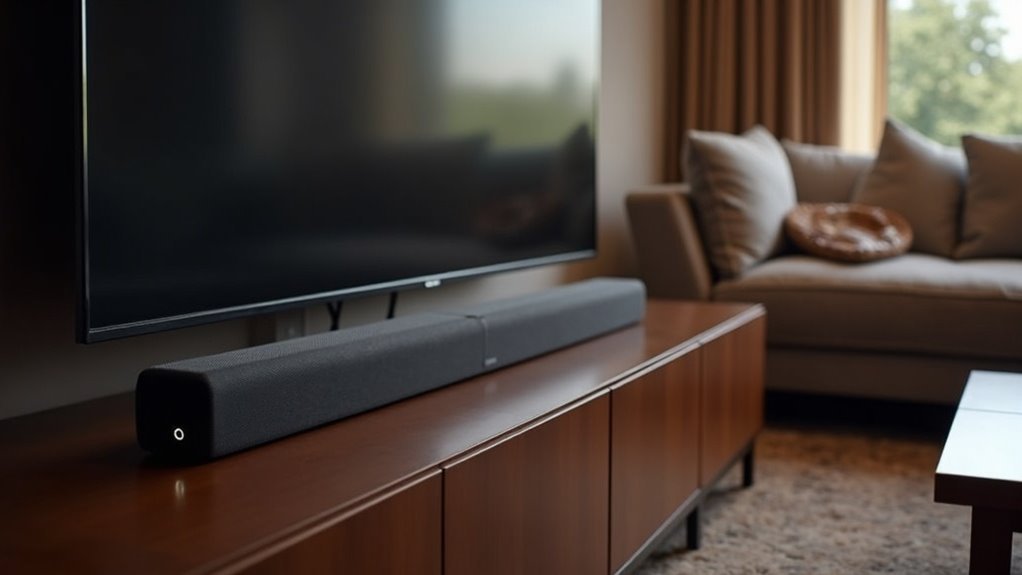
To connect a wireless subwoofer to your soundbar, begin by ensuring both devices are powered on and positioned within 15 feet of each other for optimal signal strength. For automatic pairing, simply switch on the subwoofer; a solid blue LED will indicate a successful connection. If the LED blinks blue, you will need to manually pair the devices by pressing the ID SET button on the subwoofer and the Mute button on the soundbar’s remote. Be sure to adjust the settings for peak performance. For additional insights on enhancing your soundbar experience, explore more information below.
Key Takeaways
- Ensure both the wireless subwoofer and soundbar are powered on and within 15 feet of each other for automatic pairing.
- Look for a solid blue LED light on the subwoofer to confirm successful pairing; a blinking blue light indicates a failure.
- For manual pairing, press the ID SET button on the subwoofer and the Mute button on the soundbar remote simultaneously.
- If connection issues occur, power cycle both devices and repeat the pairing process to resolve any problems.
- Adjust subwoofer settings through the soundbar for optimal audio performance and check for firmware updates regularly.
Understanding Wireless Subwoofer Connections
Understanding wireless subwoofer connections is essential for optimizing your soundbar audio experience.
A wireless subwoofer typically pairs automatically with your soundbar when both devices are powered on and within range, indicated by a solid blue LED light. If the connection fails, you can manually pair them by pressing the ID SET button on the subwoofer and the Mute button on your soundbar remote while both devices are off.
Keep your wireless subwoofer within 15 feet of the soundbar, avoiding interference from Wi-Fi routers. Monitor connection status through LED indicators to ensure seamless performance, and troubleshoot by power cycling both devices if necessary for optimal soundbar functionality.
Automatic Pairing Process
To connect your wireless subwoofer to the soundbar automatically, start by plugging in both devices and turning them on.
Ensure that they’re positioned within 15 feet of each other to minimize interference. If both devices are compatible, the subwoofer should pair with the soundbar within seconds.
Look for a solid blue LED LINK indicator on the subwoofer, which confirms successful automatic pairing. If the LED blinks blue, it indicates a connection failure, and you’ll need to follow manual pairing steps.
Keeping both devices powered on and close will enhance the chances of a successful automatic connection.
Enjoy an immersive audio experience with your soundbar and subwoofer setup!
Manual Pairing Steps
To manually pair your wireless subwoofer with the soundbar, start by preparing both devices for connection.
Ensure that your soundbar is powered on and in pairing mode. Next, power on your wireless subwoofer and also set it to pairing mode.
Follow the specific steps outlined in your soundbar’s user manual for the pairing process. If you encounter any issues during the setup, troubleshooting steps may be needed to resolve them.
Let’s break down these essential steps for a successful soundbar and subwoofer pairing.
Preparing Devices for Pairing
Before you start pairing your devices, ensure that both the soundbar and the wireless subwoofer are powered on.
Next, locate the ID SET button on the back of the subwoofer. Press and hold this button until the STANDBY indicator turns off and the LINK (Blue LED) starts blinking quickly.
While the soundbar is off, press and hold the Mute button on the remote until the ID SET message appears on the soundbar display.
Finally, turn on the soundbar. If the pairing is successful, the blinking Blue LED on the subwoofer will change to a solid light.
If the pairing fails, please repeat the process from the beginning.
Executing Manual Pairing Steps
Once your devices are powered on and ready, you can begin executing the manual pairing steps to connect your wireless subwoofer to the soundbar.
Follow these steps:
- Locate the ID SET or Pairing button on the back of the subwoofer and press it until the LED starts blinking.
- On the soundbar, press and hold the Mute button until the ID SET message appears on the soundbar display.
- Turn on the soundbar while the subwoofer’s LED is blinking to initiate the connection process.
- Wait for the LED on the subwoofer to become solid, indicating a successful pairing with the soundbar.
Now you can enjoy an enhanced audio experience with your soundbar and subwoofer working together seamlessly.
Troubleshooting Connection Issues
What should you do if your wireless subwoofer isn’t connecting to your soundbar as expected?
Start by ensuring both your soundbar and subwoofer are powered on. Press and hold the ID SET button located on the back of the subwoofer until its LED blinks quickly.
Then, on the soundbar remote, press and hold the Mute button until “ID SET” appears on the soundbar display. If the subwoofer’s LED doesn’t turn solid blue, power off the soundbar and reset the subwoofer by pressing the ID SET button again.
Afterward, repeat the pairing steps to successfully connect your subwoofer to the soundbar.
Troubleshooting Connection Issues
Troubleshooting connection issues between your wireless subwoofer and soundbar can often be resolved with a few simple steps. Follow these guidelines:
- If the subwoofer’s blue LED blinks, manual pairing is needed. Press and hold the ID SET button on the back until the STANDBY light turns off and the LINK LED blinks quickly.
- A red LED indicates a bad connection; verify the subwoofer isn’t in standby mode.
- Keep both devices within 15 feet of each other, free from obstacles.
- If issues persist, power cycle both devices and reconnect, checking the LED indicators for successful pairing.
For more detailed information about soundbars, including features and troubleshooting, please explore our website.
Adjusting Subwoofer Settings
After resolving any connection issues, it’s time to focus on fine-tuning your soundbar’s settings for the best audio experience.
Start by adjusting the subwoofer settings within the soundbar to align with its output, typically setting it to the maximum frequency. Use the volume control options on the soundbar to balance the subwoofer output with the overall sound.
If your soundbar features adjustable subwoofer settings, fine-tune the subwoofer level to suit your room’s acoustics. Additionally, experiment with any available phase adjustments to enhance bass response.
Regularly check for firmware updates on the soundbar to guarantee peak performance and access new sound customization options.
Seeking Further Assistance
If you’re still experiencing difficulties with your wireless subwoofer connection, seeking further assistance can be a crucial step.
If you’re having trouble with your wireless subwoofer, don’t hesitate to seek further assistance for a solution.
Here are some actions to consider:
- Press the ID SET button on the subwoofer and the Mute button on the soundbar remote for manual pairing.
- Ensure both the soundbar and subwoofer are plugged in and powered on.
- Check the LED indicator: a solid blue light indicates a successful connection, while a blinking light suggests there may be issues.
- Position the subwoofer closer to the soundbar (within 15 feet) and remove any potential interference from other electronic devices.
For detailed troubleshooting, please refer to the user manual or reach out to the manufacturer’s support for additional guidance.







